
Connecting Jobber
Connect your Jobber account to Patcher so your appointments, clients, and schedule stay in sync. Once connected, Patcher uses your live Jobber data to find openings, send proposals, and write confirmed bookings back to Jobber.
Before you start
- You need an active Jobber account with permission to install third-party apps.
- You must be an admin on the Patcher business you're connecting.
- Make sure your technicians, services, and working hours are set up in Jobber first — Patcher reads them during the first sync.
Connect Jobber to Patcher
- In Patcher, open the business you want to connect and go to Settings → Connection.
- Under Scheduling system, select Jobber.
- Click Connect Jobber. Patcher redirects you to Jobber's secure sign-in page.
- Sign in to Jobber and review the permissions Patcher is requesting. Click Allow Access.
- Jobber redirects you back to Patcher. You'll see a confirmation banner and the connection status changes to Connected.
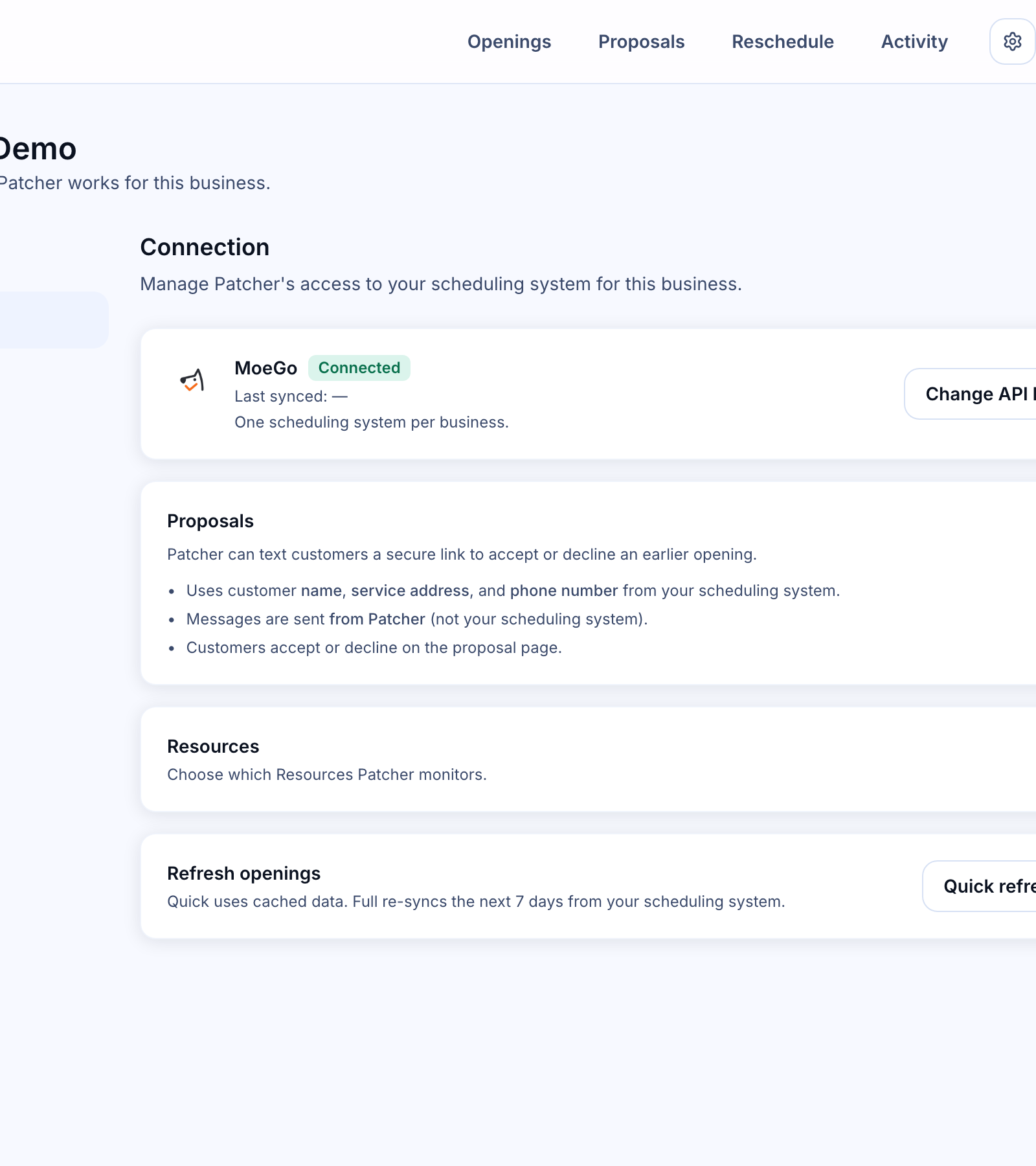
What Patcher reads from Jobber
After you connect, Patcher pulls the data it needs to keep your schedule accurate and build proposals:
- Clients — names, phone numbers, email addresses, and service addresses.
- Jobs and visits — scheduled, upcoming, in-progress, completed, and cancelled visits, including assigned technicians and timing.
- Technicians — the users on your Jobber account who get assigned to visits.
- Account details — your Jobber company name, used to label the connection inside Patcher.
Patcher also listens for Jobber webhooks so new bookings, reschedules, and cancellations show up in Patcher automatically — you don't need to trigger a manual sync.
What Patcher writes back to Jobber
When a customer accepts a proposal, Patcher writes the new appointment back to Jobber so your team sees it in the same place they already work. Reschedules and cancellations accepted through Patcher also update the matching Jobber visit.
After you connect
- Open the Resources section of Connection settings to review which technicians and services should be available for proposals.
- Enable the resources you want Patcher to consider when it looks for openings.
- Let the first sync finish. Large Jobber accounts can take a few minutes to fully import.
Reconnecting or disconnecting
Jobber requires a secure refresh of the connection from time to time. If you ever see a Reconnect required status in Patcher, click Reconnect Jobber and sign in again — your settings and history stay intact.
To remove the connection, open Settings → Connection and click Disconnect. Patcher stops reading from and writing to Jobber immediately. You can reconnect at any time.
Troubleshooting
- "Could not connect" after you click Allow Access — make sure pop-up blockers and ad blockers aren't interrupting the redirect, then try again.
- You don't see the Allow Access button in Jobber — your Jobber user may not have permission to install apps. Ask your Jobber account owner to connect Patcher, or to grant you app-install permission.
- Status shows Reconnect required — click Reconnect Jobber and sign in again. This usually happens after a Jobber password change or a long period without activity.
- A technician or service is missing from Patcher — add or activate them in Jobber first, then refresh openings from the Connection page.
- A booking in Jobber isn't showing up in Patcher — give the webhook a minute to arrive. If it still doesn't appear, use Refresh openings on the Connection page to force a fresh read.
If you're still stuck, reach out to Patcher support with your business name and the time you tried to connect — we can check the sync logs and help you get unstuck.