
Connecting MoeGo
This article walks you through connecting your MoeGo account to Patcher so Patcher can read your schedule and help you fill openings and reschedule appointments.
Overview
Patcher reads your bookings from MoeGo to find openings worth filling and appointments worth rescheduling. When your customer accepts a proposal, Patcher updates your MoeGo calendar to match, so both systems stay in sync. Patcher never changes your calendar without your approval.
You connect MoeGo once per business. The connection uses a MoeGo API key, which you paste into Patcher during setup.
Before you start
- You need to be an admin on your Patcher organization. Only admins can connect a scheduling tool.
- You need a MoeGo API key. Generate or copy one from your MoeGo account settings, or contact MoeGo support if you can’t find it.
Connecting MoeGo
You can connect MoeGo any time from the Connection page in your business settings. If you’re setting up Patcher for the first time, the onboarding flow walks you through the same steps.
- In Patcher, open Settings → Connection for the business you want to connect.
- Select MoeGo from the list of scheduling tools.
- Click Connect MoeGo.
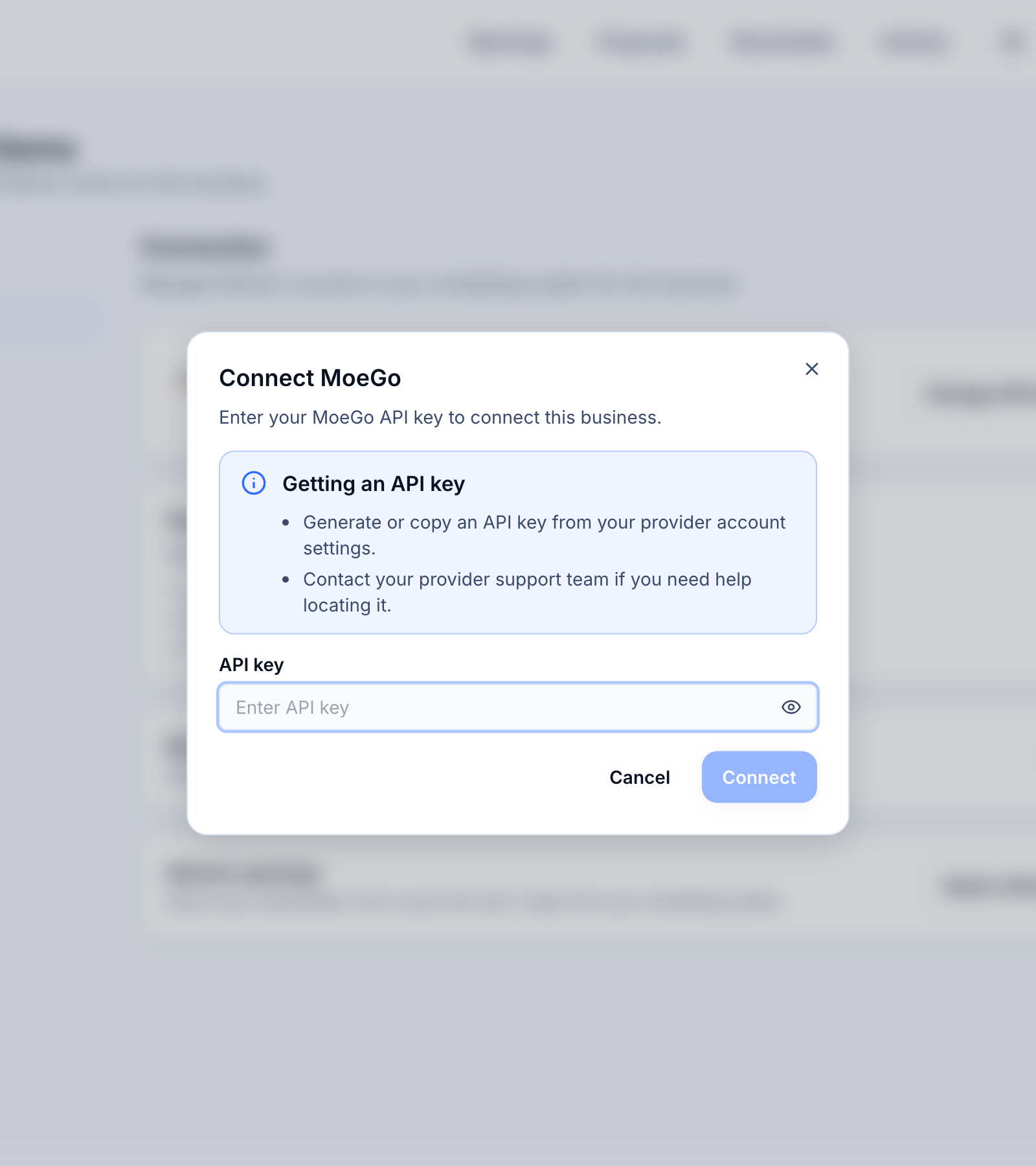
- In the dialog that opens, paste your MoeGo API key into the API key field. You can click the eye icon to show the key if you want to double-check it.
- Click Connect.
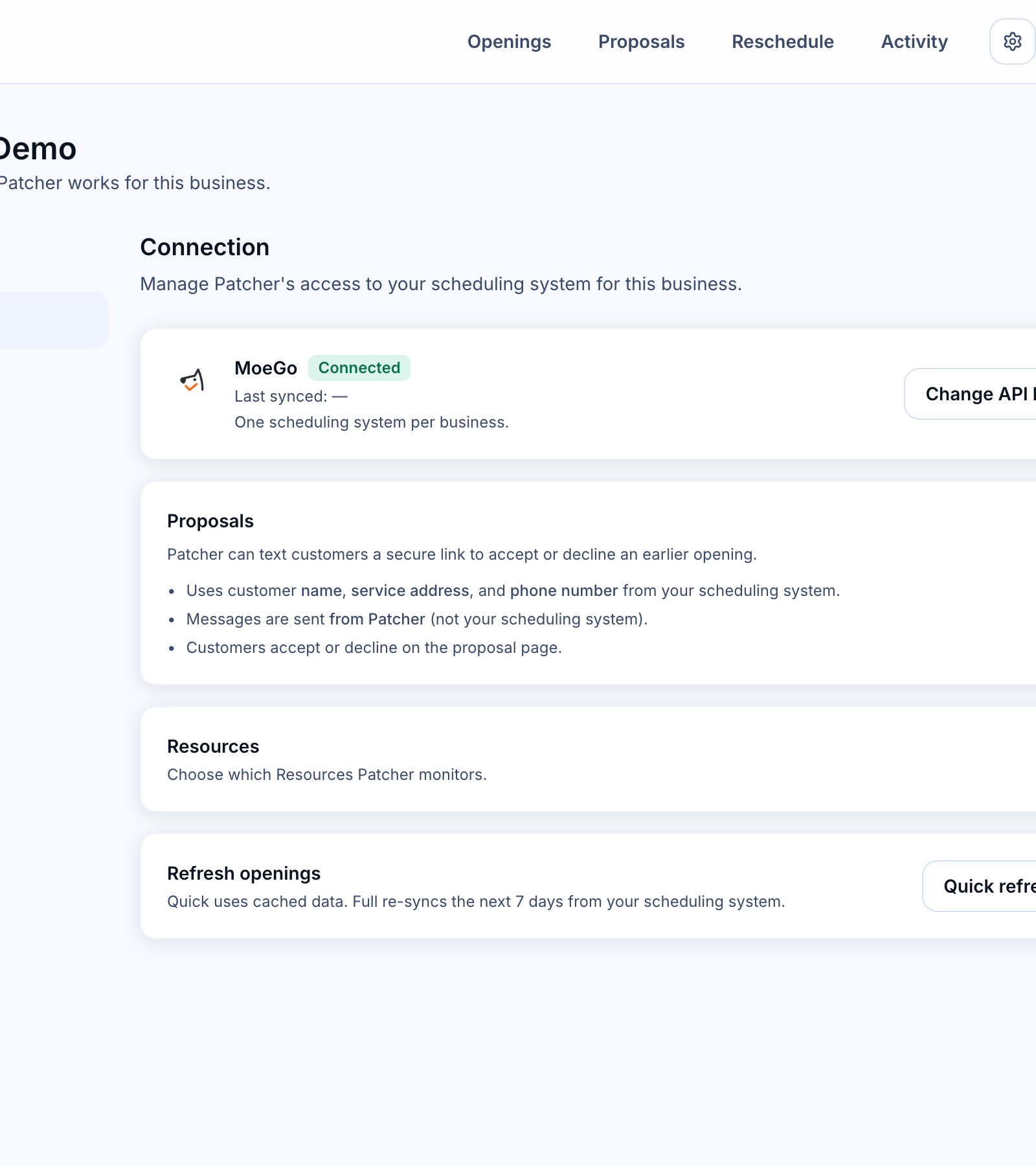
Patcher checks your API key with MoeGo. If the key works, you see a Connected successfully message and the page updates to show MoeGo as connected.
Your API key is stored encrypted. Patcher uses it only to read your schedule and to update appointments you’ve approved.
What happens next
As soon as you connect, Patcher gets a few things ready in the background so you can start working right away:
- Imports your staff. Patcher pulls your staff list from MoeGo so you can choose which ones Patcher should manage.
- Loads your customers. Patcher loads your MoeGo customer list so it can message them when you approve a proposal.
- Starts listening for changes. Patcher stays in sync with MoeGo as your schedule changes throughout the day.
- Prepares your text messaging. Patcher lays the groundwork for sending proposals by text so you’re ready once your SMS setup is approved.
Your next step is to choose which staff Patcher should manage. The Connection page prompts you to do this right after the connection succeeds.
If the connection fails
If your API key isn’t accepted, Patcher shows an error in the dialog. The most common causes:
- The key is wrong or expired. Copy the key from MoeGo again — extra spaces at the start or end will cause it to fail.
- The key doesn’t have the right access. Contact MoeGo support and confirm the key can read companies, appointments, staff, and customers.
- MoeGo is temporarily unreachable. Wait a minute and try again.
Changing or disconnecting MoeGo
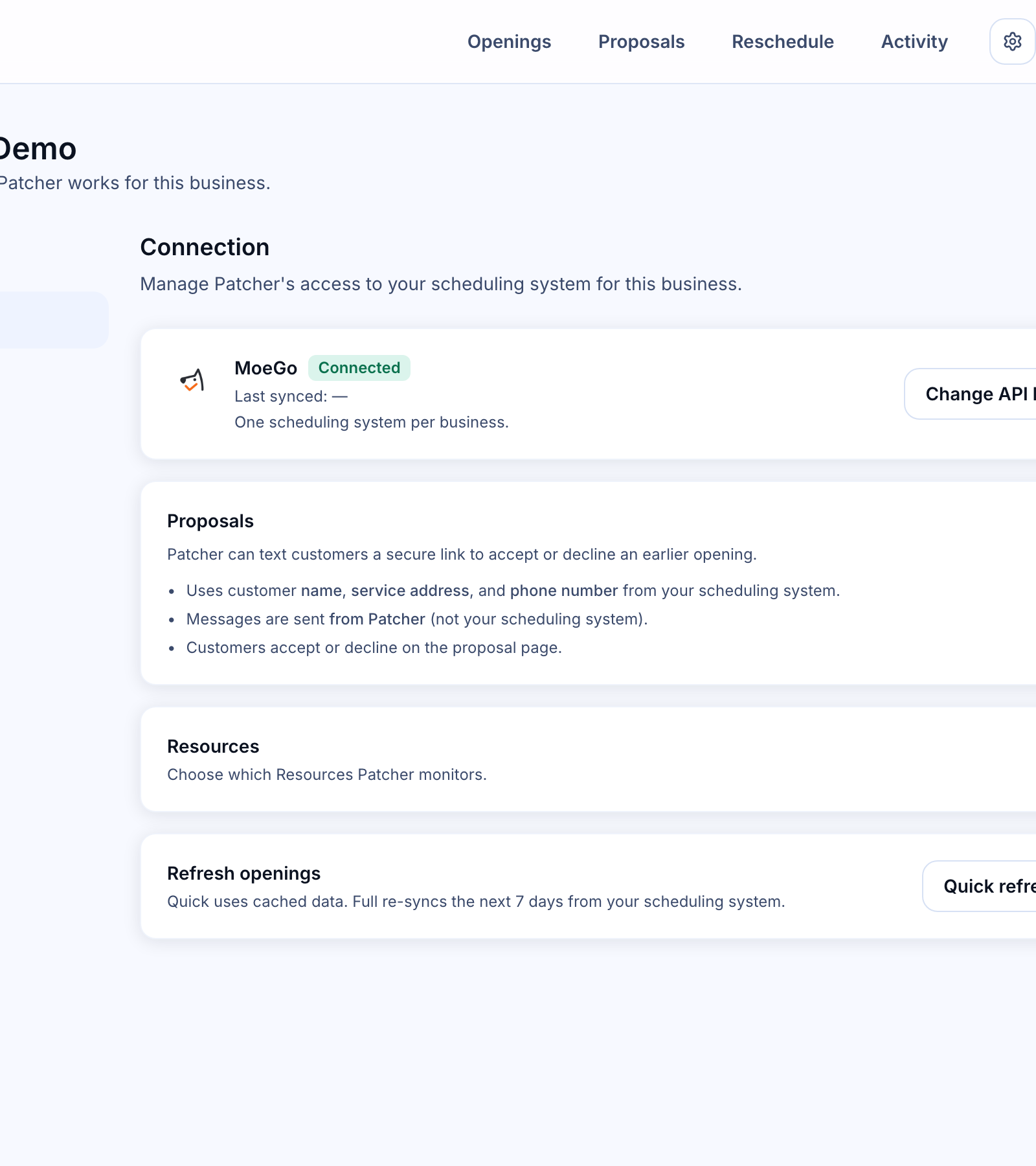
To update your API key — for example, if you rotate it in MoeGo — open Settings → Connection, click Change API key, and paste the new key.
To disconnect MoeGo, click Disconnect on the same page. Disconnecting stops Patcher from reading your MoeGo schedule and cancels any proposals that haven’t been sent yet.
You can only connect one scheduling tool per business. If you want to switch to a different scheduling tool, disconnect MoeGo first.