
Reconnecting MoeGo
If Patcher loses access to your MoeGo account, your connection needs to be reconnected before Patcher can keep syncing appointments, finding openings, and sending proposals. This article walks through reconnecting, rotating your API key, and what happens automatically behind the scenes.
When you need to reconnect
Patcher connects to MoeGo with an API key. If that key is revoked, regenerated, or otherwise stops working, your connection moves into a Reauth required state. You will see a few signs this has happened:
- A yellow Connection needs attention banner on pages that rely on MoeGo, with a Go to connection settings button.
- A Reauth required pill next to MoeGo on your business’s Connection settings page.
- An email to your team letting you know the connection was lost, if you have integration notifications turned on.
[SCREENSHOT: “Connection needs attention” banner as it appears on an Openings or Proposals page]
Reconnect your MoeGo account
Reconnecting replaces the old API key with a new one. Only organization owners and admins can manage connections.
- In MoeGo, generate or copy a fresh API key from your account settings. If you are not sure where to find it, reach out to MoeGo support.
- In Patcher, open Business settings → Connection.
- On the MoeGo card, click Change API key. This is also the button you use when Patcher is in the Reauth required state — there is no separate “Reconnect” button for MoeGo.
- In the Connect MoeGo dialog, paste your key into the API key field and click Connect.
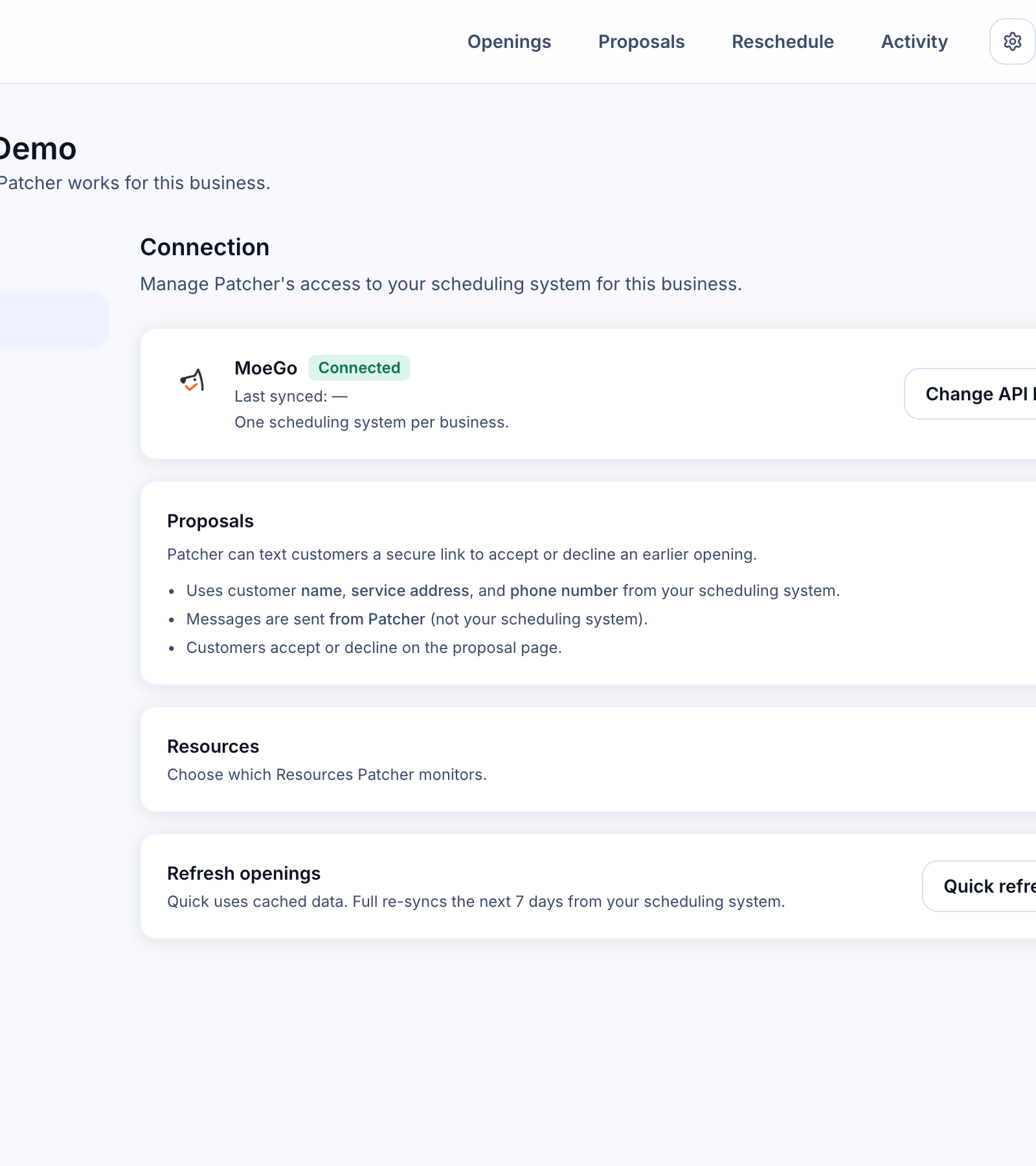
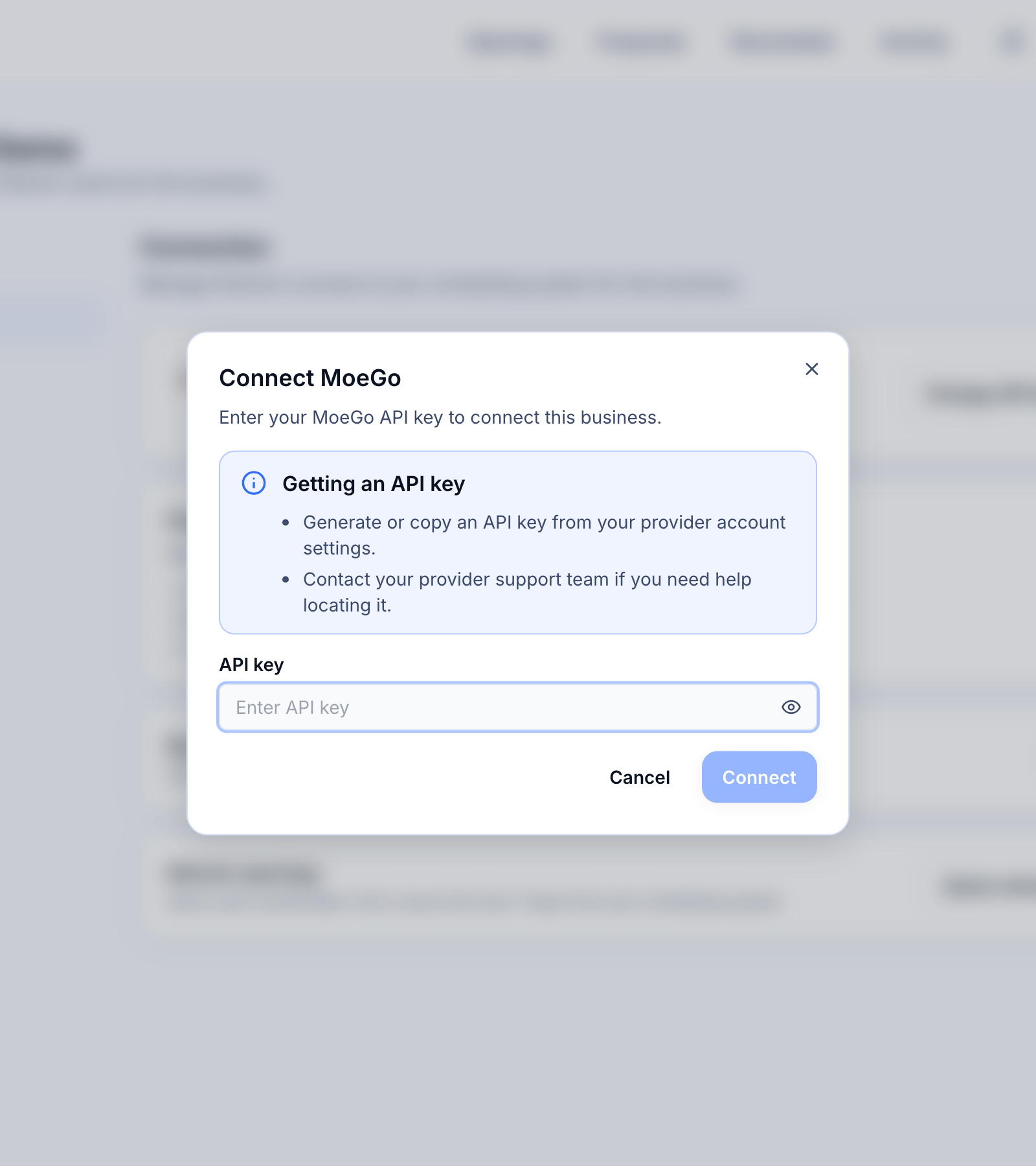
When the key is valid, you see a Connected successfully confirmation and the status pill flips back to Active. If the key is not accepted, the dialog shows an error and you can try again without losing any of your settings.
Rotating your API key without waiting
You can change your MoeGo API key any time, even when your connection is healthy — for example, during a routine security review. The steps are the same:
- Generate a new API key in MoeGo.
- In Patcher, open Business settings → Connection.
- Click Change API key, paste the new key, and click Connect.
Your appointments, openings, proposals, and business settings are preserved.
Change API key vs. Disconnect
Important: Change API key and Disconnect are not the same action, and they have very different effects on your data.
- Change API key swaps the credential on your existing connection. Active proposals, appointments, openings, staff mappings, and business settings all stay in place. This is what you want whenever you are fixing a broken connection or rotating a key.
- Disconnect fully removes the connection. Any proposals that are currently out with your customers are canceled, and your customers do not receive a follow-up text about the cancellation. Your historical records stay in Patcher, but when you connect again you will need to re-confirm your staff mappings before Patcher can find openings.
If you are only trying to fix a broken connection, always use Change API key, not Disconnect.
What happens after you reconnect
Once your new API key is accepted, Patcher takes care of the rest automatically:
- Refreshes your staff and resource list from MoeGo.
- Resumes listening for appointment changes so openings and proposals stay accurate.
- Refreshes your customer list so SMS messages go to the right people.
There is nothing extra to click. Within a minute or two, the Connection settings page shows a recent Last synced time under MoeGo.
Troubleshooting
- “Invalid API key” error. Double-check that you copied the full key with no leading or trailing spaces, and that the key has not already been revoked in MoeGo.
- No Change API key button. Only organization owners and admins can manage connections. If you do not see the button, ask an owner or admin on your team to reconnect.
- Openings are missing after reconnect. Give the first sync a minute to finish. If openings still do not appear, open Business settings → Resources and make sure your staff are still mapped.