
Notification channels: email and Slack
Choose how Patcher reaches you when something happens in your business — by email, by Slack, or both. This article walks through the Channels card under Settings → Notifications.
Overview
Each business has its own notification settings, and those settings apply to your account at that business. If you belong to more than one business, you can pick different channels in each.
Patcher supports two channels today:
- Email — sent to the address on your account.
- Slack — posted to a channel in your workspace after you connect Slack to the business.
The channels you turn on here decide where notifications go. The Notify me when section below controls which events you receive. If you turn off every channel, event toggles are hidden until you turn one back on.
Open the Channels card
- Open the business you want to configure.
- Go to Settings → Notifications.
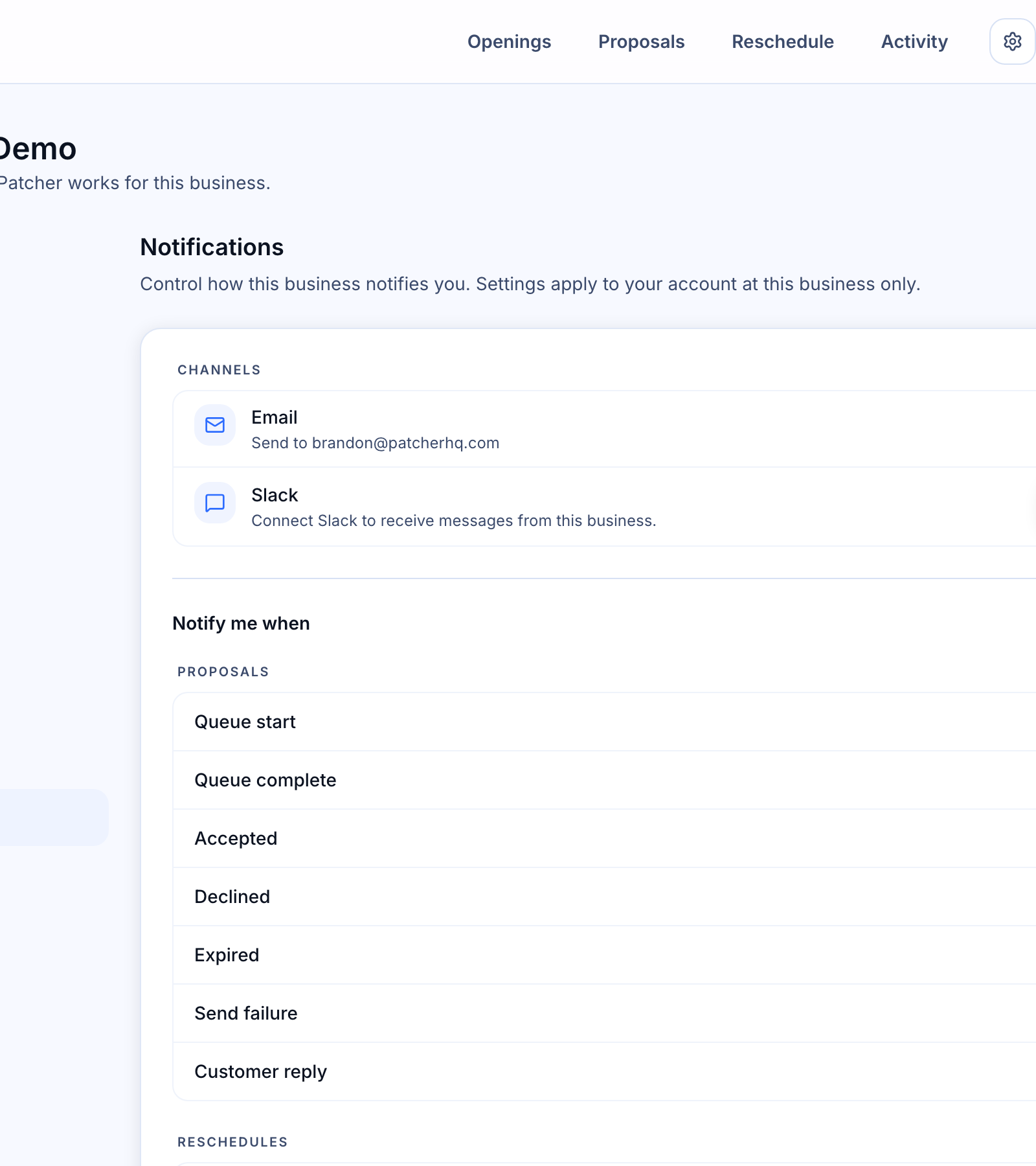
- Look at the Channels card at the top of the page.
Turn email on or off
The Email row shows the address Patcher will use — that is the email on your Patcher account.
- Toggle Email on to start receiving messages at that address.
- Toggle Email off if you would rather only get notifications in Slack.
Turning email off here only affects this business. You will still receive email from any other business where email is on.
Connect Slack
Before you can use Slack as a channel, you need to connect your Slack workspace to the business. You only do this once per business.
- In the Slack row, click Connect Slack.
- Patcher opens Slack in a new window. Sign in if you are not already, and pick the workspace you want to use.
- Approve the permissions Patcher requests. Slack sends you back to the Notifications page.
- A channel picker opens automatically. Choose the channel where Patcher should post, then click Save.
[SCREENSHOT: Slack row in the connected state showing “Posting to #channel-name” and an Active pill]
Once the workspace is connected and a channel is picked, the Slack toggle becomes available.
Turn Slack notifications on or off
- Make sure Slack shows as Active and a channel is listed under the Slack row.
- Use the Slack toggle to start or stop posting to that channel.
Turning the toggle off leaves the workspace connected but pauses Slack posts for this business. Turn it back on any time without reconnecting.
Change the Slack channel
You can move notifications to a different channel without disconnecting.
- In the Slack row, click Change channel.
- Pick the new channel from the list.
- Click Save. Patcher confirms with “Posting to #new-channel” and future notifications go there.
Reconnect or disconnect Slack
If your Slack connection expires, the row shows Reauth required with a Reconnect button. Click it and walk through the Slack sign-in again — your channel selection is kept.
To remove Slack entirely, click Disconnect in the Slack row and confirm. Patcher stops posting immediately. You can reconnect any time by clicking Connect Slack again.
What to do if all channels are off
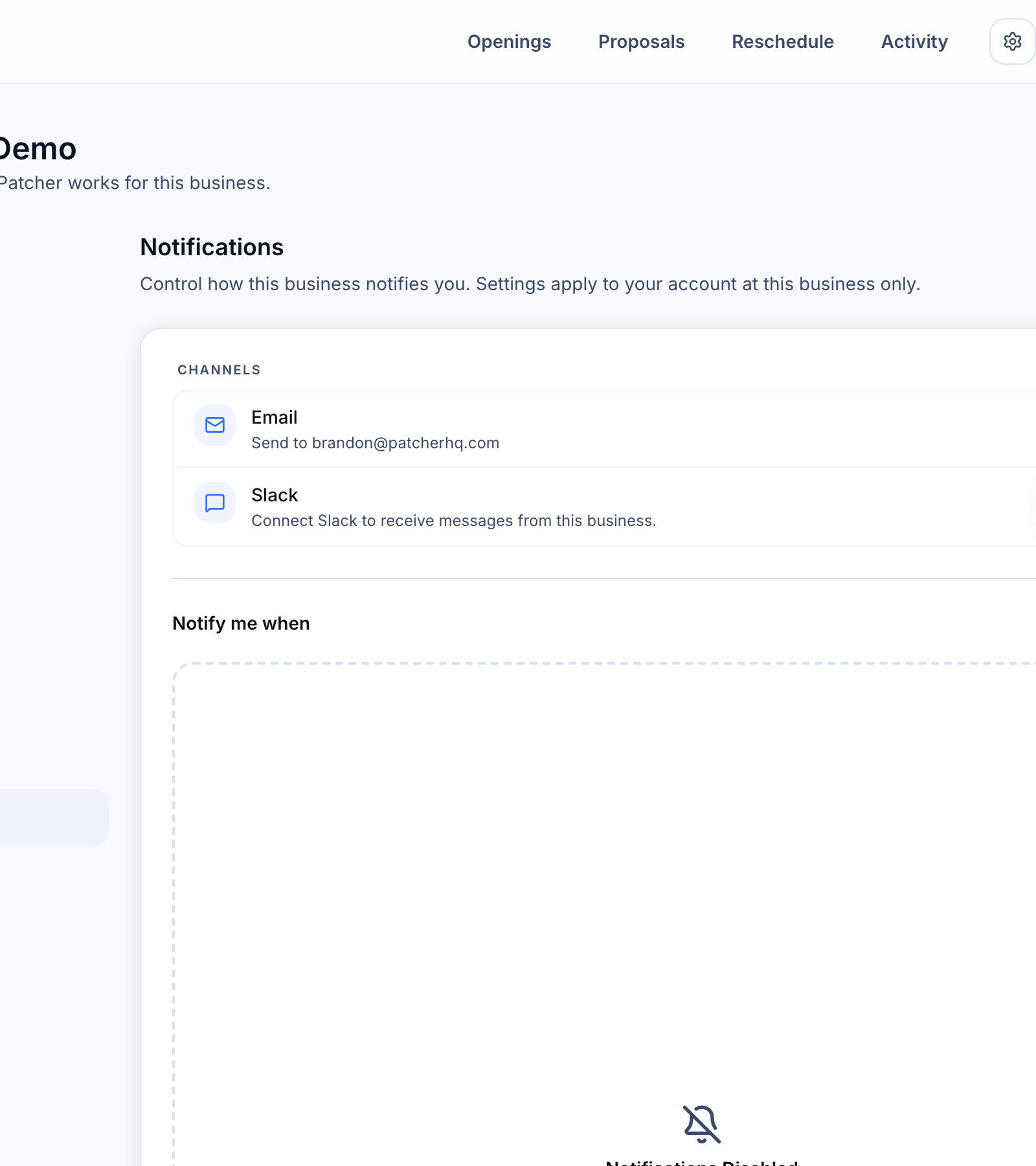
If both Email and Slack are off, the Notify me when section dims and shows Notifications Disabled. Patcher will not send you anything for this business until you turn a channel back on.
Related articles
- Choosing which events you get notified about
- Controlling how often Patcher notifies you about new openings