
The Activity log: events and SMS
The Activity page is where you go to see exactly what Patcher did for your business and when. Use it to audit a customer interaction, confirm a message went out, or track down why something happened.
Overview
Activity has two tabs: Events and SMS. Events is a chronological log of everything Patcher did — proposals sent, proposals accepted, reschedule links created, appointments moved, connection errors, and more. SMS is a chronological log of every text message, both the ones Patcher sent to your customers and the replies they sent back.
Both tabs default to the last 24 hours. You can expand the range to the last 7 days or all time.
To open it, go to Activity in your business navigation.
Using the Events tab
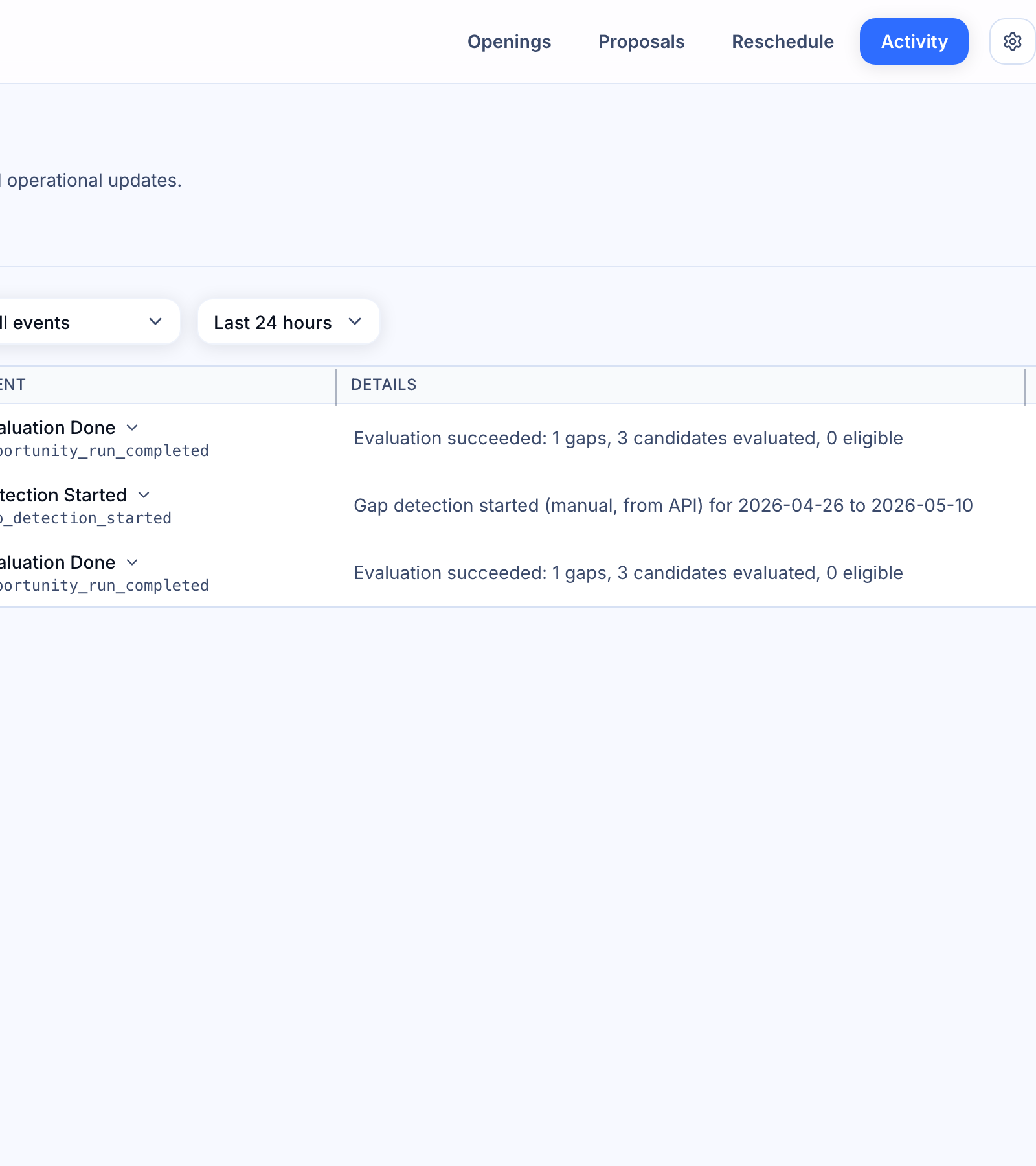
The Events tab shows one row per event, newest first. Each row has a severity icon (info, warning, or error), a human-readable label, the underlying event type, a short message, and a timestamp.
- Open Activity and stay on the Events tab.
- Use the filters at the top to narrow the list by severity, event category, or time range.
- Click any row with a chevron to expand it and see the full details Patcher recorded for that event.
- If an event is tied to a specific opening, use the arrow icon on the row to jump straight to that opening.
Event categories you can filter by include proposals, openings (gaps in your schedule), rescheduling, opportunity runs, writebacks, connections, phone numbers, webhooks, candidates, and business settings.
When to use Events
- A customer says they never got a proposal — check for a proposal sent event to that customer and its delivery status.
- You want to confirm a reschedule went through — look for Rescheduled or Reschedule Failed in the list.
- Something looks off with your connected scheduling tool — filter by Integrations or Writebacks to see connection errors and sync results.
- You want to audit what Patcher did overnight — set the time range to 24 hours and scroll.
Using the SMS tab
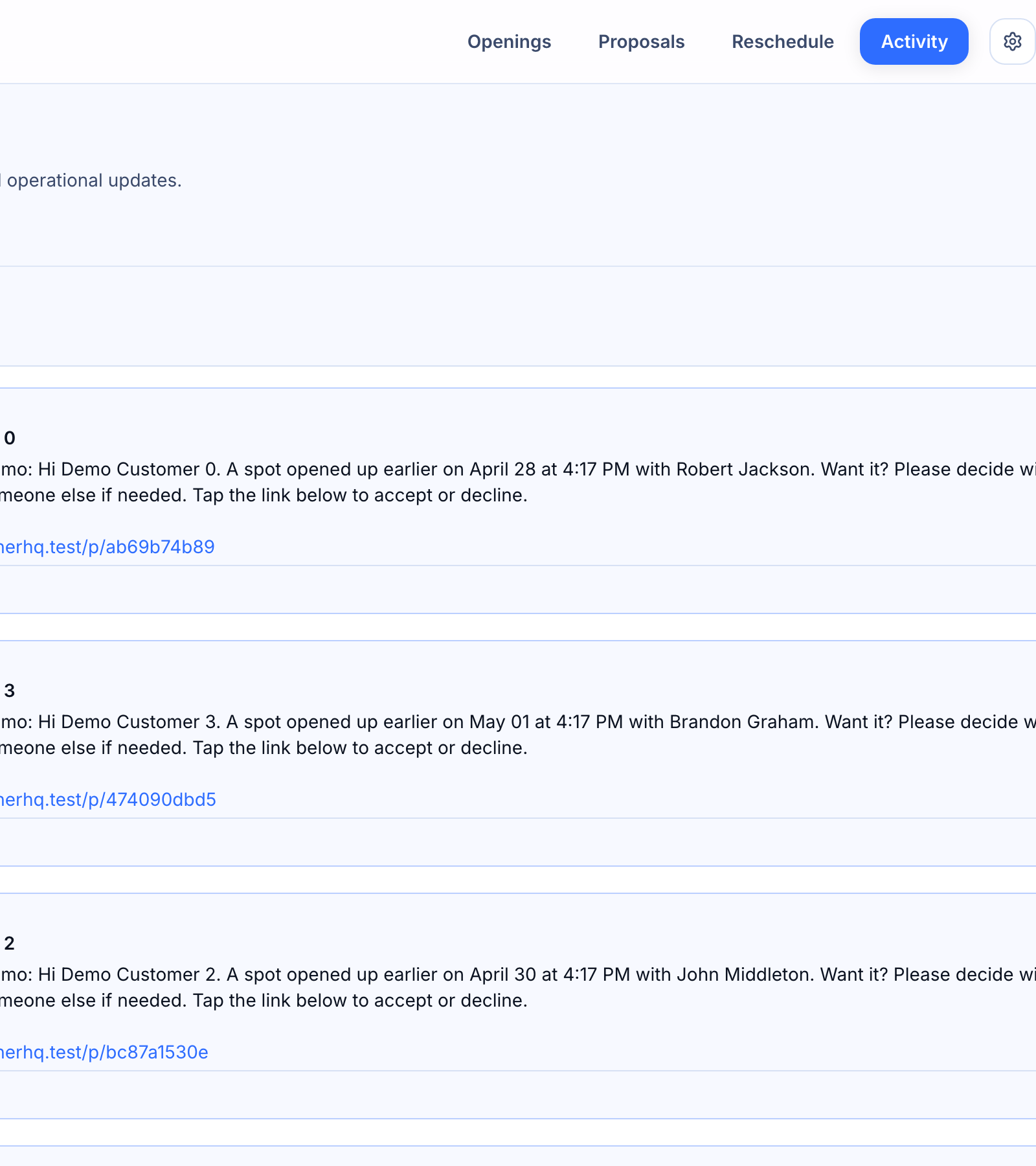
The SMS tab shows every text message tied to your business, in chronological order. Outbound messages (Patcher to customer) and inbound messages (customer replies) are shown together so you can read a conversation top to bottom.
- Open Activity and select the SMS tab.
- Choose a time range: last 24 hours, last 7 days, or all time.
- Read each message card: direction (Inbound or Outbound), customer name, message body, from/to phone numbers, and the timestamp.
- Scroll to load older messages — more are fetched automatically as you reach the bottom.
When to use SMS
- A customer says they got a confusing text — find the exact message Patcher sent and read it word for word.
- You want to know whether a customer replied — look for an inbound message from their number after the outbound one.
- You’re auditing a proposal or reschedule conversation — pull up the time range and read the full back-and-forth in context.
Tips for debugging a customer interaction
When a customer has a question about something that happened, start on the Events tab to see the timeline of what Patcher did, then switch to the SMS tab to read the actual messages exchanged. The two tabs cover the full story: Events tells you what happened, SMS tells you what was said.
If an event has details worth digging into, click to expand the row — you’ll see the underlying metadata, which is useful when you want the exact information to share with support.
Related articles
- Sending proposals
- Rescheduling appointments
- SMS and messaging basics