
Notification events and preferences
Patcher can notify you the moment something important happens—a proposal gets accepted, a reschedule fails, a customer replies, or a new opening appears. The Notifications Events card in Settings is where you choose which of these events reach you and how often.
Overview
Notification preferences are set per user and per business, so each teammate controls their own inbox without affecting anyone else. You pick the events you care about, and Patcher sends them to the channels you have turned on—email, Slack, or both. If you turn off every channel, events are hidden until you re-enable one.
Some events are reserved for business owners and admins. Those rows appear with an Owner only tag and are hidden for members.
Where to find it
- Open Settings for your business.
- Go to Notifications.
- Under Channels, confirm email and Slack are set the way you want.
- Under Notify me when, toggle the events you want to receive.
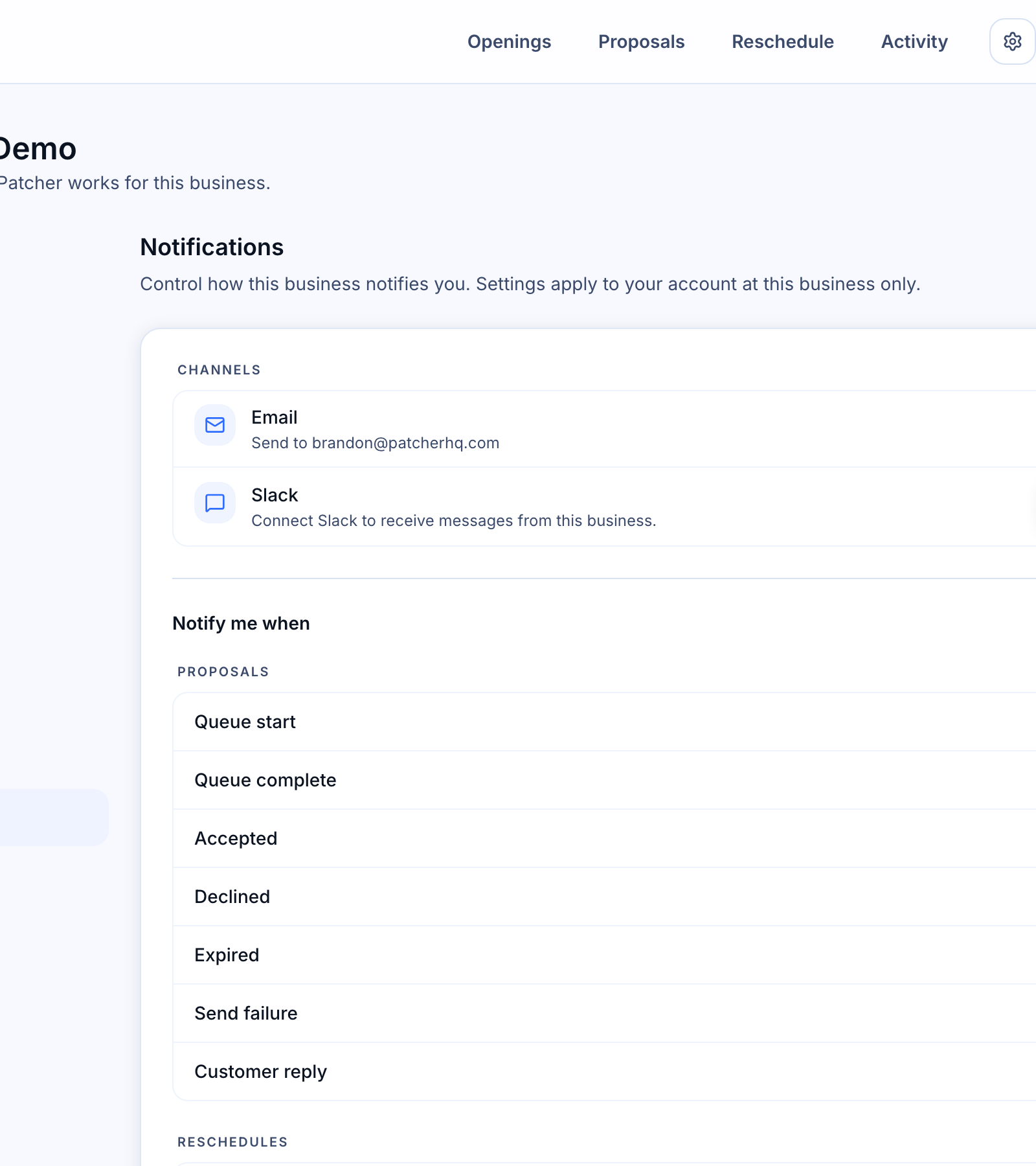
Channels: email and Slack
Every event you enable is delivered through the channels you have switched on:
- Email goes to the address on your account.
- Slack goes to the channel you connected for this business. If Slack is not connected, the row explains how to connect it.
Turning a channel off does not change which events are selected—it just stops delivery on that channel. If both channels are off, the events list is hidden and a Notifications Disabled message appears.
Event types
Events are grouped so you can scan quickly:
Proposals
- Queue start — a new batch of proposals begins going out.
- Queue complete — the batch finishes, whether or not anyone accepted.
- Accepted — a customer accepted a proposal and the appointment updates.
- Declined — a customer declined the proposal.
- Expired — the proposal window closed with no response.
- Send failure — a proposal could not be delivered (for example, an invalid phone number).
- Customer reply — a customer replied with something other than a yes or no, so a human should take a look.
Reschedules
- Success — a reschedule moved through and your schedule is updated.
- Failure — a reschedule could not complete. Owner only.
Integrations
- Disconnected — your scheduling tool, Slack, or another connection dropped and needs to be reconnected. Owner only.
Openings
- Detected — Patcher found a new opening in your schedule. Because openings can be frequent, this event has its own frequency control (see below).
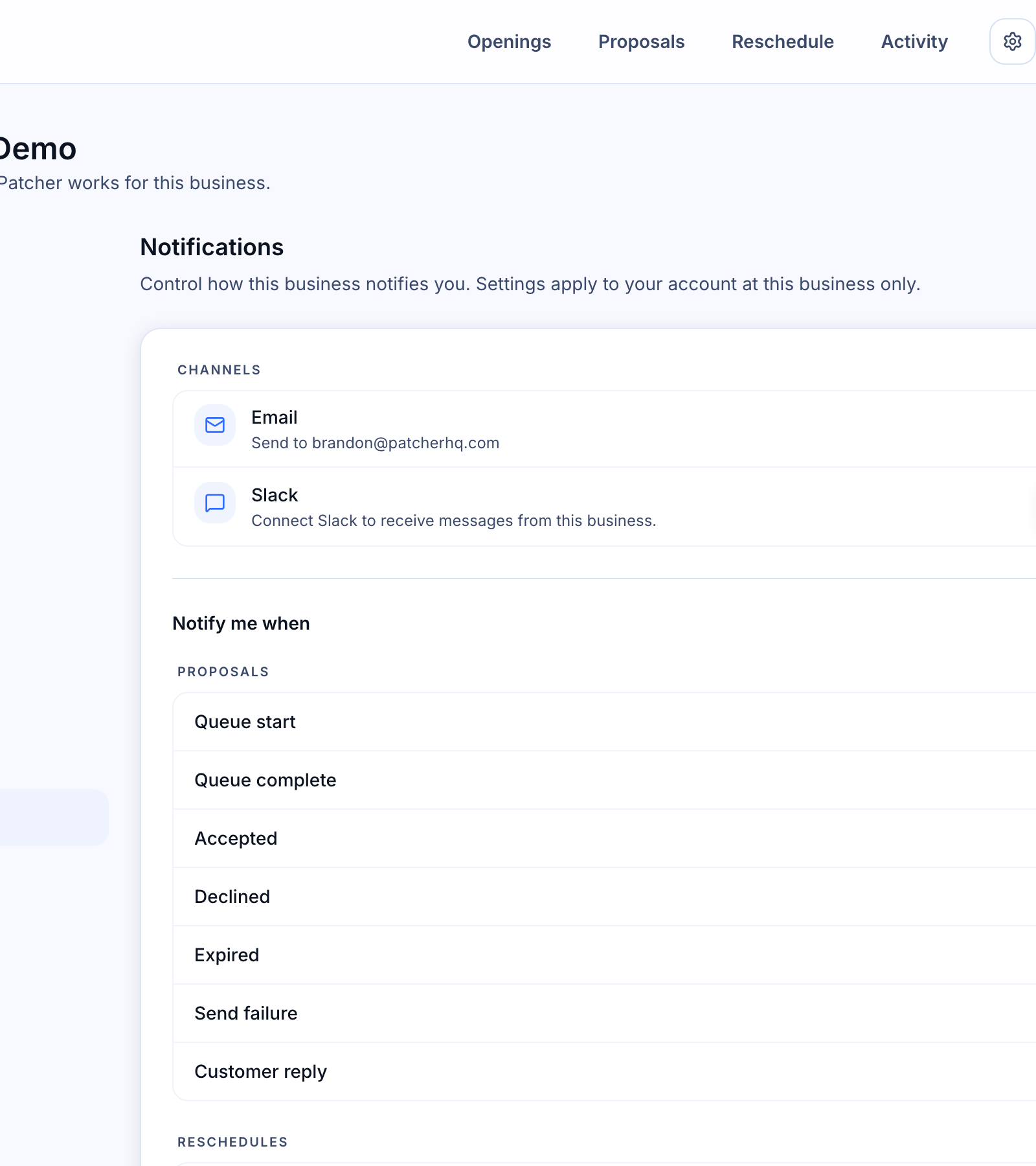
Choosing how often to hear about openings
When Openings → Detected is on, an Opening frequency control appears just below it. Pick the cadence that fits how you work:
- As it happens — get notified each time a new opening is detected.
- Daily digest — one summary message per day with everything detected that day.
- Weekly digest — one summary message per week.
Digests are a good fit if you want to stay aware of openings without being interrupted in real time. You can change the cadence any time.
Owner-only events
A few events are limited to owners and admins because they are about business-wide health, not day-to-day work:
- Reschedule failure
- Integration disconnected
If you are a member, these rows will not appear in your list. Ask an owner or admin on your team if you need visibility into them.
Defaults
If you have not changed anything yet, Patcher starts you with a sensible set of events enabled—accepted and declined proposals, customer replies, reschedule outcomes, integration disconnects, and openings (as a daily digest). You can turn any of them off at any time.
Tips
- Your preferences only affect you. Other people on your team can pick their own mix.
- If you stop receiving notifications you expect, check that at least one channel is turned on and that the specific event is still toggled on.
- Switching to a digest for openings is the quickest way to cut notification volume without turning the event off entirely.
Related articles
- Notification channels: email and Slack
- Connecting Slack to your business