
Using Reschedule Dispatch
Use Reschedule Dispatch when you have an appointment you need to move and you want your customer to pick the new time. This article walks through finding the appointment, reviewing it, customizing the message, and sending the proposal.
Before you start
Reschedule Dispatch is the page you open from your business navigation as Reschedule. You send a customer a text with a secure link, and they choose a new time from the openings in your schedule. The appointment only moves after they confirm a slot — nothing changes on your calendar until then.
If you are new to the feature, read Reschedule Dispatch: an overview first. This article is the step-by-step how-to.
Step 1: Search for the appointment
Open the Reschedule page. The search bar at the top is where every reschedule starts.
- Type the customer’s name or phone number in the search bar. Search starts after two characters.
- Patcher detects whether you typed a name or a phone number. A phone number needs at least seven digits to be recognized.
- Results group by customer, and each upcoming appointment appears as its own row with the date, time, service, staff member, and location.
If a customer already has a reschedule in flight, the row shows a status chip — Sent, Viewed, Rescheduled, Expired, Failed, or Canceled — so you can see at a glance whether to send a new proposal or resend an existing one.
Step 2: Review the appointment
Find the appointment row you want to move and click Review & Send. If an active reschedule already exists for that appointment, the button reads Review & Resend instead.
A drawer opens on the right showing everything the customer will see referenced in the message:
- Customer name and the service booked
- The current appointment date and time
- The staff member assigned
- A note reminding you what happens next — your customer gets a text with a link to pick a new time, and the reschedule only completes after they confirm a slot
Take a moment to confirm this is the right appointment before you send. If the customer has no phone number on file, the drawer warns you and disables the send button until a number is added.
[SCREENSHOT: Review reschedule request drawer with customer, service, scheduled time, and staff visible]
Step 3: Customize the message (optional)
The drawer includes a live preview of the SMS your customer will receive. Patcher fills in the customer’s first name, your business name, the staff member, and the appointment date and time for you.
- Read the preview. If the default wording works, skip to the next step.
- If you want to tweak it, click into the preview and edit the text directly. The character count and segment count update as you type so you know how the SMS will be billed.
- A short prefix with your business name and the secure reschedule link are added automatically — you cannot remove them. This guarantees the customer always sees who the message is from and can open the link.
If you want a different default message for every reschedule going forward, update your Reschedule message template in business settings. The drawer respects the template you save there.
[SCREENSHOT: Delivery preview with the editable message body and character count visible]
Step 4: Dispatch to the customer
When the message looks right, click Send request. Patcher does three things in one action:
- Creates a secure reschedule session for that appointment.
- Cancels any earlier active reschedule for the same appointment so your customer never gets competing links.
- Sends the text message to the phone number on the customer’s record.
The drawer closes and the appointment now shows a Sent status chip. You can keep searching for more appointments, or switch to the Reschedule list to track what happens next.
Step 5: Track the reschedule
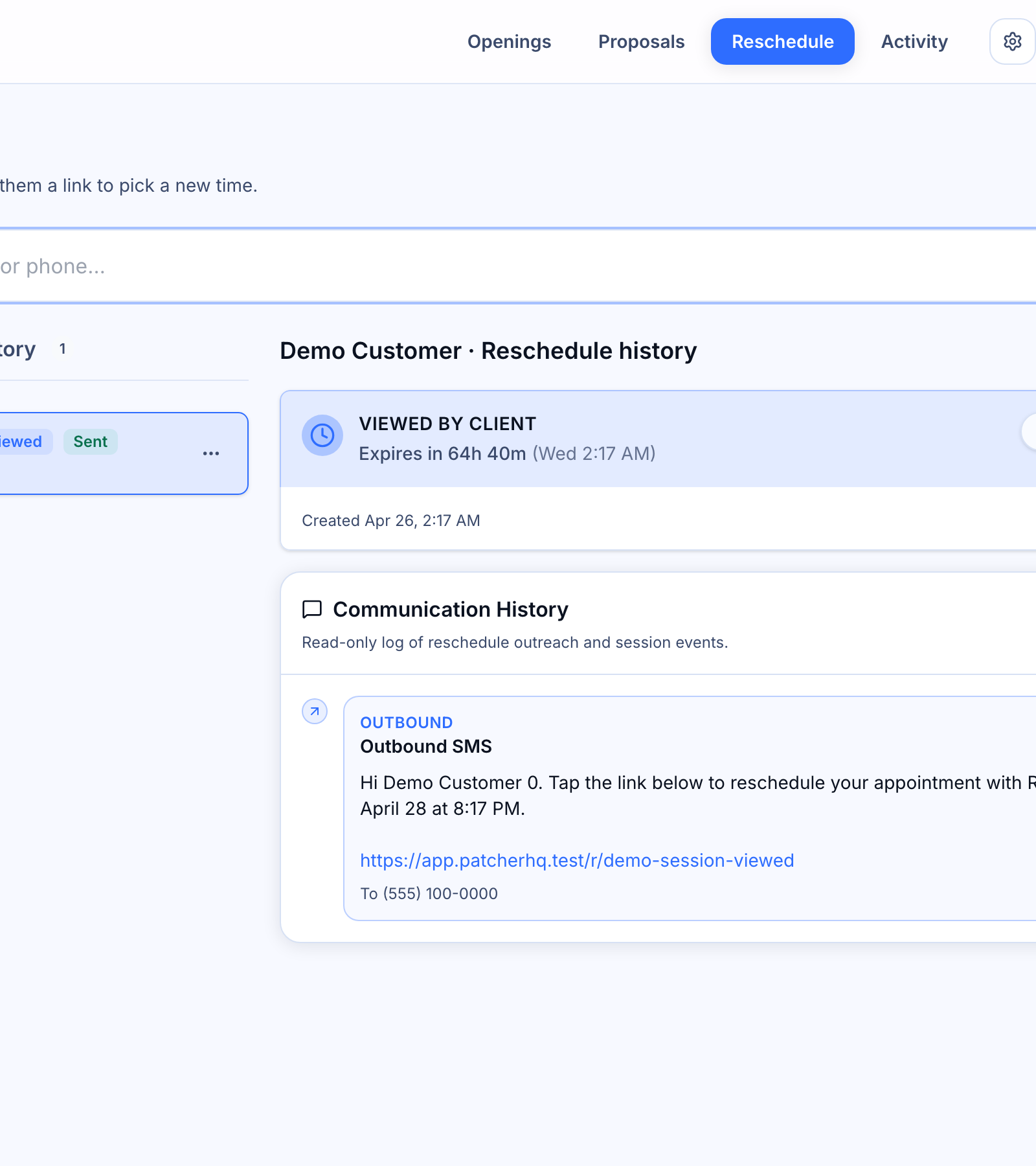
Below the search bar, the In progress tab lists every reschedule that is waiting on a customer. Select any row to see its full timeline — when the message was queued, when it was delivered, when the customer opened the link, and when they confirmed a new time. The History tab shows reschedules that have completed, expired, failed, or been canceled.
When the customer picks a slot, the appointment updates in your scheduling tool automatically and the status chip flips to Rescheduled. You do not need to take any further action.
Common scenarios
The customer never responds
Reschedule links stay valid until one day before the appointment. If the customer has not acted and the appointment is still far enough out, open the row and send a fresh request — the button will read Review & Resend.
You need to cancel a pending reschedule
Open the session from the In progress tab and cancel it from the timeline view. Any link already sent to the customer stops working immediately.
The appointment is too close to reschedule
If the appointment is within one day, Patcher will not create a new reschedule session. Call the customer directly and move the appointment in your scheduling tool.