
Reschedule settings
The Reschedule settings panel controls which open time slots your customers see when you send them a reschedule link.
Overview
When you share a reschedule link, your customer opens a page that lists open time slots they can pick from. Patcher filters that list for you so customers only see slots your team can actually drive to and staff. The Reschedule settings panel is where you tune that filter for your business.
These settings apply to every reschedule link you send. They do not change how appointments are originally booked — only what appears on the customer-facing reschedule page.
Message wording, the reschedule link itself, and automatic confirmations are managed separately on the Messages tab.
Where to find it
- Open your business settings.
- Select Rescheduling from the settings menu.
What you can control
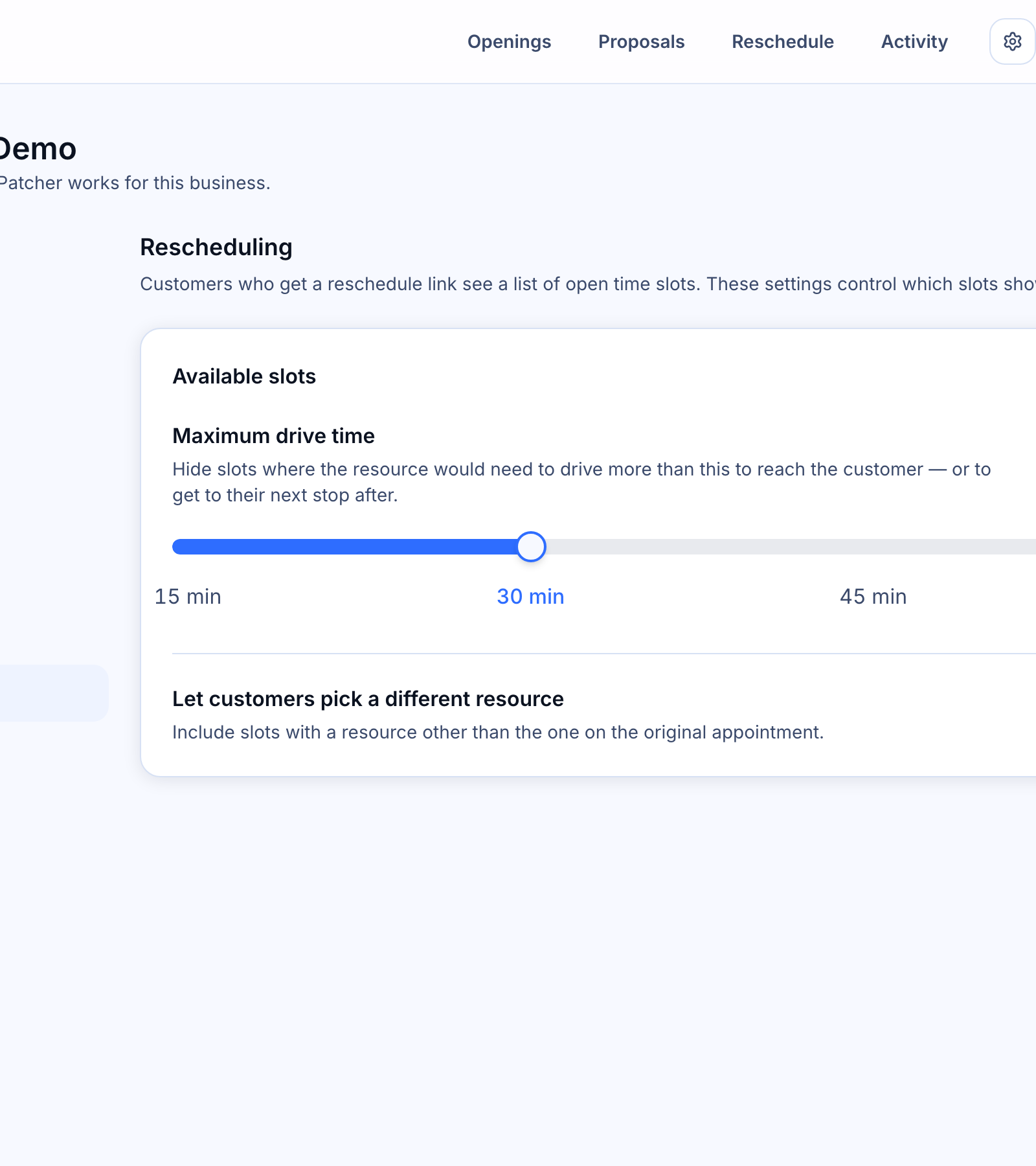
Maximum drive time
Hide slots where your team member would need to drive more than a set amount of time to reach the customer — or to get to their next stop after the appointment.
Choose from 15 minutes, 30 minutes, 45 minutes, or 1 hour. The recommended setting is 30 minutes, which fits most service areas.
If a slot would require a longer drive either before or after the appointment, Patcher removes it from the customer’s list. This keeps customers from picking times that would leave your team stuck in traffic or running late to other jobs.
Let customers pick a different team member
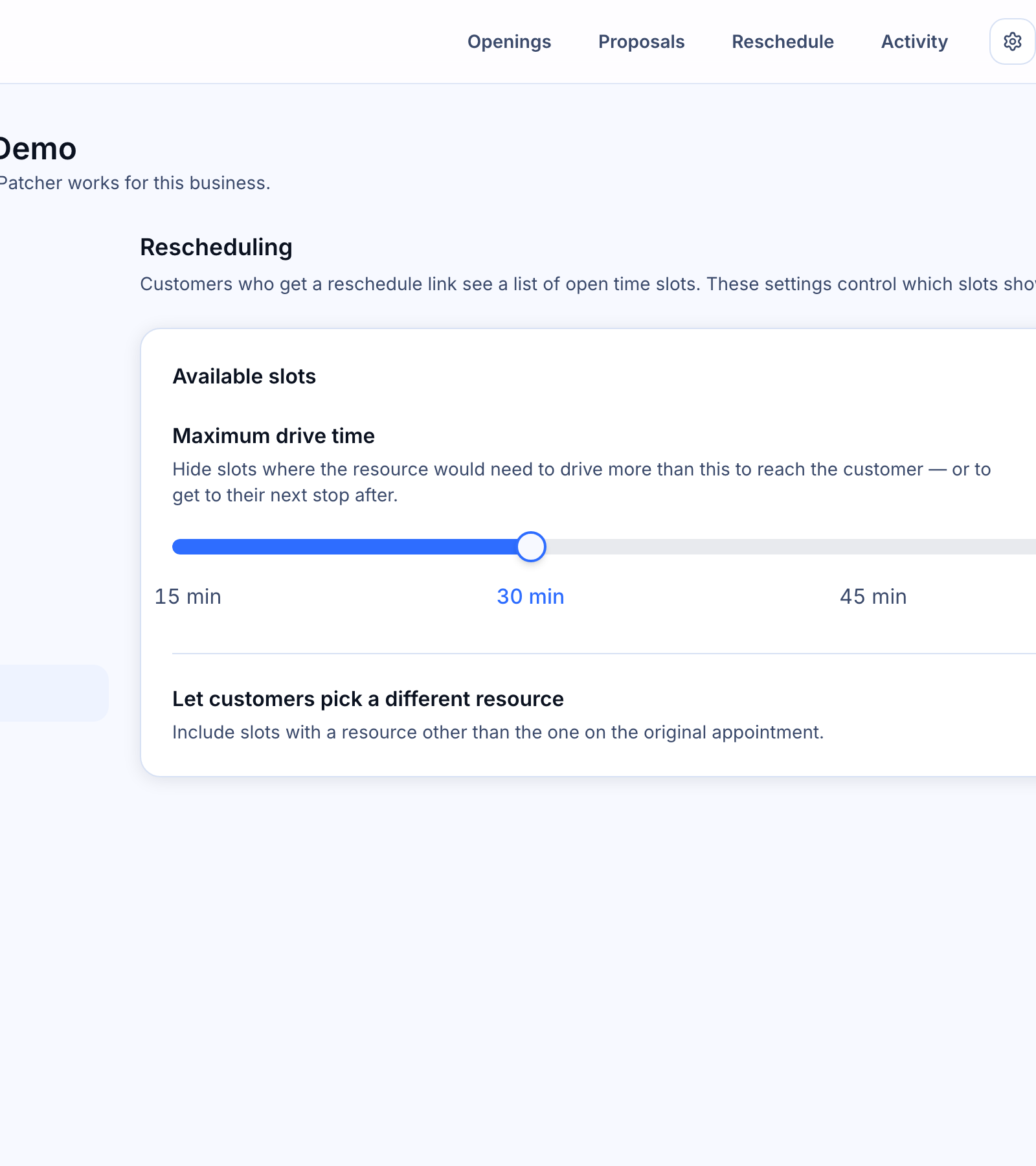
Turn this on if customers can be rescheduled with someone other than the team member originally assigned. Turn it off if the same person must keep the appointment.
When the toggle is off, the reschedule page only shows slots that match the original team member. When it is on, Patcher includes slots from other available team members as well — and the rescheduled appointment may be assigned to whoever owns the slot the customer picks.
How changes take effect
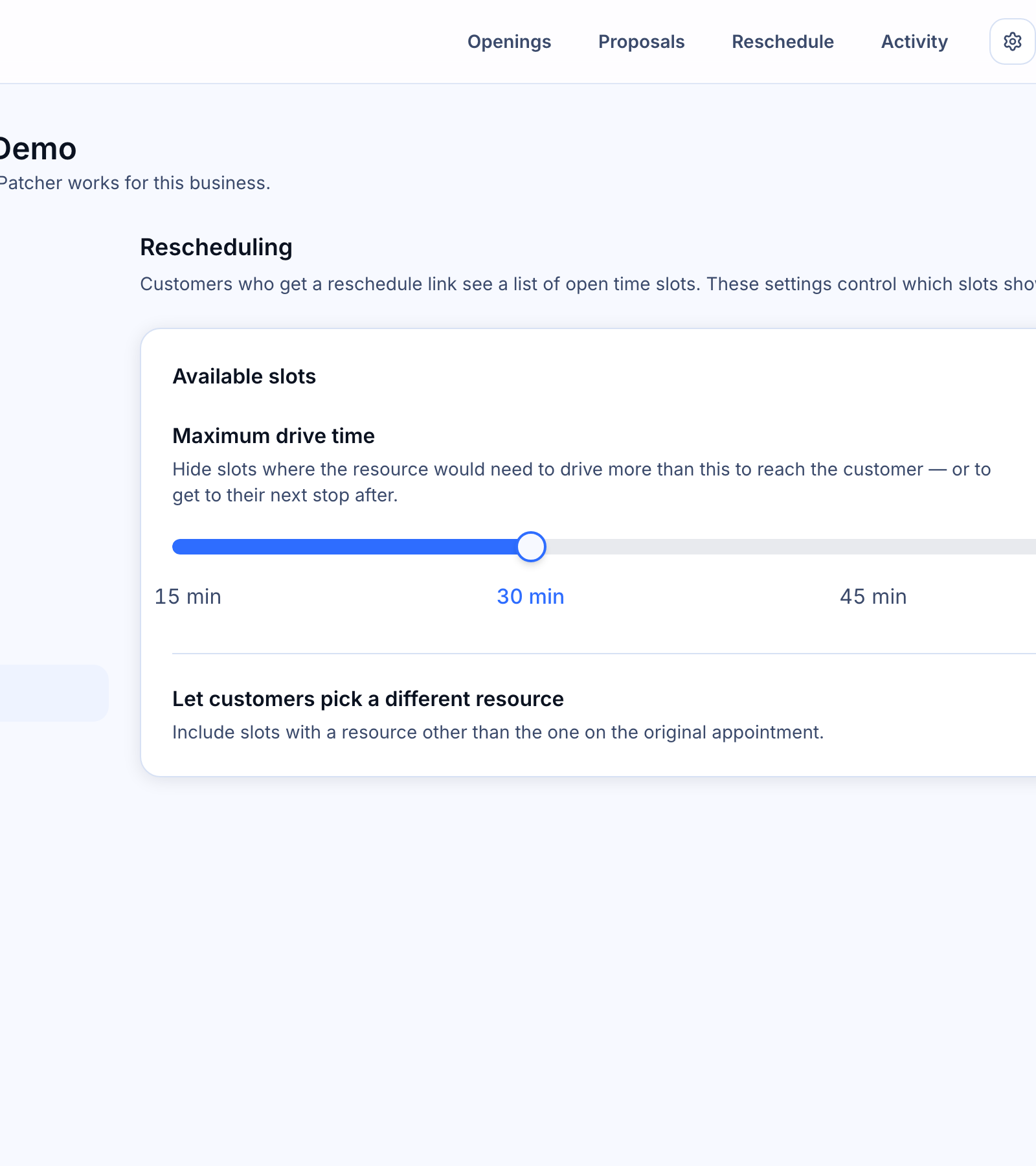
Reschedule settings save automatically when you adjust them. A Saved indicator appears in the panel header once the change is stored.
The new settings apply to any reschedule link opened after the change. Links a customer opened earlier reflect the settings that were in place at that moment.
What your customer sees
Your customer opens the reschedule page and sees up to a short list of available time slots, each showing the new time and the assigned team member. They tap a slot to confirm, and Patcher updates the appointment in your scheduling tool automatically.
If no slots pass your settings — for example, every available option would require a long drive — the page tells the customer to call your business instead, and shows your business phone number.
Related articles
- Reschedule message templates
- Sending a reschedule link