
Reschedule Dispatch: an overview
Reschedule Dispatch is Patcher’s tool for sending a customer a secure link to pick a new time for an appointment themselves. You find the customer, review the message, send it, and track the session until the new time is locked in — no phone tag, no back-and-forth texts.
When to use Reschedule Dispatch
Use Reschedule Dispatch when you need to move an already-booked appointment and want your customer to choose the new time. Patcher only shows your customer openings that fit: the service duration still fits in the gap, the drive time stays within your preferences, and whether they can change technicians follows your settings.
You stay in control of the outreach — you pick the customer, review the SMS before it goes out, and see every step on the reschedule timeline.
How it works
- Find the customer. Open the Reschedule tab in the left nav, then search by name or phone. Patcher pulls the customer’s upcoming appointments from your connected scheduling provider.
- Pick the appointment and review the message. Click Reschedule on the appointment you want to move. A drawer opens with the customer, service, current time, and technician, alongside the SMS that will be sent. Edit the wording if you want — the reschedule link is appended automatically, so you can’t accidentally leave it off.
- Send the request. Click Send request. Patcher texts the customer a secure link they can open right from their phone.
- Your customer picks a new time. The link shows only the openings that fit your rules. Once they confirm a slot, Patcher moves the appointment in your scheduling provider automatically.
- The appointment is moved. The session flips to Reschedule completed in your timeline and the original time is freed up for future bookings.
What your customer sees
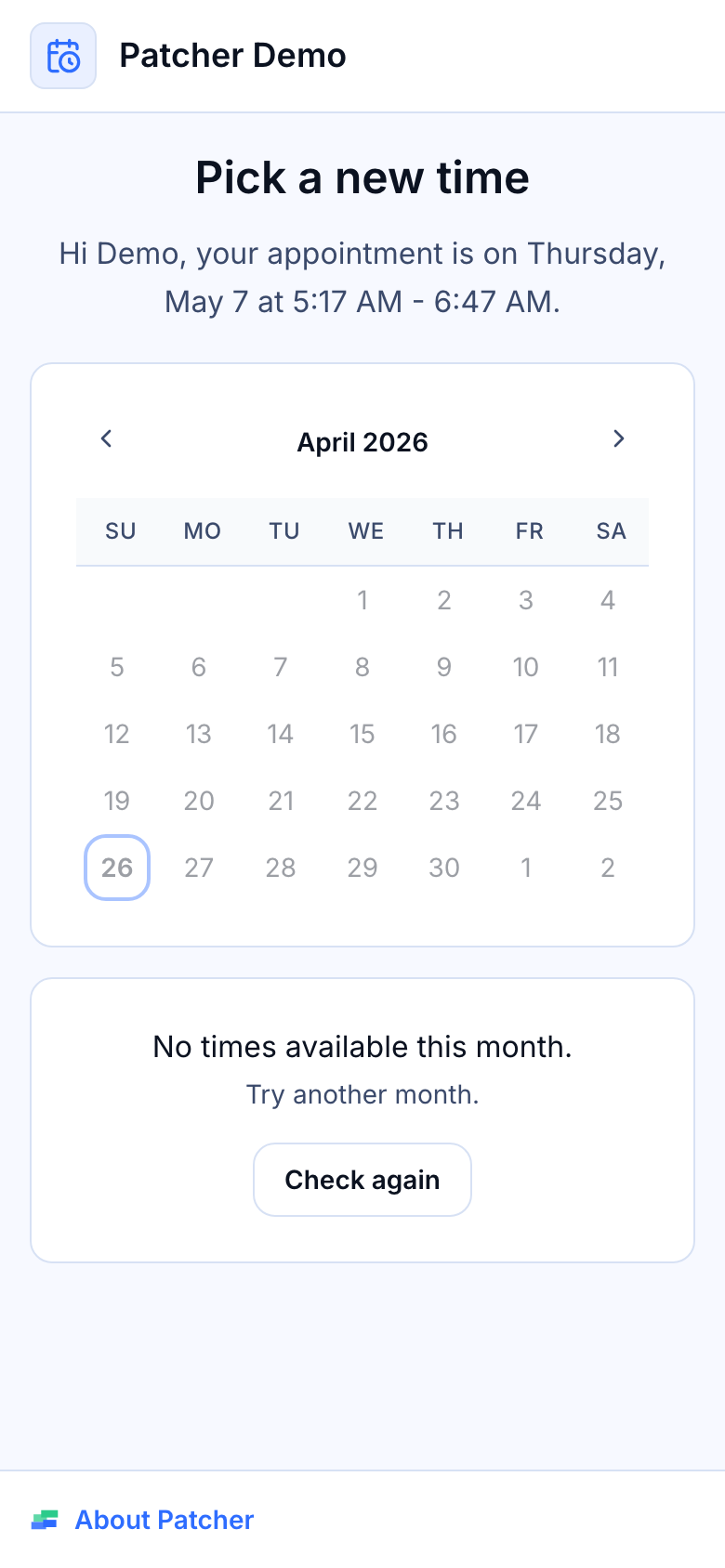
Your customer gets a single SMS from your business number with a short message and a link. The link opens a mobile-friendly page that shows:
- Their current appointment time and technician
- A list of available new times that fit your rules
- A confirmation screen once they pick a slot
No login is required. The link is private to that customer and expires automatically, so customers can’t reschedule at the last minute and can’t share the link with anyone else.
Tracking reschedules
Every link you send creates a session that you can track on the Reschedule page. Sessions are split across two tabs:
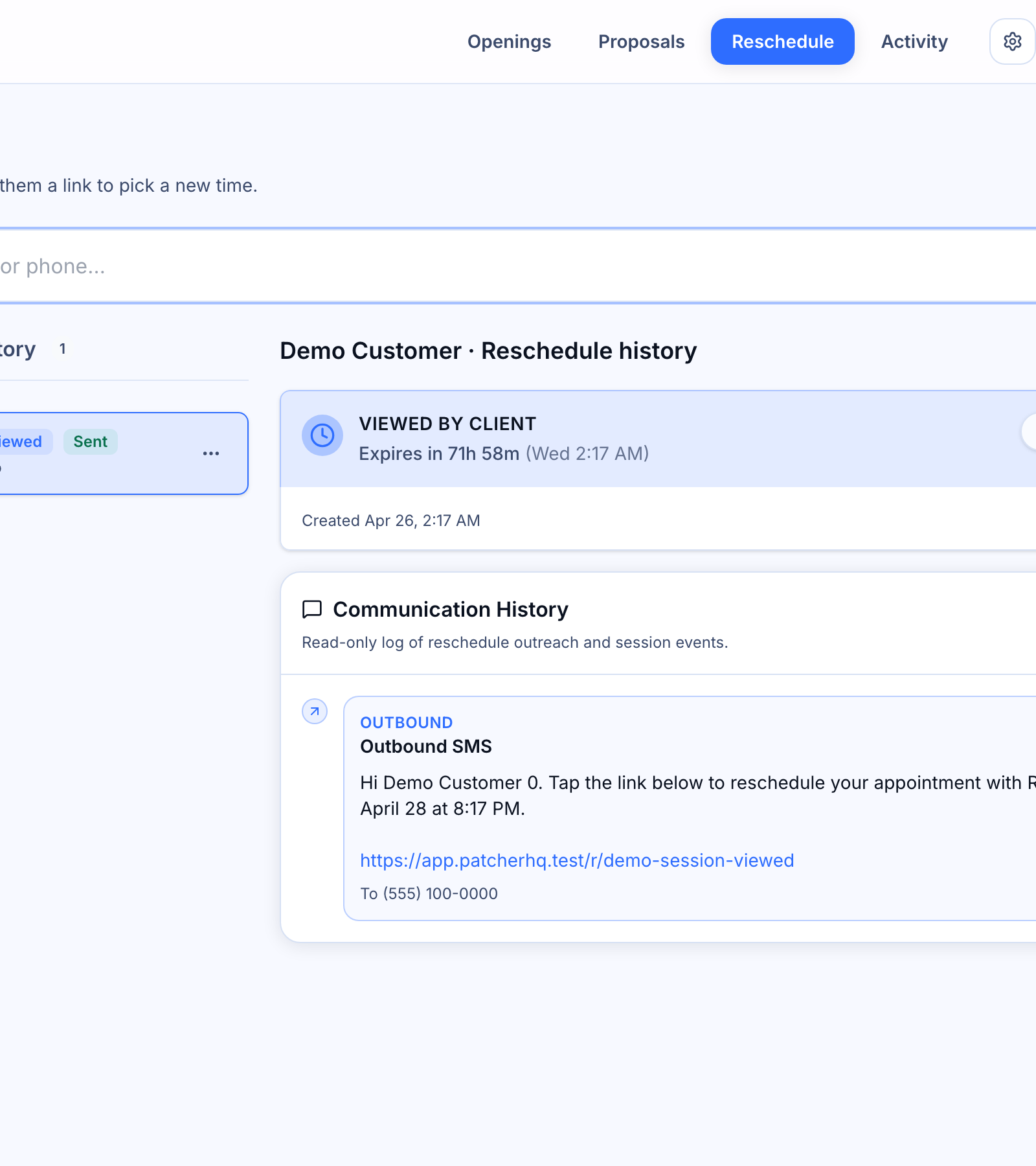
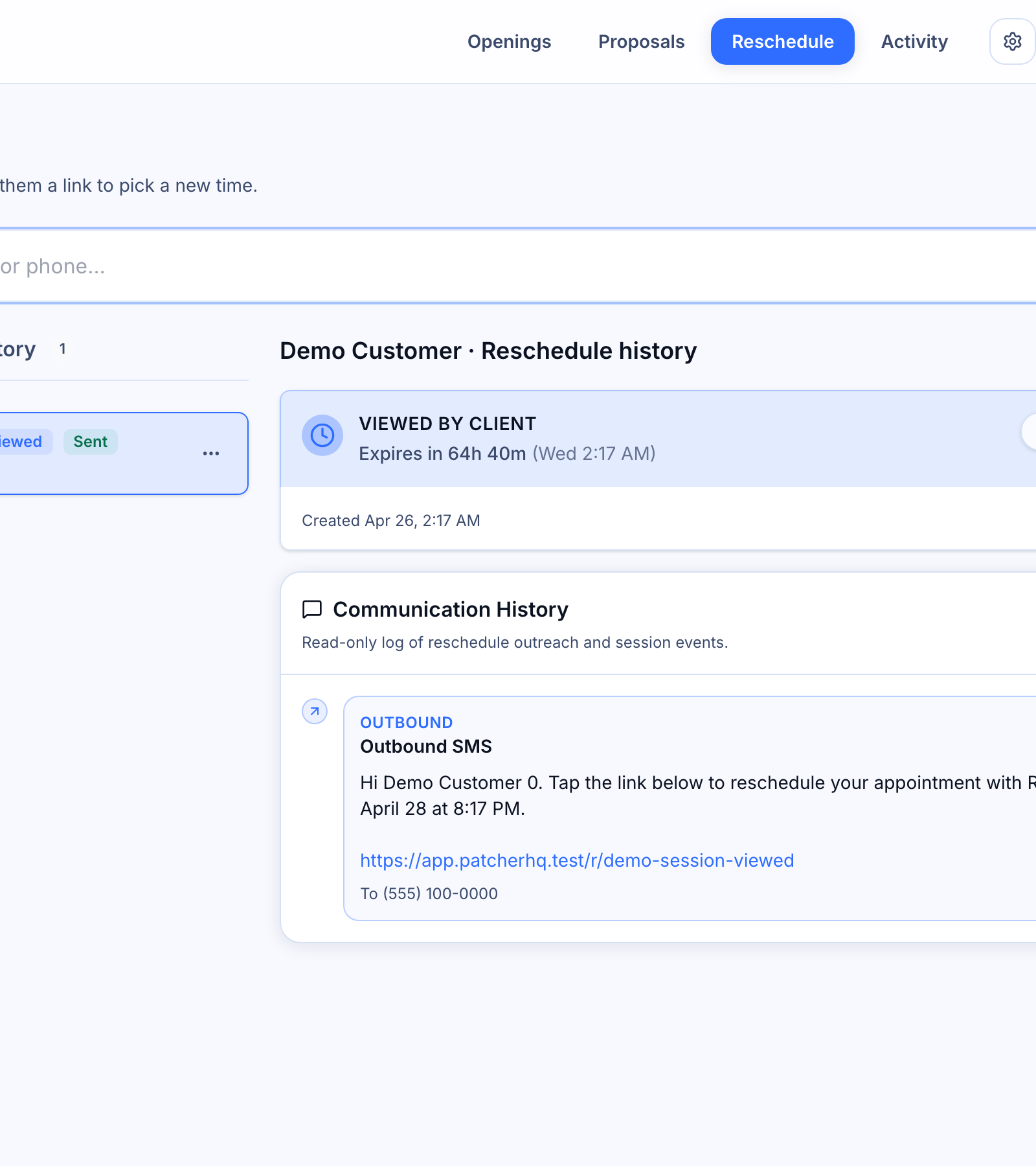
- In progress — links that have been sent but haven’t been completed yet. You’ll see whether the customer opened the link (“Viewed”) and when the link expires.
- History — past sessions, including completed reschedules, expired links, and any that were canceled or failed.
Clicking a session opens its timeline: a read-only log of the SMS, its delivery status, and every event tied to that reschedule (sent, viewed, completed, canceled).
From the list you can also:
- Resend the SMS if the customer says they didn’t get it.
- Cancel an active session if you need to pull the link back.
- Copy the customer’s phone number for a quick follow-up call.
Status labels you’ll see
- Link sent — the SMS has been queued or delivered, but the customer hasn’t opened it yet.
- Viewed by client — the customer opened the link and is browsing times.
- Reschedule completed — the customer picked a new time and the appointment has moved in your scheduling provider.
- Link expired — the reschedule window passed, usually because the original appointment is now too soon to safely move.
- Reschedule failed — the customer tried to confirm a slot but it couldn’t be applied (for example, the appointment had already been changed somewhere else).
- Canceled — you or another dispatcher canceled the session before the customer picked a slot.
What Patcher handles behind the scenes
Reschedule Dispatch plugs into the same systems that already run your schedule:
- Opening detection continuously scans your calendar for real gaps, so customers only see times that actually work.
- Travel-time checks filter out options that would cause unreasonable drives between appointments.
- Scheduling provider sync moves the appointment in your connected scheduling tool the moment the customer confirms, so your source of truth stays in sync.
- SMS compliance handles opt-out keywords and delivery reporting through Patcher’s registered messaging.
Settings that affect Reschedule Dispatch
A few business settings shape what your customers see when they open a reschedule link:
- Reschedule settings — set your maximum drive time between appointments and whether customers are allowed to pick a different technician.
- Reschedule message templates — edit the default SMS body so every outgoing link uses your preferred wording.
- Scheduling rules and scoring — the same rules that drive the Openings page also decide which times surface on the reschedule page.
Related articles
- Using Reschedule Dispatch (search, customize, dispatch)
- Customer-facing reschedule portal
- Reschedule settings
- Reschedule message templates