
How customers reschedule from the text message
When Patcher sends a reschedule link to your customer, they land on a mobile-friendly page where they can pick a new time without calling you or signing in. This article walks through what they see so you know what to expect.
Overview
The reschedule page is a private, link-only page your customer opens from the text you send. The link is tied to one appointment, works without a login, and stays active until the day before the appointment. Your customer browses available times in a calendar, picks one, and confirms. Patcher moves the appointment in your scheduling tool automatically.
You never have to field the back-and-forth. Your customer chooses a time that works for them, and you see the updated appointment on your calendar.
What your customer receives
Your customer gets a text from your business phone number that looks like this:
From Acme Grooming: Hi Sam. Tap the link below to reschedule your appointment with Taylor on Jan 28 at 2:00 PM.
https://app.patcherhq.com/reschedule/…
The business name, customer name, technician, and appointment time are filled in from your account. You can customize the message body under your messaging templates, but the reschedule link is always added at the end so your customer can’t miss it.
Picking a new time
When your customer taps the link, the page opens with your business name and logo at the top, a short greeting, and the appointment they’re moving.
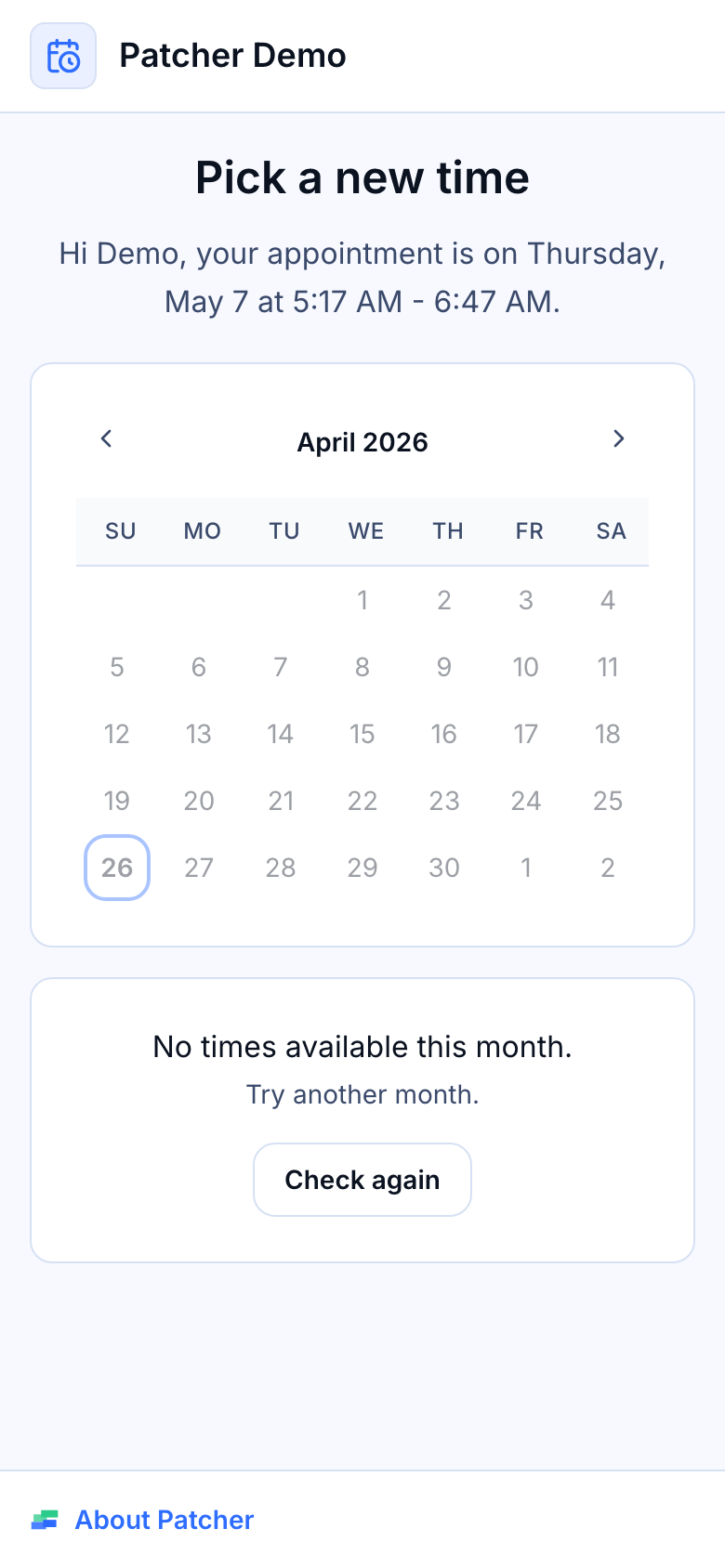
- Your customer sees a Pick a new time heading with their current appointment day and time below it.
- A calendar highlights the days with available times. Grayed-out days have no options.
- Tapping a day shows the available times for that day on the right (or below, on mobile).
- Your customer selects a time, reviews it in a confirmation dialog, and taps Confirm new time.
- Patcher applies the change and shows a success page.
By default, only times with the same technician as the original appointment are shown. If there are options with a different technician, your customer sees a See other technicians link they can tap to broaden the list. If they’re happy with the suggestions, they don’t need to touch that option.
After they confirm
Once your customer confirms, they see a green check with Your appointment has been rescheduled and the new date and time. Behind the scenes, Patcher updates the appointment in your scheduling tool, so the next time you open your calendar the appointment is already in its new slot.
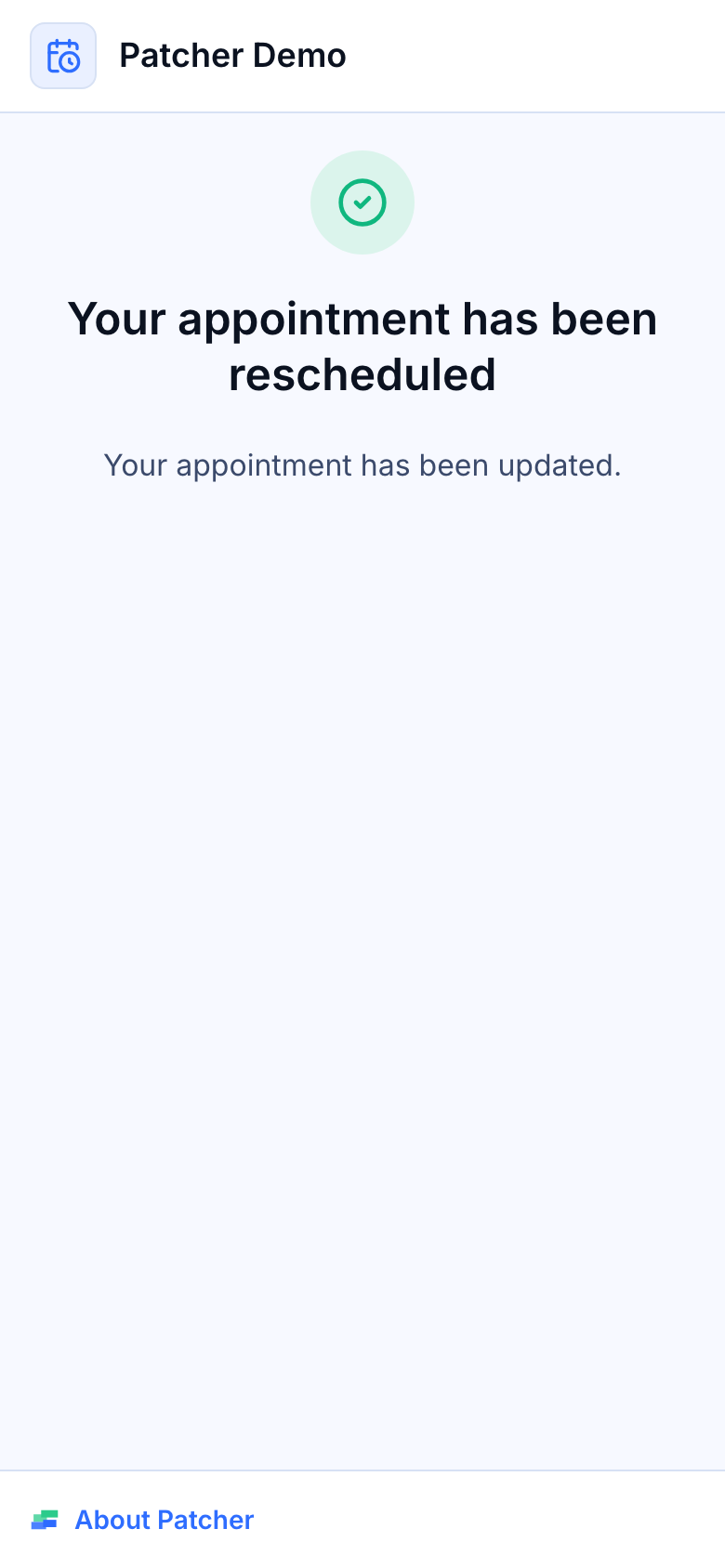
If your customer comes back to the same link later, they see the same confirmation page — the link doesn’t become a second chance to pick another time.
When the link can’t be used
A few situations stop the page from showing options:
No times available
If your schedule has no eligible openings for the appointment’s service, your customer sees No times available this month with a Try another month hint and a Check again button. If only the technician filter is hiding options, a See other technicians button also appears.
The appointment is too close
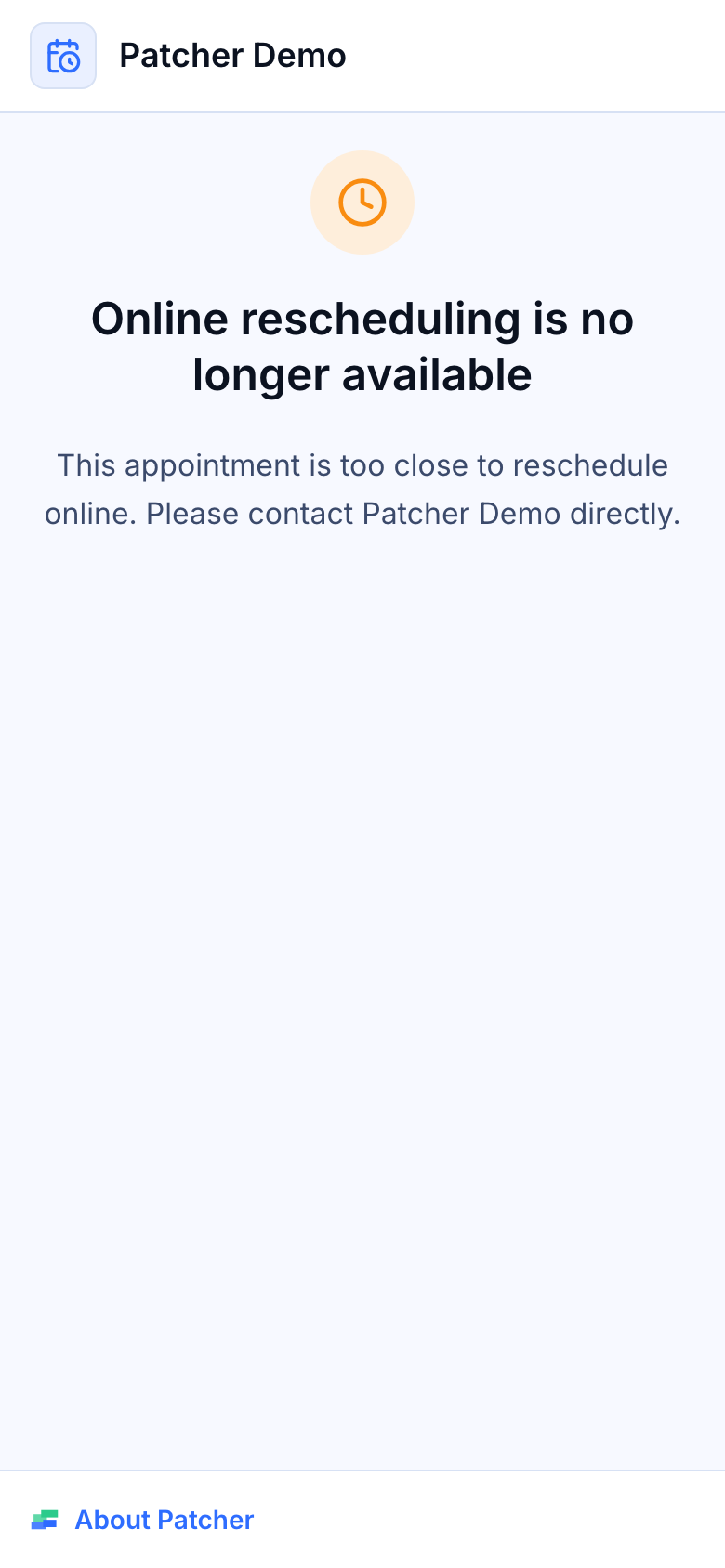
Reschedule links stay active until one day before the appointment. Once the appointment is inside that window, the page shows Online rescheduling is no longer available and your business phone number so the customer can call you instead. No retry button is shown because the cutoff is intentional.
Someone else just took that time
If two customers tap their links at the same time and pick the same slot, the second customer sees a banner that reads “That time was just taken. We refreshed your options — please pick another.” The list refreshes and they can choose again.
The link isn’t valid
If a link has been replaced by a newer one, or the token is wrong, your customer sees Link not found or Link expired with your business phone number as a fallback.
Things to know
- Only one active link per appointment. If you resend a reschedule text, Patcher replaces the previous link so your customer always uses the latest one.
- The link stays active until the day before the appointment. Same-day or past appointments can’t be rescheduled online — your customer gets the phone fallback instead.
- No login required. The link itself is the authentication. Patcher uses a secure, random token so only the person who received the text can open it.
- Options are refreshed every time. If your customer opens the link tomorrow, they see the openings that exist tomorrow — not a snapshot from when you sent the text.
- Times display in your business’s time zone. A small note at the bottom of the page tells the customer which time zone they’re looking at.
- Your customer’s privacy is protected. The page only shows their first name, the business name, the service type, and the time — no phone numbers, addresses, or notes.
Related articles
- Sending a reschedule link to a customer
- Customizing your reschedule text message
- Reschedule settings: drive time and technician options