
Tracking proposals on the Proposals page
Your Proposals page is where you watch every scheduling proposal you’ve sent to customers from start to finish. Use it to see what’s still waiting on a reply, what your customer has already seen, and what’s been accepted, declined, or expired.
Overview
When you send a proposal from an opening, Patcher texts the customer a scheduling option with a link. The Proposals page gives you one place to track every one of those conversations. Each proposal shows the customer, the proposed time, the status, and a full history of what Patcher sent and how the customer responded.
The page has two parts: a list of proposals on the left, and the details of whichever one you select on the right. On mobile, selecting a proposal opens the details full-screen.
Opening the Proposals page
- Sign in to Patcher.
- Pick the business you want to look at.
- Click Proposals in the navigation.
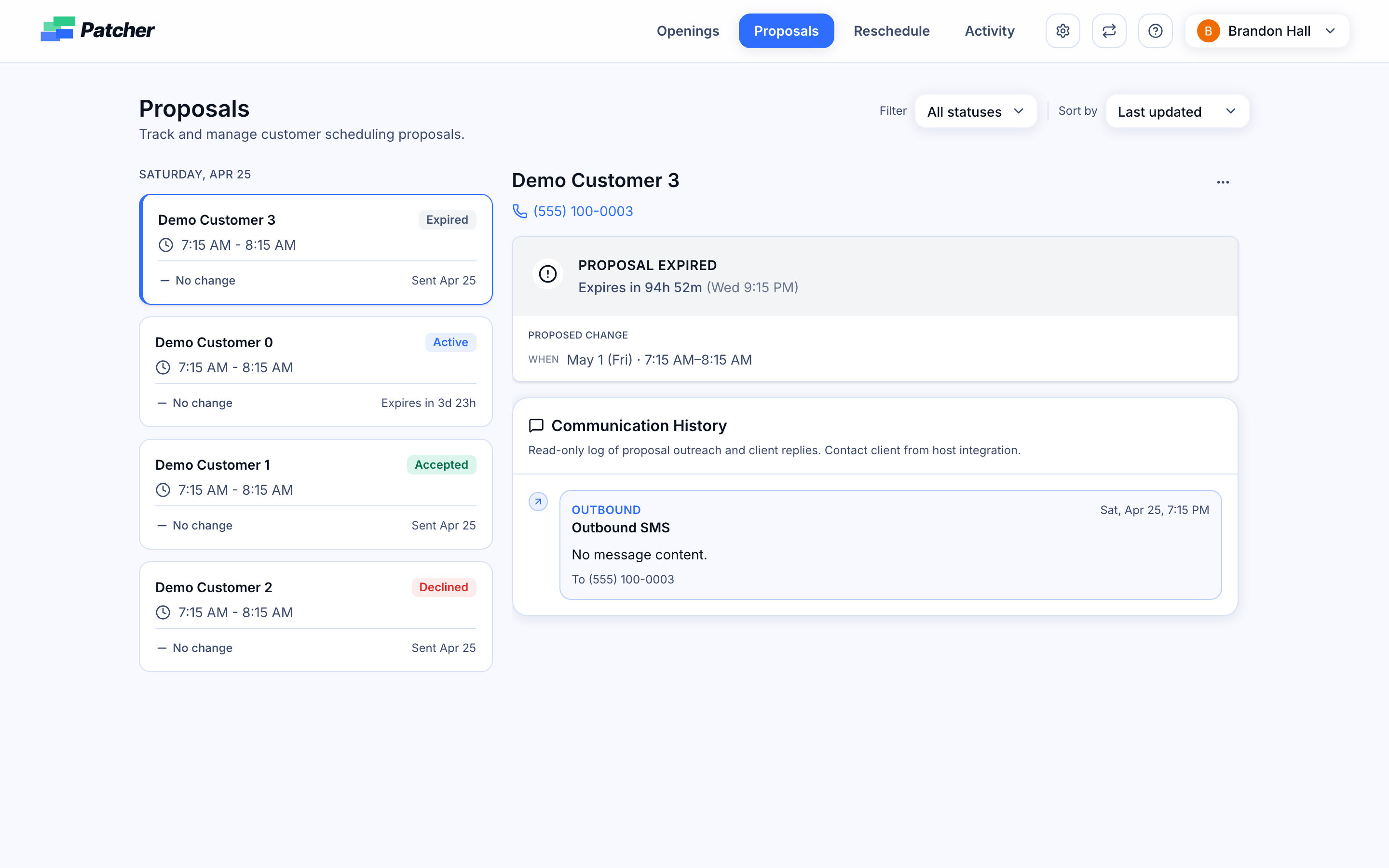
If you haven’t connected a scheduling tool yet, you’ll see a prompt to set that up first. Once a connection is active, any proposal you send shows up here automatically.
Filtering by status
Use the Filter dropdown at the top right to narrow the list to a specific status.
- All statuses — everything you’ve sent.
- Active — proposals still in flight: created, sending, or waiting on the customer to respond.
- Declined — proposals the customer turned down.
- Expired — proposals that timed out before the customer responded.
Your filter choice is saved in the page URL, so you can bookmark or share a filtered view.
Sorting the list
Use the Sort by dropdown to control the order.
- Last updated — most recent activity first. Useful for catching the latest customer replies.
- Proposal date — grouped by the proposed appointment date. Good for planning around a specific day.
- Expiration time — soonest-to-expire first. Use this to see which proposals are about to time out.
When you sort by Last updated or Proposal date, the list is grouped by day with a date header above each group. When you sort by Expiration time, the list is a single flat sequence.
Scrolling through a long list
The list loads in batches as you scroll. A small indicator at the edge of the list hints when more proposals are below. Just keep scrolling and the next batch fetches automatically.
Statuses you’ll see
Each proposal card shows a status chip. Here’s what each one means:
- Created — queued up but not sent yet.
- Sending — Patcher is delivering the text right now.
- Active — sent to the customer; waiting on a reply.
- Accepted — the customer said yes.
- Applied — the appointment has been moved in your scheduling tool.
- Declined — the customer said no.
- Expired — the window to respond closed.
- Canceled — you revoked the proposal before the customer responded.
- Failed — the text couldn’t be delivered. You can retry from the detail view.
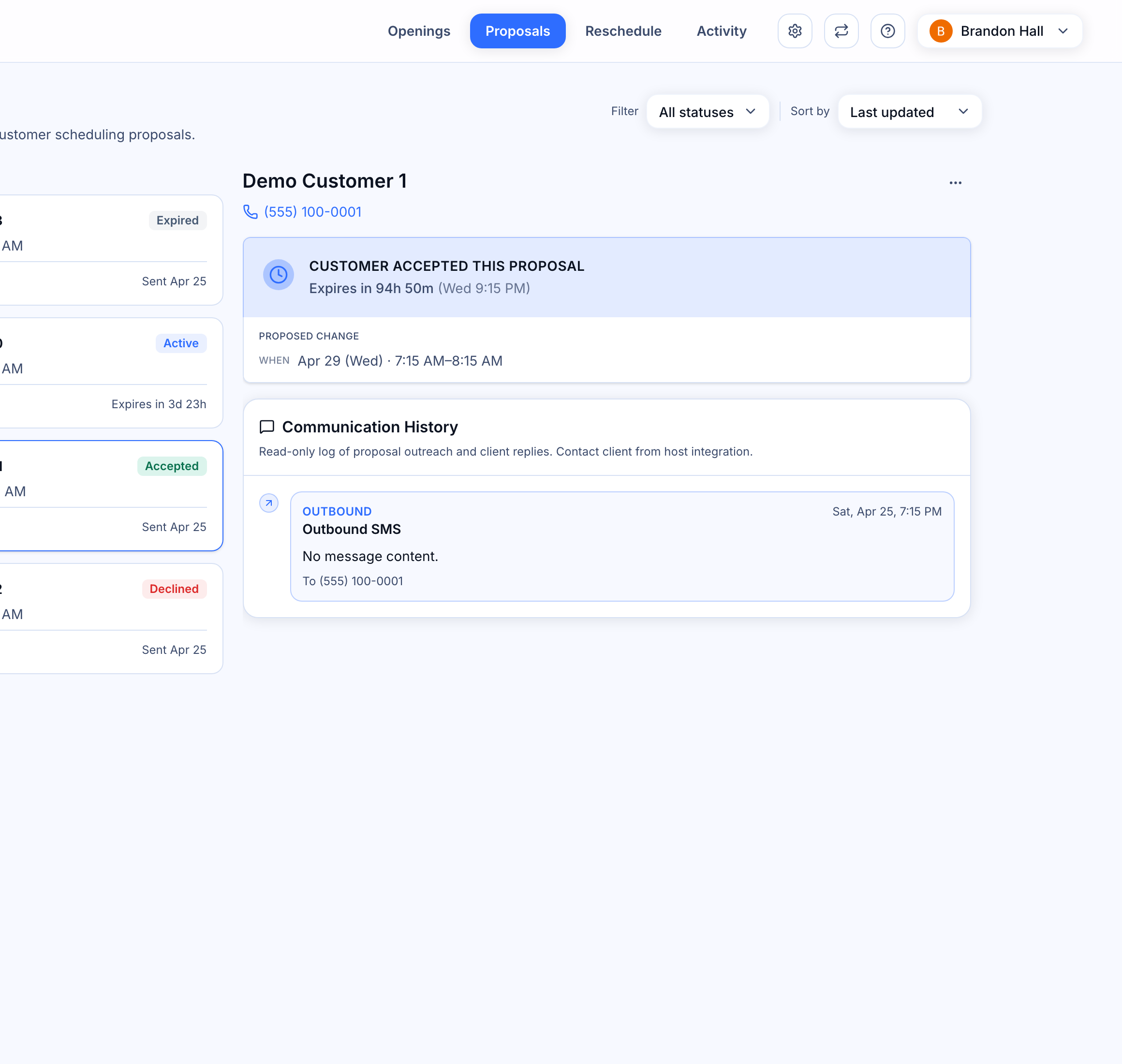
The detail pane on the right shows a bold status banner that tells you exactly where each proposal stands — including when it was first viewed by the customer and how long is left before it expires.
Reading a proposal’s event history
Select any proposal to see its full Communication History in the right pane. This is a chronological, read-only log of everything that happened, including:
- Outbound texts Patcher sent to the customer.
- Inbound replies from the customer.
- System events like sending, viewing, acceptance, decline, expiration, cancellation, or final application to your schedule.
Each entry shows the time it happened, who it was from or to, and the message body when there is one. The most recent activity appears at the top.
Actions on a selected proposal
From the detail view you can:
- Send now — for a proposal that’s ready but not yet sent.
- Resend SMS — send the latest message to the customer again.
- Retry send — try again after a delivery failure.
- Revoke proposal — stop outreach for this proposal before the customer responds.
- Copy the message text, the customer’s phone number, the proposal link, or the admin link from the actions menu.
Revoking and resending are confirmed in a dialog so you don’t trigger them by accident.
Tips
- Use Active + Expiration time to focus on proposals that need your attention soon.
- Use Last updated after a busy hour to catch the latest customer responses.
- Use Proposal date when you’re planning around a specific day on your schedule.