
How proposals work end-to-end
Proposals are how Patcher reaches out to your customers about moving an appointment earlier, so you can fill openings without making calls yourself. This article walks through the full proposal lifecycle — from the candidate Patcher picks, through the text your customer receives, to what happens on your calendar once they respond.
Overview
When Patcher finds an opening on your schedule, it ranks your upcoming customers to decide who would be the best fit for that earlier slot. Each of those ranked candidates becomes a proposal: a text message sent to one customer asking if they want to move their appointment.
You stay in control of how proposals go out. You can let Patcher send them automatically, or review and send them yourself from the opening. Every proposal has a deadline, so your schedule keeps moving even when a customer does not reply.
How Patcher picks a proposal
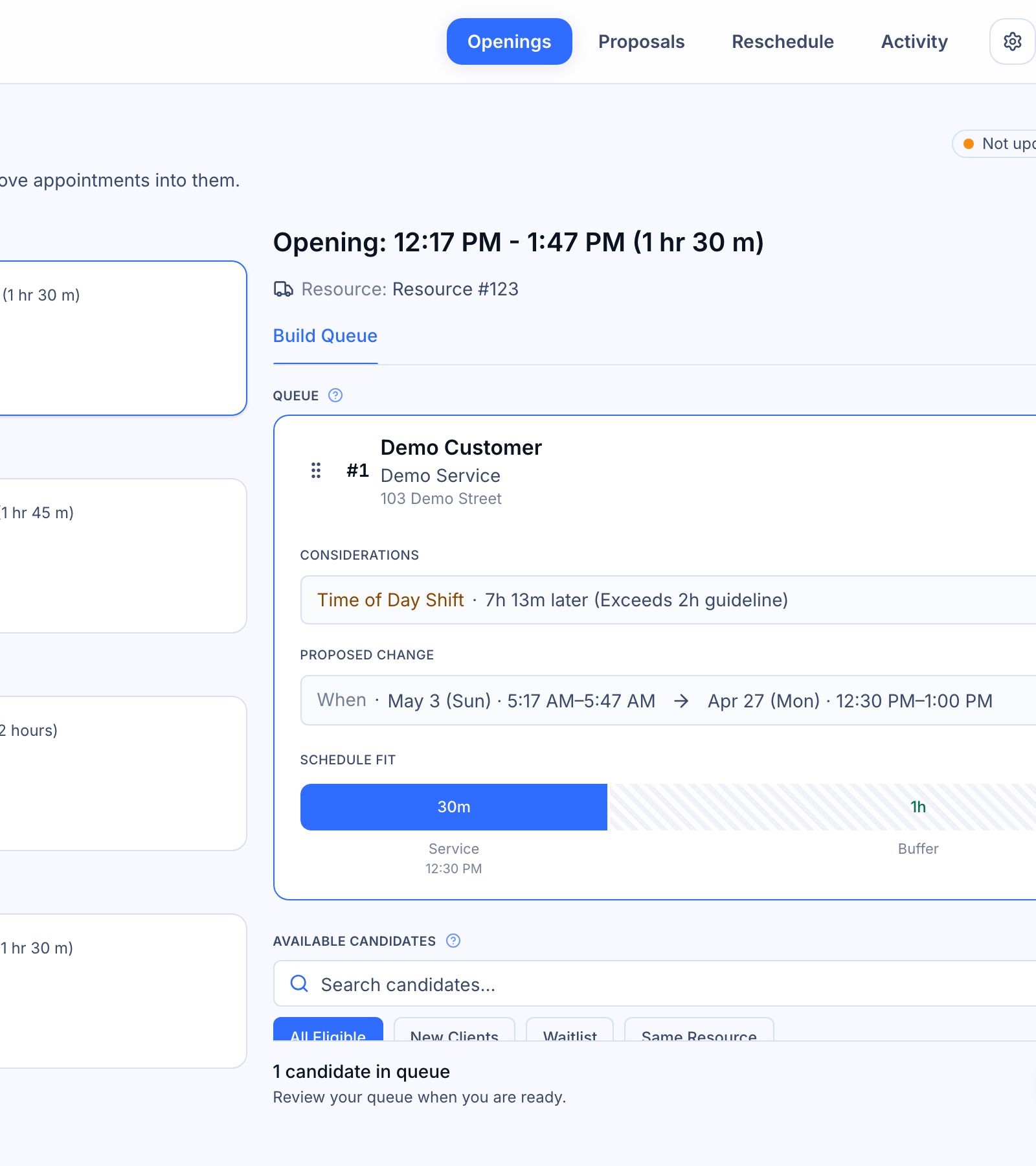
Patcher generates proposals from the Openings page. When you open an opening, you see a ranked list of candidates Patcher thinks are a good match for the slot. The ranking considers things like how soon the customer is already on the books, service type, and your recent contact history with that customer.
Before a candidate is eligible to receive a proposal, Patcher checks that:
- The customer has not opted out of text messages.
- You have not already sent them a proposal in the last cooldown window.
- It is not quiet hours for your business.
- The customer’s current appointment is still movable.
Candidates that fail a check are shown with the reason so you know why they are not being offered.
Sending a proposal
From an opening, you can send proposals one of two ways:
- Lineup — Patcher sends a proposal to your top candidate, waits for a response, and only moves on to the next candidate if that one declines, does not reply in time, or becomes unreachable. This keeps you from double-booking and keeps outreach feeling personal.
- Send to all — Patcher sends the proposal to every eligible candidate at once. The first customer to accept gets the slot, and Patcher automatically cancels the other proposals.
You can also review candidates in a draft first, reorder or remove them, and then start the queue when you are ready.
[SCREENSHOT: Proposal send dialog showing lineup vs. send-to-all options]
What your customer sees
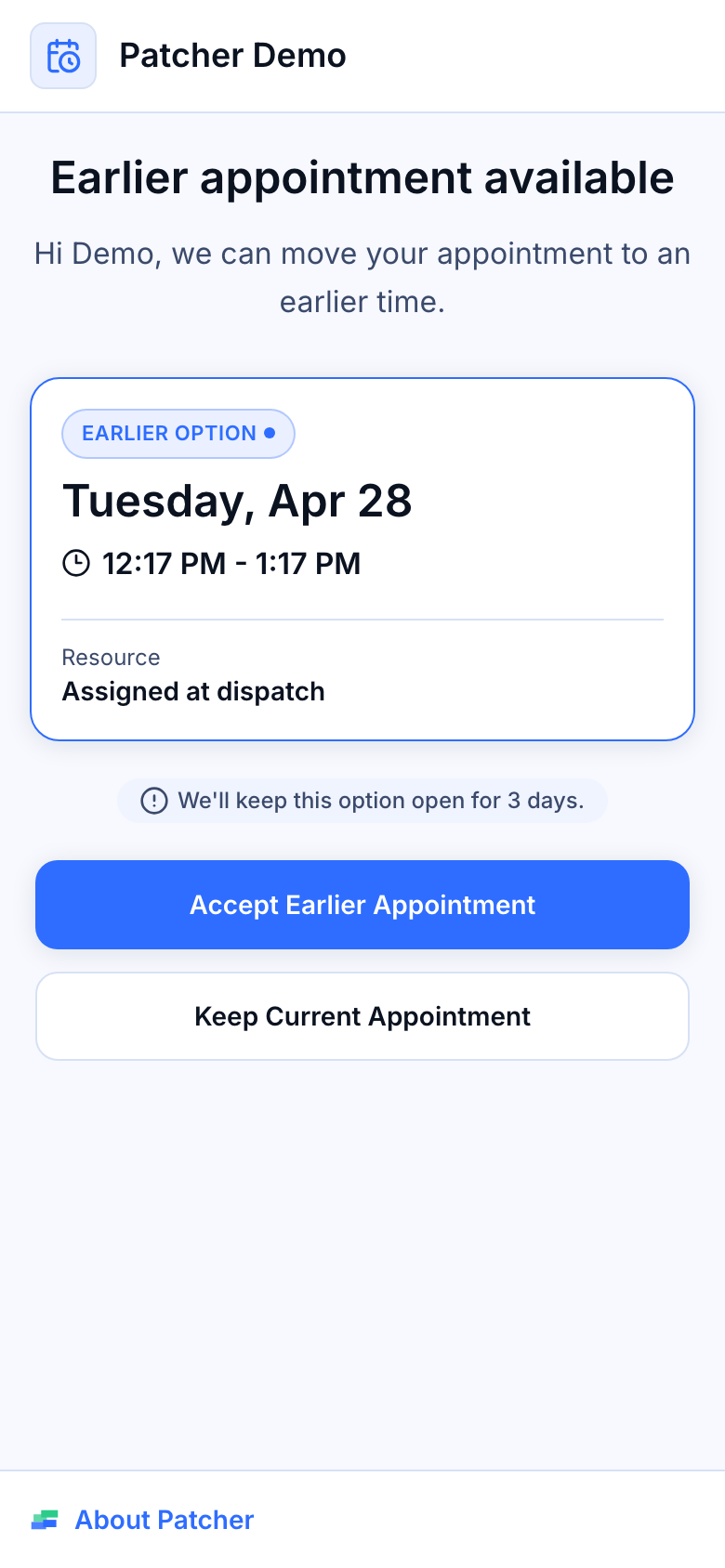
Your customer receives a text message from your business with the proposed date and time and a secure link. The message reads something like:
From Acme Grooming: Hi John. A spot opened up earlier on January 10 at 9:00 AM with Taylor. Want it? Please decide within 4 hours so we can offer it to someone else if needed.
When they tap the link, they land on a page branded to your business that shows their current appointment, the proposed new time, and two buttons: Accept and Decline. No login is required, and the link stops working as soon as the proposal is resolved or expires.
What happens when they respond
- Accept — Patcher moves the appointment on your calendar and in your connected scheduling tool, and marks the proposal as applied. If you are using lineup mode, the rest of the queue stops. If you sent the proposal to everyone, the remaining proposals are canceled so no one else can accept the same slot.
- Decline — The proposal is marked declined. In lineup mode, Patcher automatically moves on to the next candidate. The customer’s original appointment stays exactly where it was.
- No response — The proposal expires at the deadline shown in the message. Patcher treats an expired proposal the same as a decline for the purpose of advancing to the next candidate.
Tracking proposals
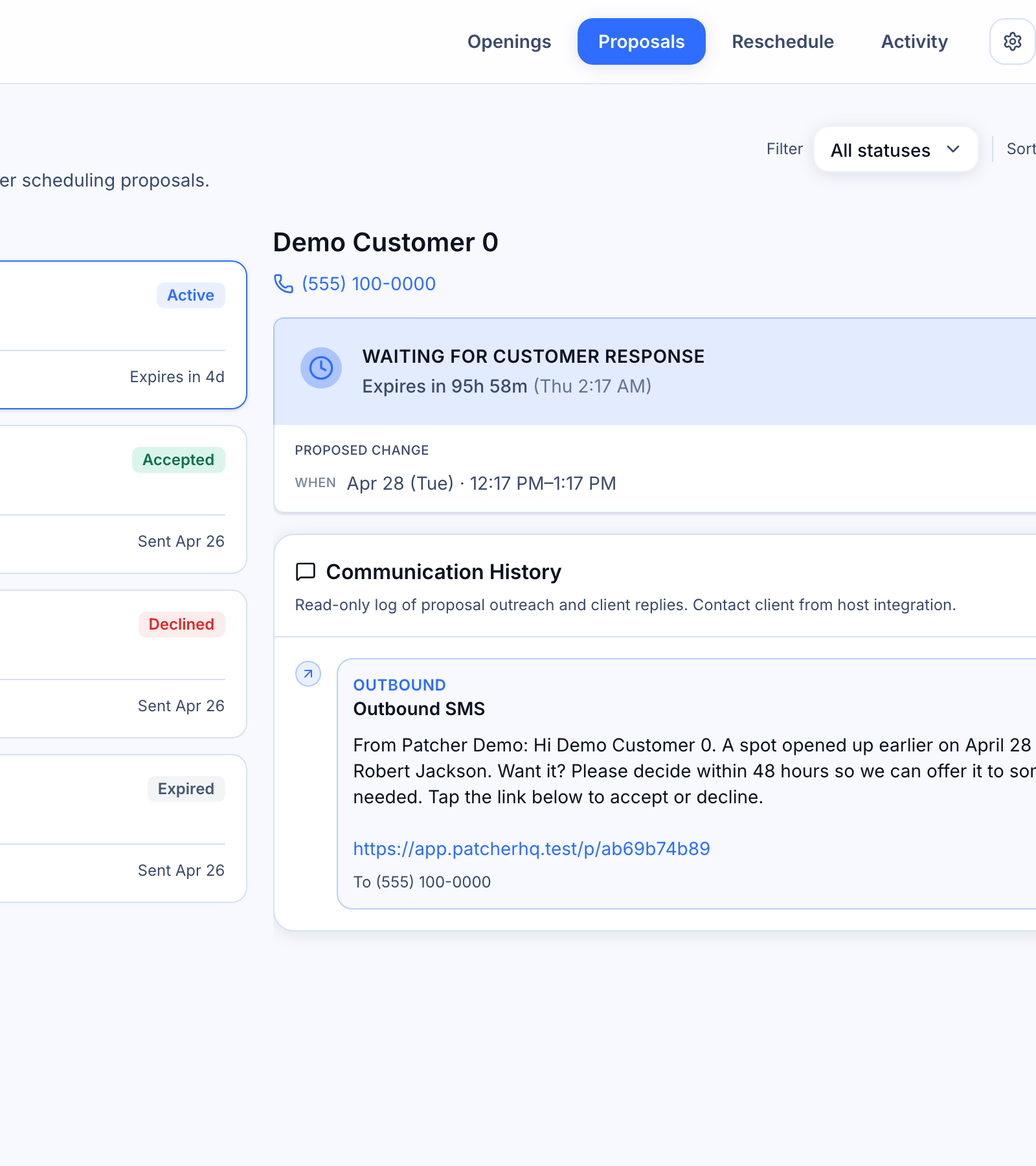
The Proposals page shows every proposal you have ever sent, with filters for status and sort order. Open any proposal to see:
- The customer and their phone number.
- The current appointment and the proposed new time.
- The exact message that was sent.
- A timeline of delivery status and customer activity.
- The opening the proposal came from.
This page is also where you come to confirm that a proposal you sent actually reached your customer, and to see what they replied if anything.
How proposals feed back into your calendar
Every accepted proposal updates your schedule in two places: inside Patcher, and inside your connected scheduling tool. You do not need to edit the appointment manually. Once the sync is confirmed, the opening that generated the proposal closes and disappears from your Openings page.
If a sync ever fails — for example, if your scheduling tool is temporarily unavailable — the proposal stays visible on the Proposals page with an error state so you can retry or follow up.
Common questions
Can I cancel a proposal I already sent? Yes. Open the proposal on the Proposals page and cancel it. If the customer has not responded yet, they will no longer be able to accept.
What if two customers accept the same slot? They cannot. When a proposal is accepted, Patcher immediately closes every other proposal tied to that opening before anyone else can tap Accept.
Will proposals go out at night? No. Patcher holds proposals during your configured quiet hours and sends them once quiet hours end.
Related articles
- How openings work
- Connecting your scheduling provider
- SMS compliance and opt-outs