
Proposal settings and message templates
Proposal settings control when Patcher reaches out to your customers and what those messages say. You configure them in two panels under Settings → Messaging: Proposal Delivery for timing and cadence, and Proposal Messages for the SMS templates.
Overview
A proposal is the text message Patcher sends when there is an opportunity for a customer to move their appointment to an earlier slot. Because every proposal goes out over SMS on your behalf, you get control over two things: how often proposals can go out to each customer, and the exact wording of each message variant.
Delivery settings protect customer trust by preventing the same person from being messaged too often. Message templates let you match Patcher’s wording to your brand voice. You can edit either panel at any time, and the next proposal Patcher sends uses your latest settings.
Proposal Delivery
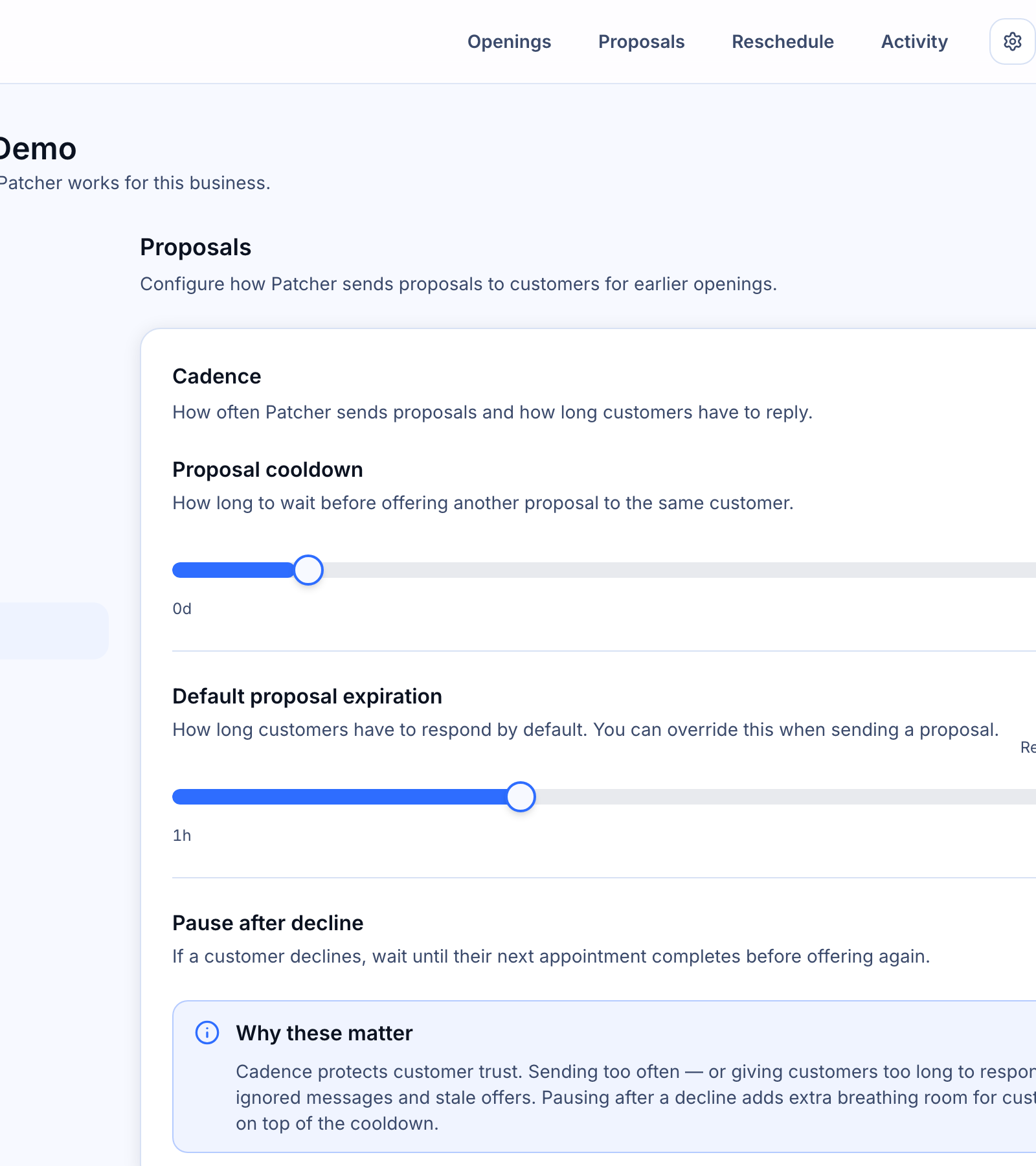
The Proposal Delivery tab sets the cadence and timing rules Patcher follows when choosing which customers can receive a proposal. Open Settings → Messaging → Proposal Delivery to change any of the values below.
Proposal cooldown
The cooldown is how long Patcher waits before offering another proposal to the same customer. The slider ranges from 0 to 60 days. The recommended value is 7 days. Use a longer cooldown if you want to give customers plenty of breathing room between messages, or a shorter one if your customer base expects frequent contact.
Default proposal expiration
When Patcher sends a proposal, the customer has a limited window to accept before the offer expires and the slot goes back up for grabs. This default expiration controls that window and can range from 1 to 72 hours. The recommended value is 12 hours. You can override the expiration on a per-proposal basis when you send one manually.
Pause after decline
Turn this on to give customers who say “no” extra breathing room. When enabled, declining a proposal pauses further proposals to that customer until their next appointment completes. This stacks on top of the cooldown — a declined customer waits through both the pause and the cooldown before hearing from Patcher again.
Proposal Messages
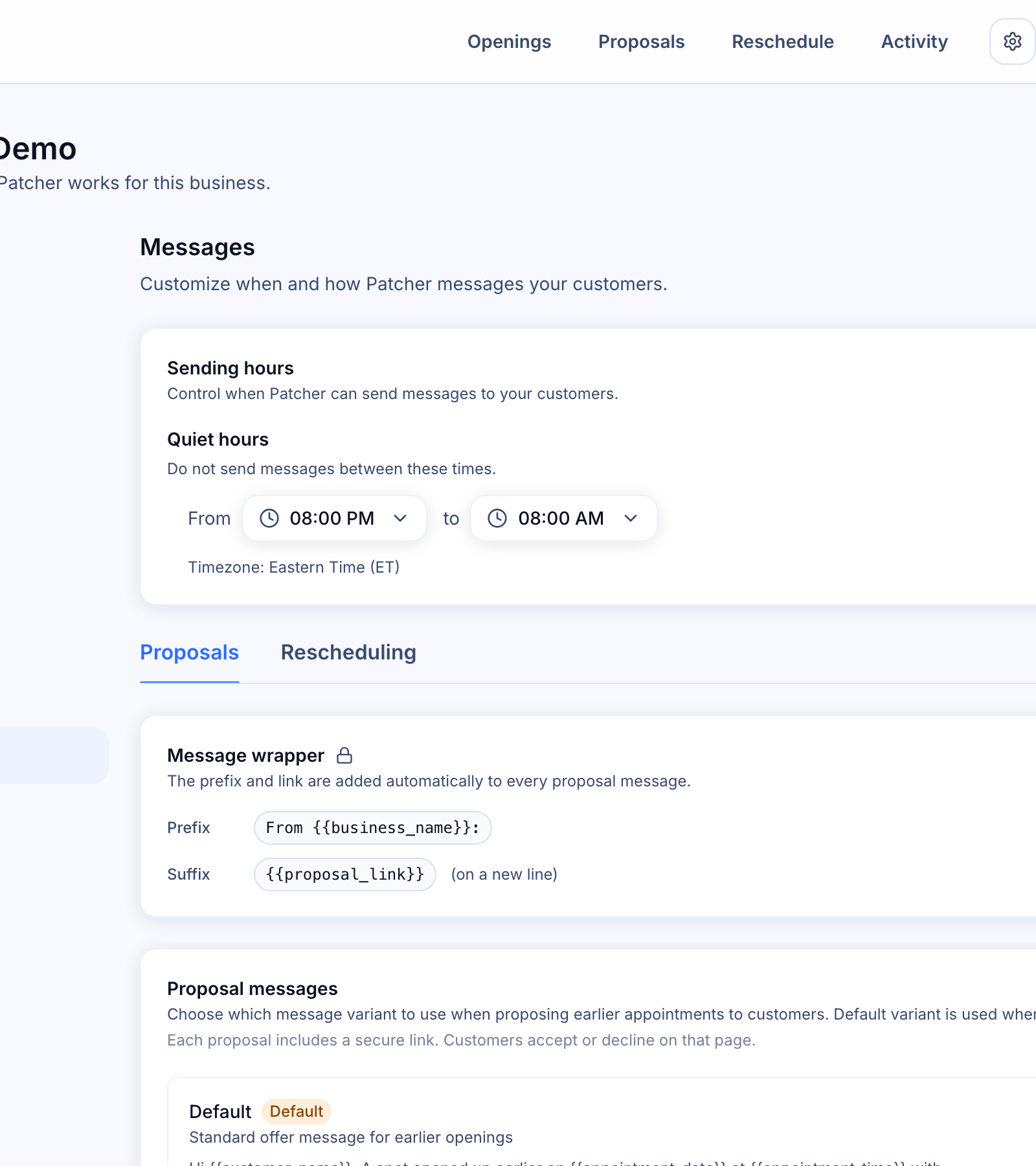
The Proposal Messages tab is where you edit the SMS wording. Open Settings → Messaging → Proposal Messages. The tab has three sections: the message wrapper, proposal message variants, and transactional messages.
Message wrapper
Every proposal message is wrapped with a fixed prefix and suffix that you cannot remove. The prefix is From {{business_name}}:, which tells the customer who is texting them. The suffix is the secure {{proposal_link}}, added on a new line — that link is how the customer accepts or declines. You only edit the middle: the body of the message.
Proposal message variants
Patcher ships several message variants so you can match the tone to the situation. Each variant has a name, a short description, and an editable body. You can:
- Set the default — click the star icon on the variant you want Patcher to use when sending proposals automatically. The default variant cannot be disabled.
- Enable or disable a variant — toggle the switch to control whether a variant is available. Disabled variants are skipped.
- Edit a variant — click the pencil icon to open the template editor.
A variant you have changed from the system default is marked Customized.
Transactional messages
Transactional messages go out automatically based on proposal outcomes — for example, when a customer accepts or when a proposal expires. These messages are marked Required and cannot be disabled, but you can edit the wording to match your voice.
Editing a message template
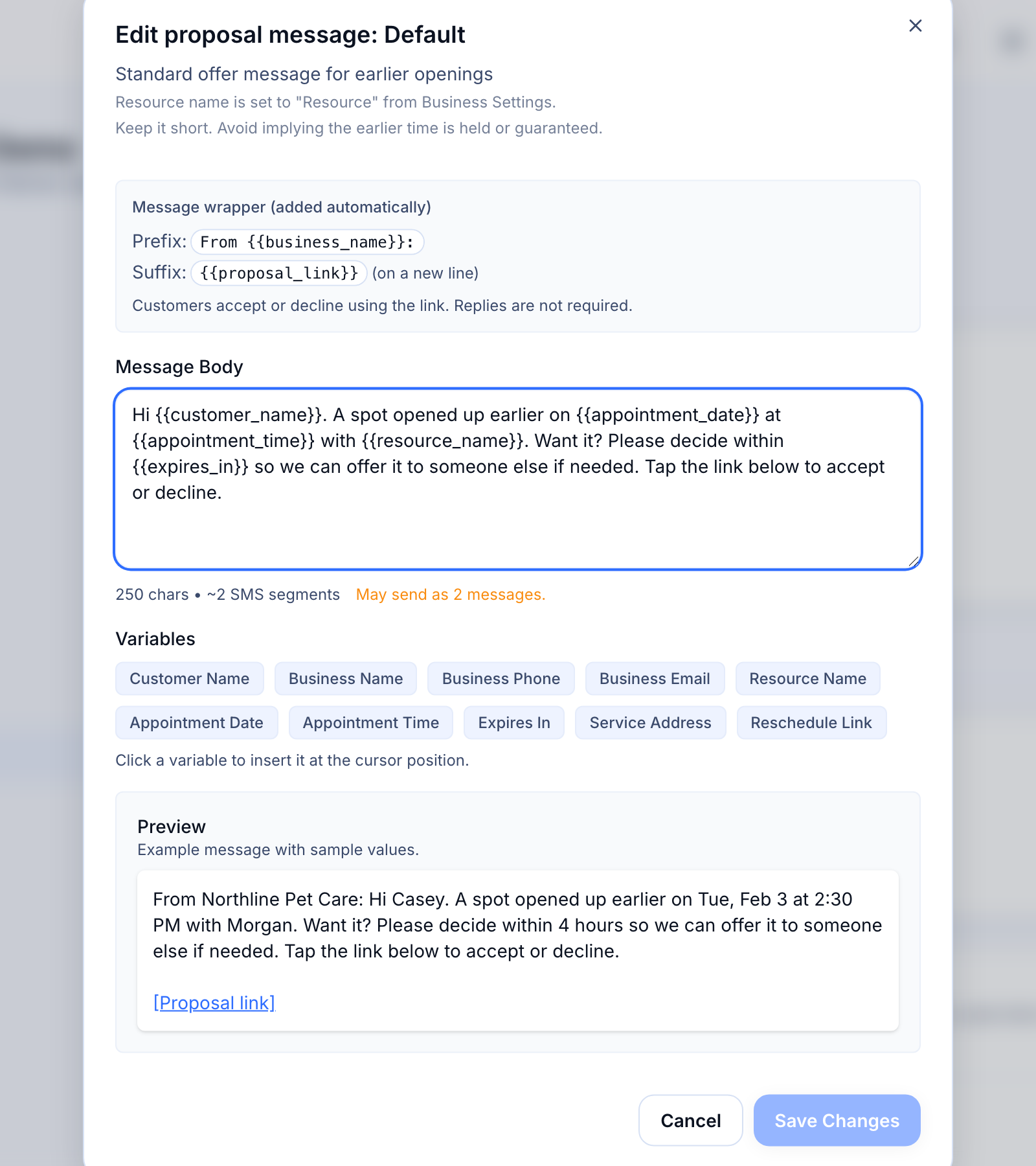
Click the pencil icon on any variant or transactional message to open the editor.
- Edit the Message Body in the text area. The character count and estimated SMS segment count update as you type. Messages over 160 characters may send as multiple segments.
- Insert a variable from the Variables list below the editor. Click any variable to drop it in at your cursor. If you type a variable manually and it is not on the list, the editor flags it as an unknown variable and blocks saving.
- Check the Preview panel, which substitutes sample values so you can read the message the way a customer will.
- Click Save Changes. The next proposal Patcher sends uses your new wording.
If you want to undo your edits, click Restore system default to roll back to Patcher’s original template.
Available variables
Variables are placeholders Patcher replaces with real values when it sends each message. Use them to personalize messages without hand-writing every one.
{{customer_name}}— the customer’s first name.{{business_name}}— your business name, from Settings → Details.{{business_phone}}— your business phone number.{{business_email}}— your business email.{{resource_name}}— the name of the resource assigned to the appointment (for example, a groomer, a room, or a technician).{{appointment_date}}— the proposed appointment date, formatted for the customer.{{appointment_time}}— the proposed appointment time.{{expires_in}}— how long the customer has to respond, based on the expiration you set.{{service_address}}— the service address on file.{{reschedule_link}}— the customer’s secure link, used in reschedule-related messages.
Tips for writing proposal messages
- Keep it short. One or two sentences is usually enough, especially since the wrapper prefix and secure link are added automatically.
- Avoid language that implies the earlier slot is reserved, held, or guaranteed. Proposals can expire or be claimed by another customer first. The editor warns you when it detects these words.
- Personalize with
{{customer_name}}and{{resource_name}}when it makes sense — familiarity increases replies. - Preview the message with sample values before saving to make sure the wording reads naturally.
Related articles
- Sending a proposal
- How customers accept or decline proposals
- SMS compliance and consent