
Sending a proposal
A proposal is a text message Patcher sends to a customer offering them a specific appointment time. If your customer accepts, their appointment updates automatically in your scheduling tool — no manual entry, no back-and-forth.
Overview
When you have an opening in your schedule, Patcher shows you a ranked list of customers who could fit it. You pick who to contact, review the message, and send. Your customer gets a text with a link. When they tap accept, the appointment moves and your schedule updates.
You can send a proposal to one customer at a time, or line up several customers and let Patcher contact them for you. Either way, you stay in control of the message, the timing, and how long each proposal stays open.
Before you send
- Your business profile needs a phone number and email address. Patcher includes these in the message so your customer knows who is reaching out. If either is missing, the send button stays disabled.
- Open the Openings page and pick the opening you want to fill.
Step by step
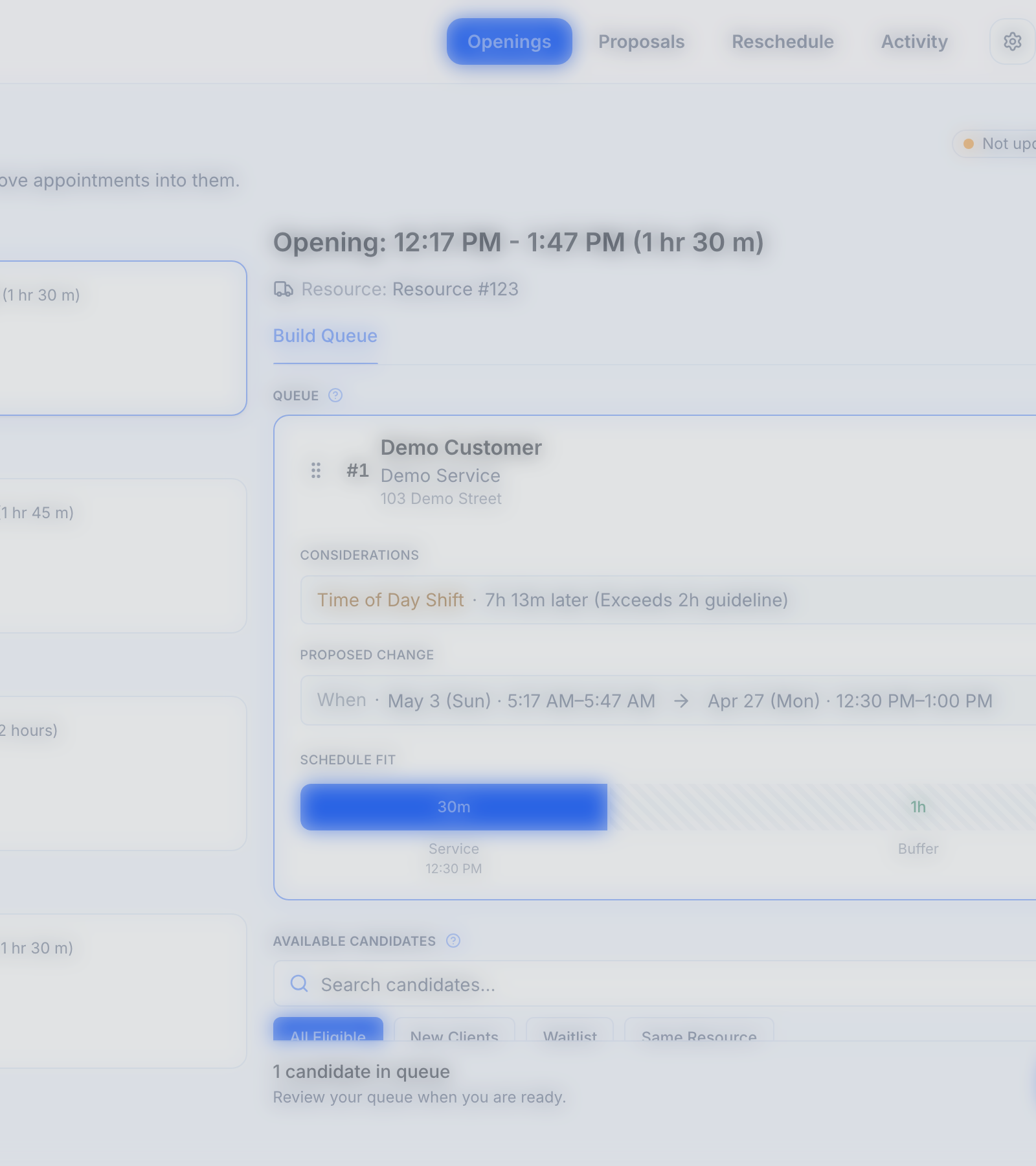
- On the Openings page, click the opening you want to fill. Patcher shows a ranked list of customers on the right.
- Add one or more customers to the queue. You can click a customer, drag them into the lineup, or search by name.
- Click Review Candidates at the bottom of the panel. The review drawer opens.
- Pick a Contact Strategy:
- Queue — Patcher contacts one customer at a time. If they decline or the proposal expires, Patcher moves to the next person. The queue stops when someone accepts.
- Send Now — Patcher contacts everyone in the queue at the same time. The first person to accept gets the opening; the remaining proposals close automatically.
- Choose a message template and how long each proposal stays open. Edit the message if you want to change it.
- Click Start Queue or Send Now to begin.
What your customer sees
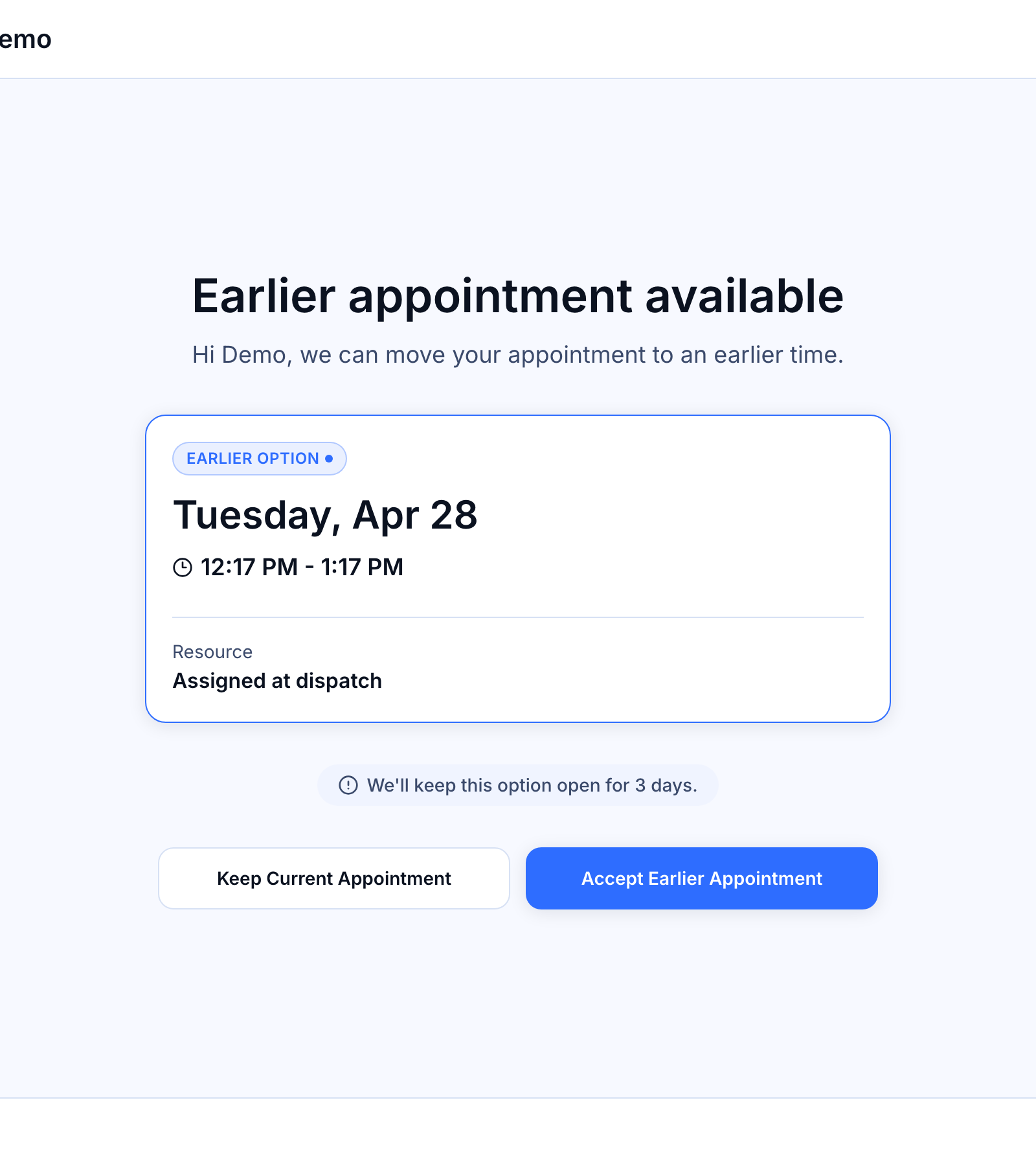
Your customer gets a text message from your business phone number. The message includes the offered date and time and a link. When they tap the link, they see a page with the proposal details and two buttons — accept or decline. They do not need an account or a password.
If they accept, the appointment moves to the new time and your scheduling tool updates. If they decline, the proposal closes and Patcher moves on to the next customer in the queue (when you are using Queue mode).
Following a live queue
Once a queue is running, the opening shows an Active Queue tab. There you can see who has been contacted, who has responded, and which customer is up next. You can stop the queue at any time, and you can skip the current customer to move on to the next one right away.
Why a proposal might not send
Patcher checks a few things before sending. If any of these apply, you will see a message explaining why the send was blocked:
- The customer already has an active proposal. Patcher will not send a second proposal to the same customer while the first one is still pending.
- The customer opted out of text messages. Customers who reply STOP or unsubscribe stop receiving proposals from your business.
- It is quiet hours. If you have set quiet hours, Patcher waits until your messaging window reopens before sending.
- The opening is no longer fillable. If the appointment has already moved or the opening has closed, Patcher cancels the send.
Related articles
- How openings work
- Setting quiet hours and message limits
- Customizing proposal message templates