
What your customer sees when they receive a proposal
When Patcher has an earlier time to offer one of your customers, it texts them a proposal with a link. This article walks through exactly what your customer sees, from the text message to the moment their appointment moves.
Overview
A proposal is Patcher's invitation to a customer to move their appointment to an earlier time. Your customer receives a text message with a short description and a link. Tapping the link opens a page where they can see the proposed time side-by-side with their current appointment, then accept or keep their existing slot.
Proposals are designed to be fast and low-friction — no account, no login, no app. Your customer taps a link, makes a choice, and the appointment updates the moment they accept.
The text message
Patcher sends the proposal by SMS from your business phone number. The message identifies your business, describes the earlier time, sets an expiration, and includes a link.
A typical default message reads:
From Acme Grooming: Hi Jamie. A spot opened up earlier on January 10 at 9:00 AM with Taylor. Want it? Please decide within 4 hours so we can offer it to someone else if needed. Tap the link below to accept or decline.
https://…
You can customize the exact wording and tone in your messaging templates, including variants like short, urgent, last minute, incentive, and friendly. The proposal link is always appended automatically.
The proposal page
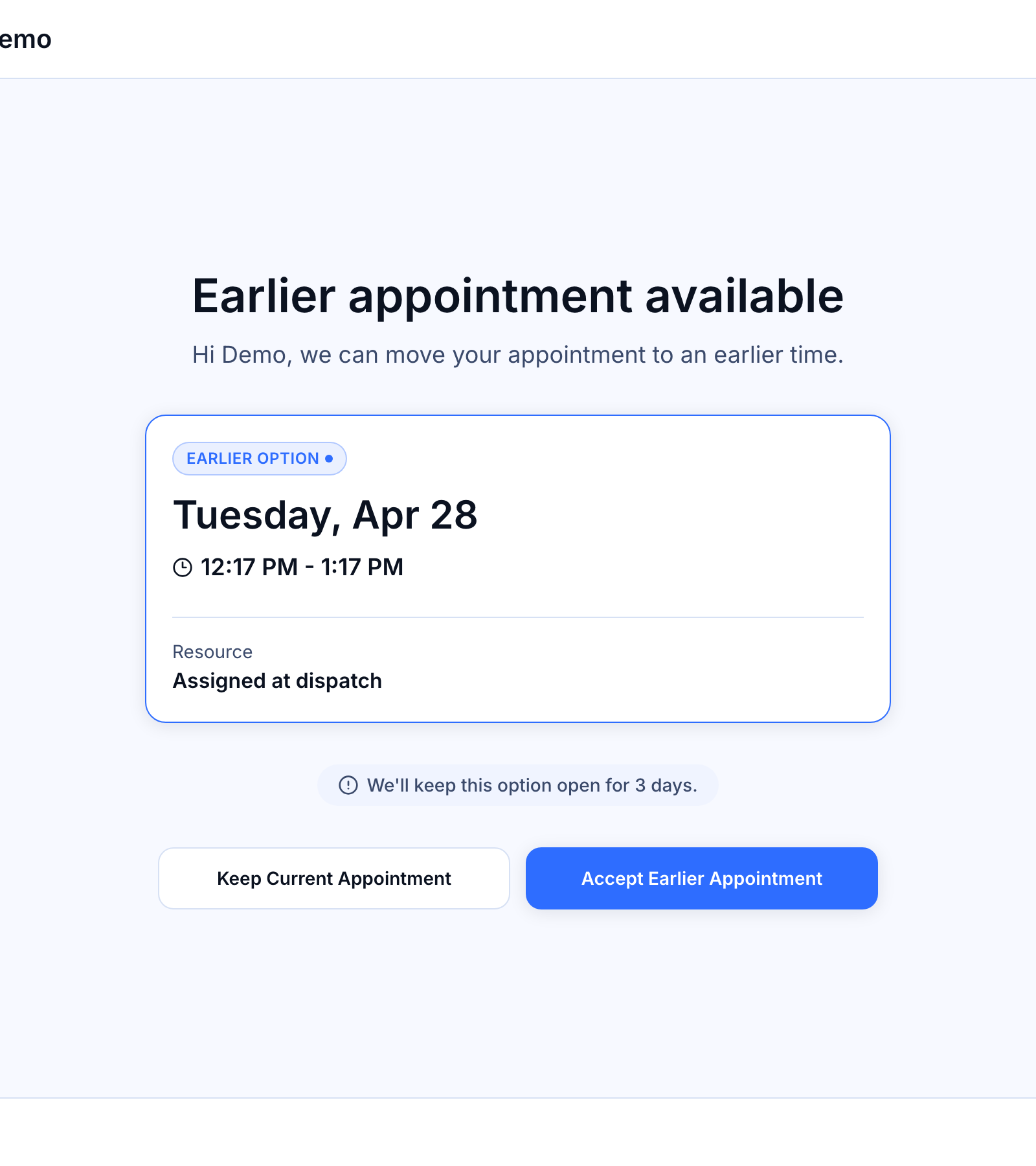
Tapping the link opens a mobile-friendly page branded with your business name, logo, phone, and email. Your customer does not need to sign in.
The page shows:
- A headline — Earlier appointment available.
- A personalized subtitle — e.g. Hi Jamie, we can move your full groom to 2 hours earlier.
- Two time cards side-by-side: their Current appointment and the Earlier option, each with the date, time range, and assigned staff.
- A shift badge on the earlier option showing how much sooner it is (for example, 2 hours earlier or 1 day earlier).
- A countdown pill telling them how long the proposal stays open (We'll keep this option open for 4 hours). The pill turns amber inside the final hour.
- Two buttons: Accept Earlier Appointment and Keep Current Appointment.
Staff names are shown as first name plus last initial (for example, Taylor M.) to protect your team's privacy. If the earlier option is with a different staff member, the card is labeled New [Staff] so your customer isn't surprised.
Accepting or declining
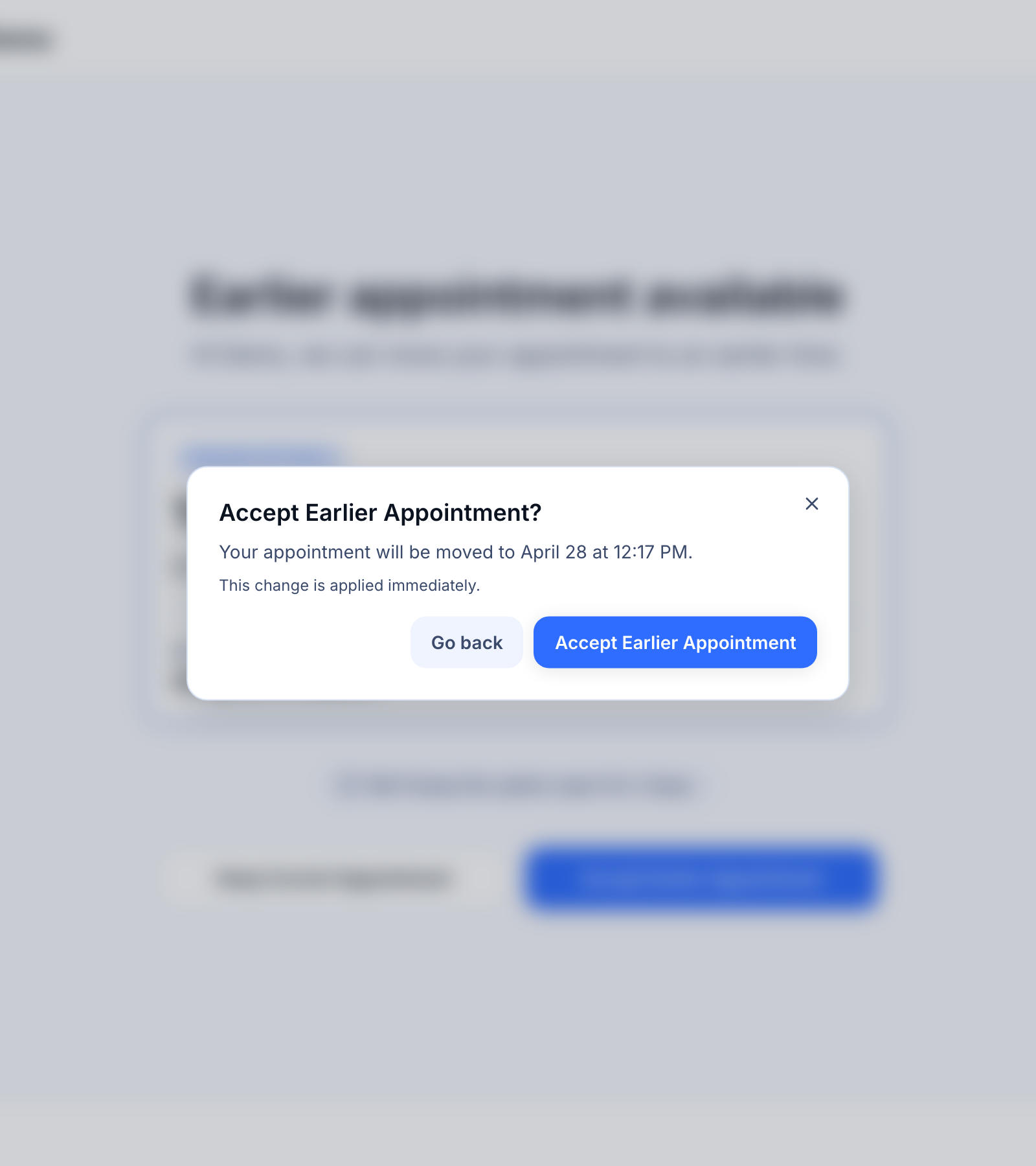
When your customer taps either button, Patcher shows a confirmation dialog so nothing happens by accident.
- Your customer taps Accept Earlier Appointment or Keep Current Appointment.
- A dialog asks them to confirm. For an accept, it says Your appointment will be moved to [new time]. This change is applied immediately. For a decline, it says Your appointment will stay at [current time].
- They tap the confirm button (or Go back to change their mind).
- Patcher records the response and updates the page.
If they accept, Patcher also sends the change to your scheduling tool right away, so the appointment is moved on your calendar in the same step.
What they see after they respond
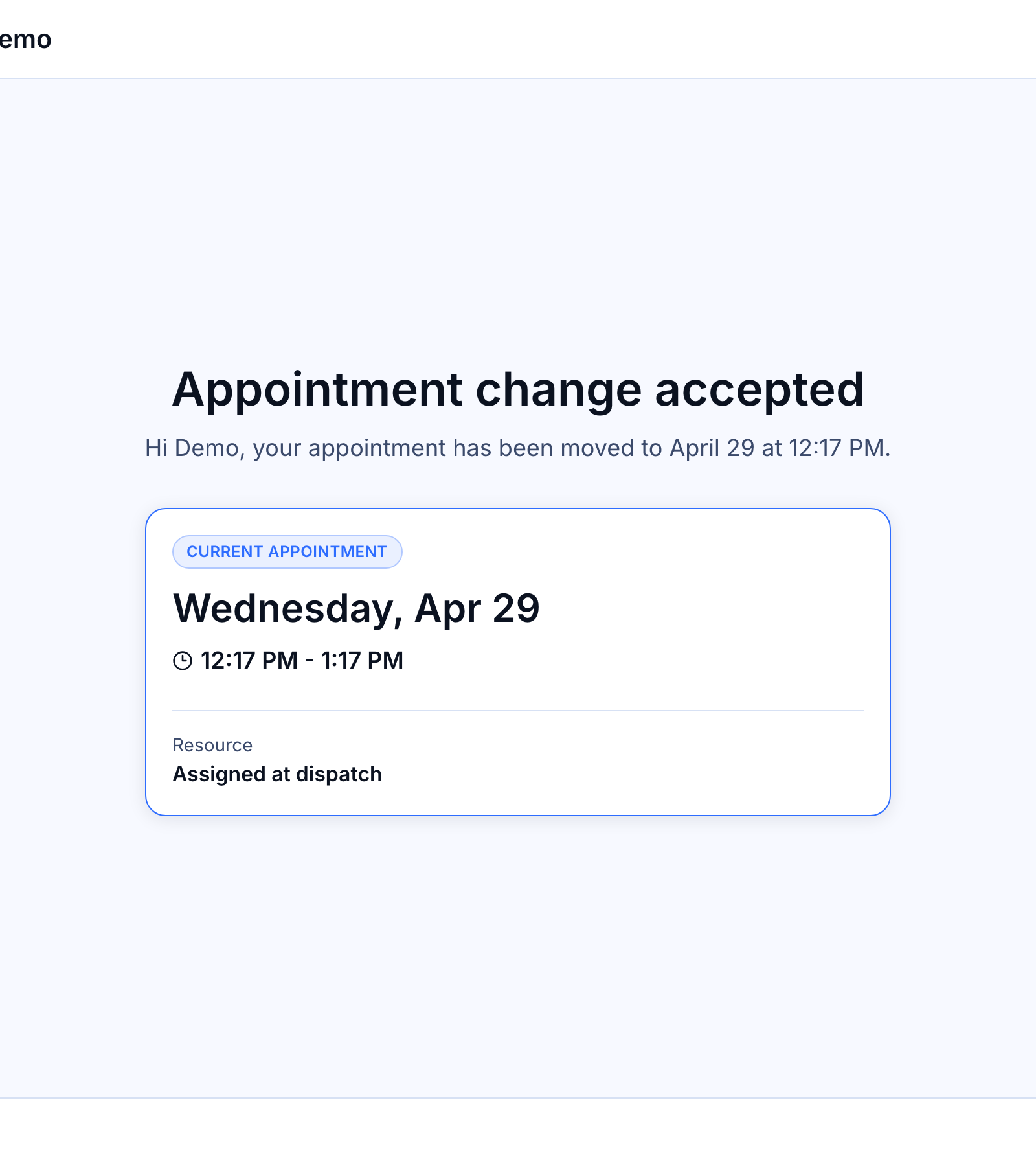
Once the page updates, it shows a final screen that summarizes the outcome. Your customer can close the tab at that point — there's nothing more for them to do.
- Accepted — headline Appointment change accepted, with the new time and staff member. Subtitle example: Hi Jamie, your full groom with Taylor M. has been moved to Friday, Jan 10 at 9:00 AM.
- Declined — headline Appointment change declined, showing their original appointment unchanged.
- Expired — headline Appointment change expired, showing their original appointment unchanged.
- Unavailable — headline Appointment change unavailable. This appears if the earlier slot was taken by someone else before they responded, or if the proposal was canceled on your side.
If something goes wrong with the link
If a customer opens a link that is no longer valid, Patcher shows a short error page with your business phone number so they can call you. The possible messages are:
- Link not found — the link is invalid or has been removed.
- Offer expired — the proposal is no longer available, and no changes were made.
- Already responded — this proposal has already been accepted or declined (for example, they tapped the link a second time after responding).
- Something went wrong — a temporary server error. They can try again in a minute.
- Connection error — their device can't reach the page. Usually a network issue on their end.
None of these error screens change the appointment. If a customer contacts you confused by one of them, you can confirm the appointment's current state in Patcher.
Good to know
- First proposal wins. If Patcher has sent the same opening to more than one customer in sequence, the first one to accept gets it. Later acceptances see the Unavailable screen.
- Links are private. Each proposal link is unique to that customer and that appointment. Patcher sets headers so the page isn't cached, indexed, or shared through link previews.
- No account needed. Your customer never signs in. The link itself grants access to just their own proposal.
- Timezone. Times are displayed in your business's timezone, not the customer's.
- Previewing as an operator. If you open a customer's proposal link while signed into Patcher, Patcher skips recording the first-view timestamp so your preview doesn't pollute customer activity.
Related articles
- How Patcher finds openings and chooses who to offer them to
- Customizing your proposal message templates
- SMS compliance and opt-outs