
Members, roles, and invitations
Every Patcher organization has a team of people who can view schedules, send proposals, and manage settings. This article walks you through the three roles, how to invite someone, and how to manage pending invitations and existing members.
Roles and what each one can do
Patcher uses three roles: Owner, Admin, and Member. Every organization has exactly one Owner — the person who created it — and can have any number of Admins and Members.
Owner
The Owner has full control of the organization. They can do everything an Admin can do, plus a few things only they can do:
- Delete the organization (found in Organization settings → Details → Danger Zone)
- Manage billing and subscription for the organization
- The Owner role is locked — it cannot be changed or removed through the members page
Admin
Admins manage day-to-day access and configuration. An Admin can:
- Invite new members and choose their role (Admin or Member)
- Revoke or extend pending invitations
- Change another member’s role between Admin and Member
- Remove members from the organization
- Edit organization details, branding, and avatar
- Create and manage businesses inside the organization
Admins cannot change their own role or remove themselves — that requires the Owner or another Admin.
Member
Members have read access to the organization. They can:
- View schedules, openings, proposals, and activity
- See the list of other members
Members cannot invite people, change settings, or manage other members.
Invite a new member
You must be an Owner or Admin to invite someone.
- Open Organization settings and select the Members tab.
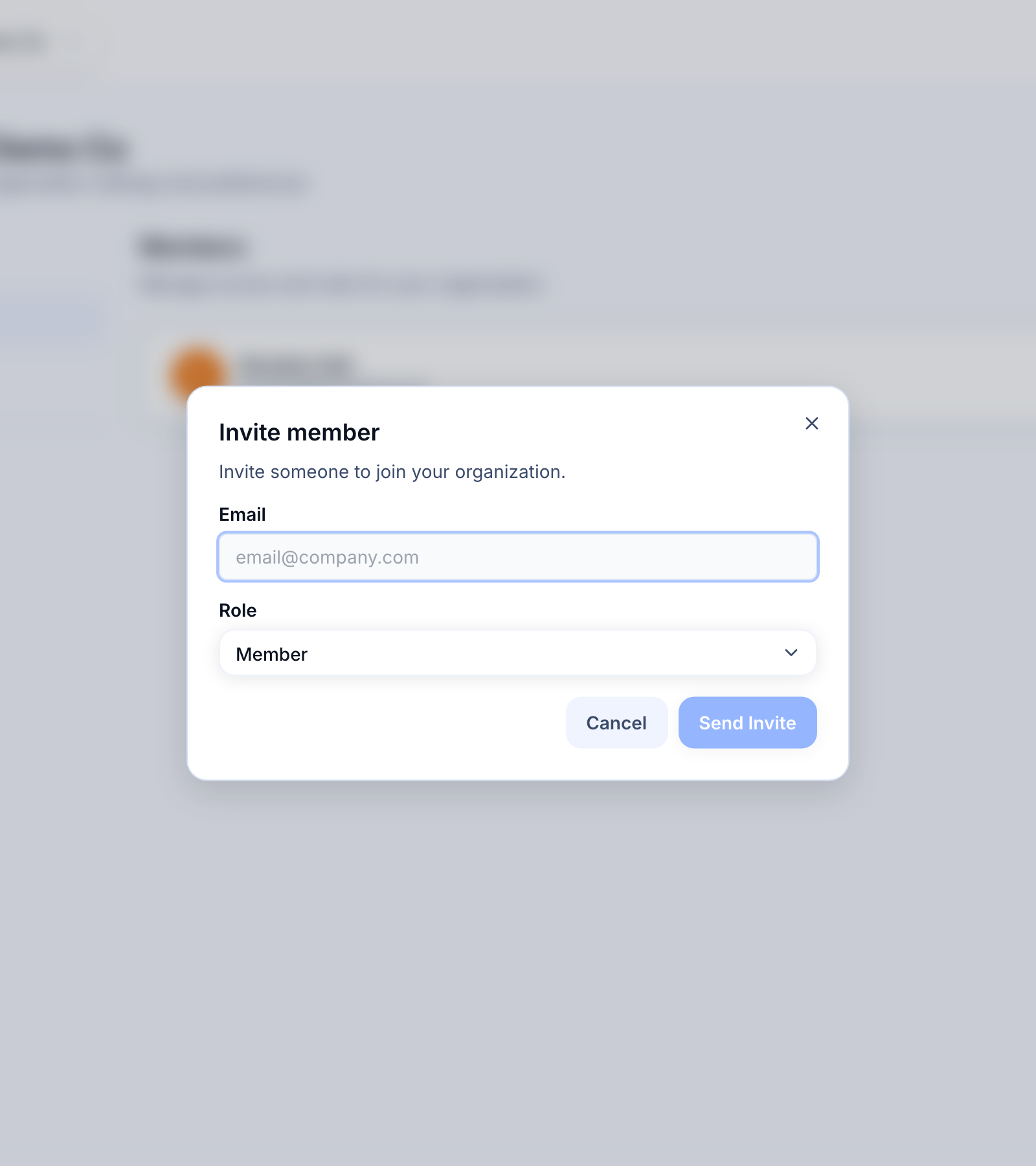
- Click Invite member in the top-right corner.
- Enter the person’s email address and choose a role (Admin or Member).
- Click Send invite. Patcher emails them a secure sign-in link.

What the invited person sees
The invited person receives an email with a secure link. When they click it:
- If they don’t have a Patcher account yet, one is created automatically.
- If they already have a Patcher account, they sign in with that account.
- After signing in, they’re added to your organization with the role you selected.
Invitations are valid for 7 days. The email address on the invitation must match the email the person signs in with — this keeps invitations from being forwarded to someone else.
Manage pending invitations
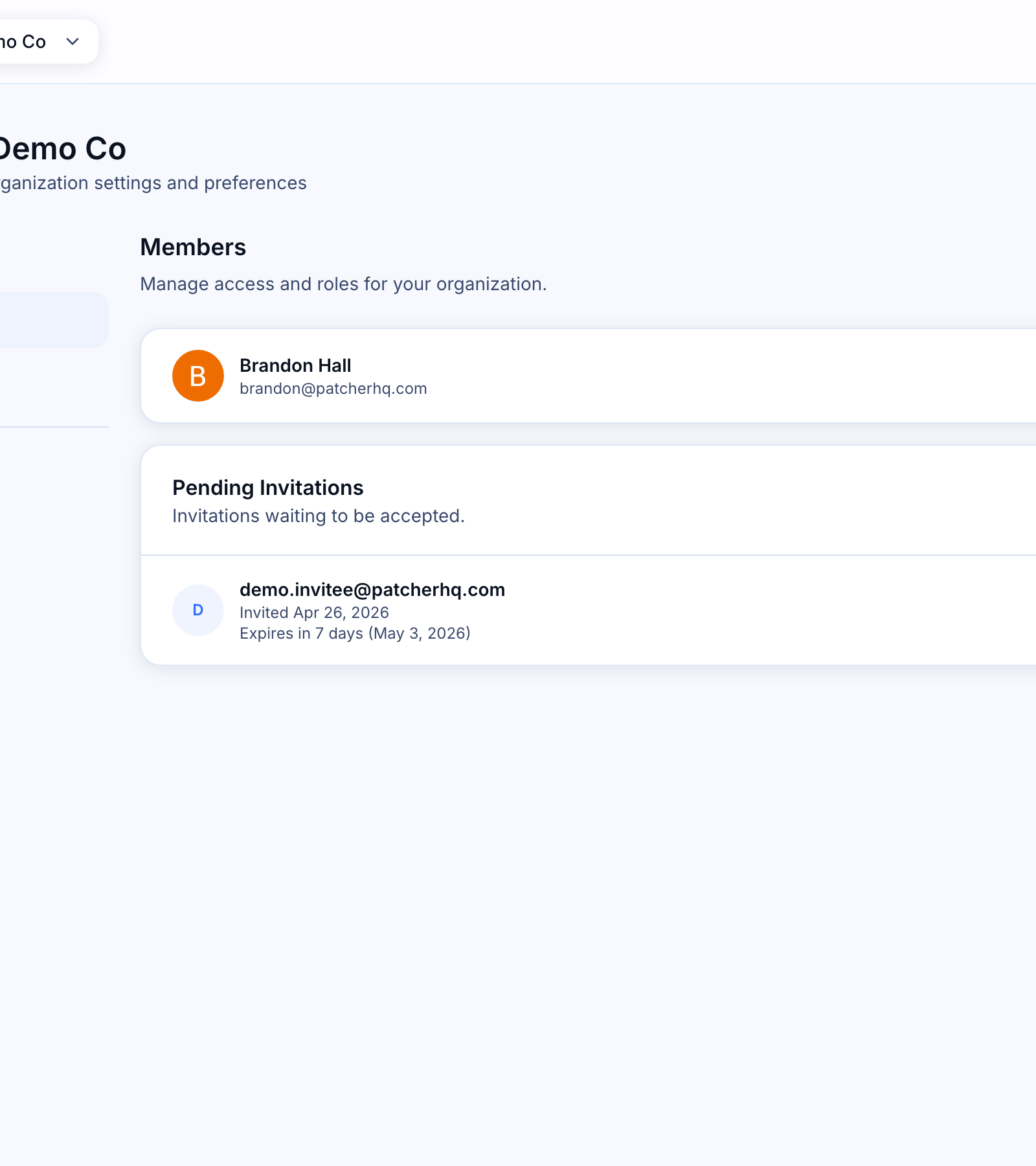
Invitations you’ve sent but that haven’t been accepted yet appear in the Pending invitations section on the Members page. From there you can:
- Extend — if an invitation is close to expiring, extending it gives the person another 7 days to accept.
- Revoke — cancel an invitation that hasn’t been accepted. The link in the email stops working immediately. You can always invite the same person again later.
Change a member’s role
On the Members page, use the role selector next to a member’s name to switch them between Admin and Member. The change takes effect immediately.
A few things to know:
- The Owner’s role is locked and shown as a chip — you cannot change it here.
- Admins cannot change their own role. Ask another Admin or the Owner to make the change.
- You cannot promote anyone to Owner from this page. To transfer ownership, contact Patcher support.
Remove a member
- On the Members page, open the row actions menu (the three dots) next to the person you want to remove.
- Click Remove member….
- Confirm the removal in the dialog.
The person loses access to the organization immediately. If you need to bring them back later, send a new invitation.
Common questions
Can one person belong to more than one organization?
Yes. The same Patcher account can be a member of multiple organizations, with a different role in each. Use the organization switcher at the top of the app to move between them.
What happens to proposals or activity a removed member had in progress?
Removing a member only revokes their access. Any work they did — proposals sent, changes saved, activity recorded — stays in the organization and keeps their name attached for the audit trail.
How do I transfer ownership to someone else?
Ownership transfer isn’t self-service today. Contact Patcher support and we’ll help you move ownership to another member.
The person I invited didn’t get the email. What should I do?
Ask them to check spam or promotions folders first. If it’s still missing, revoke the invitation from the Pending invitations list and send a fresh one — double-checking the email address.