
Managing Resources (staff and technicians)
Your resources are the people or vehicles that do the work on your schedule — the team members you dispatch, rename, and organize so Patcher knows who is available for each appointment.
Overview
Resources are how Patcher represents the members of your team inside your business. Some businesses call them Staff, others call them Technicians, Stylists, Groomers, Drivers, or Vans — Patcher lets you pick the label that matches how your team talks about the work.
Every resource has a name, an active/inactive state, a default start address, and a default end address. When you connect your scheduling tool, Patcher imports the list of resources automatically so you do not have to recreate your team by hand.
Patcher uses your resources in three places: finding openings in the schedule, building proposals for customers, and calculating travel time between appointments.
Finding your resources
- Open your business from the left sidebar.
- Click Settings.
- Choose Resources from the settings menu.
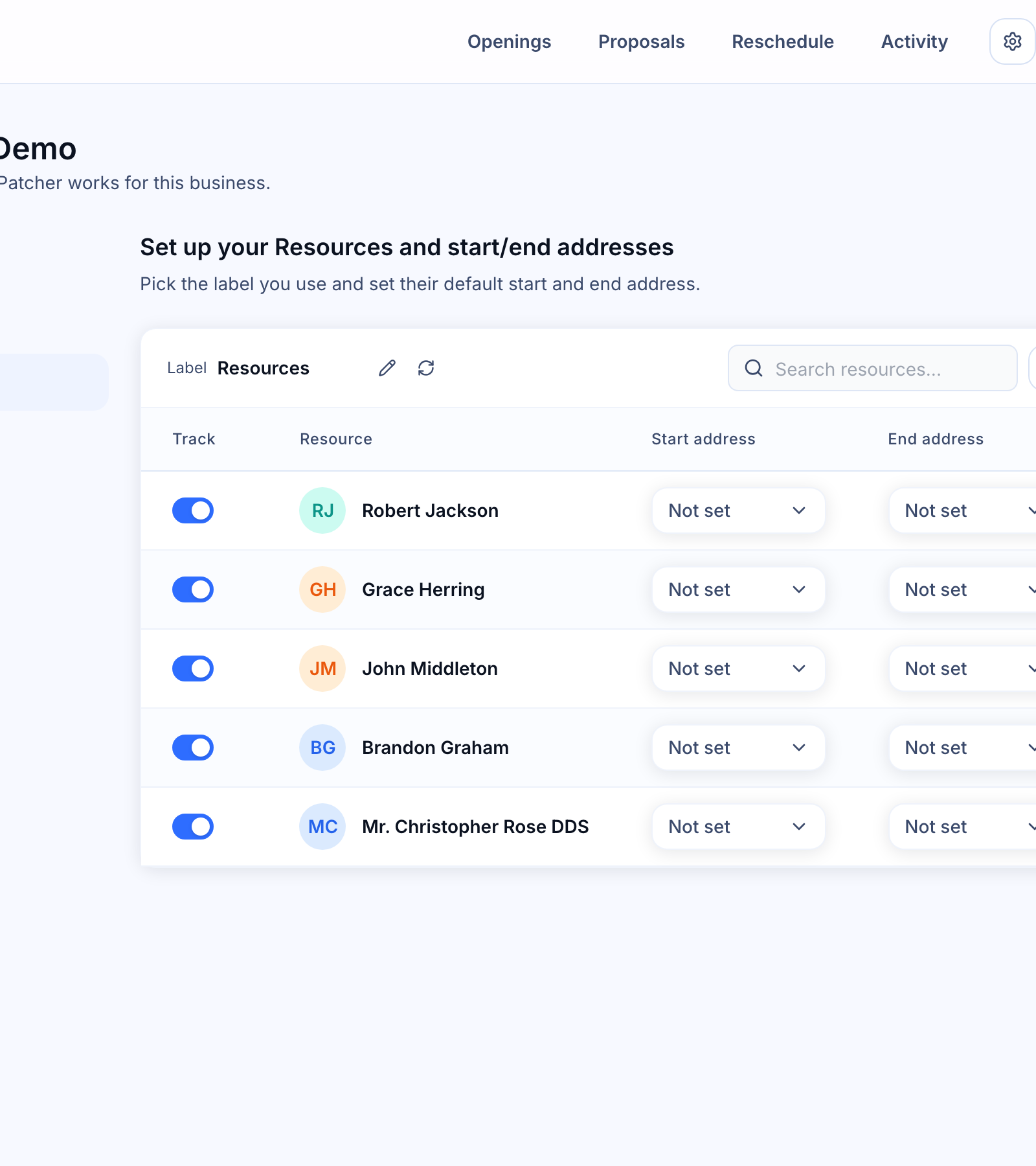
You will see a single card with a toolbar at the top and a table below it. The toolbar shows the label you have chosen for your team, a search field, and a Default Routes button. The table lists every resource Patcher knows about, along with each one’s default start and end address.
Renaming the resource label
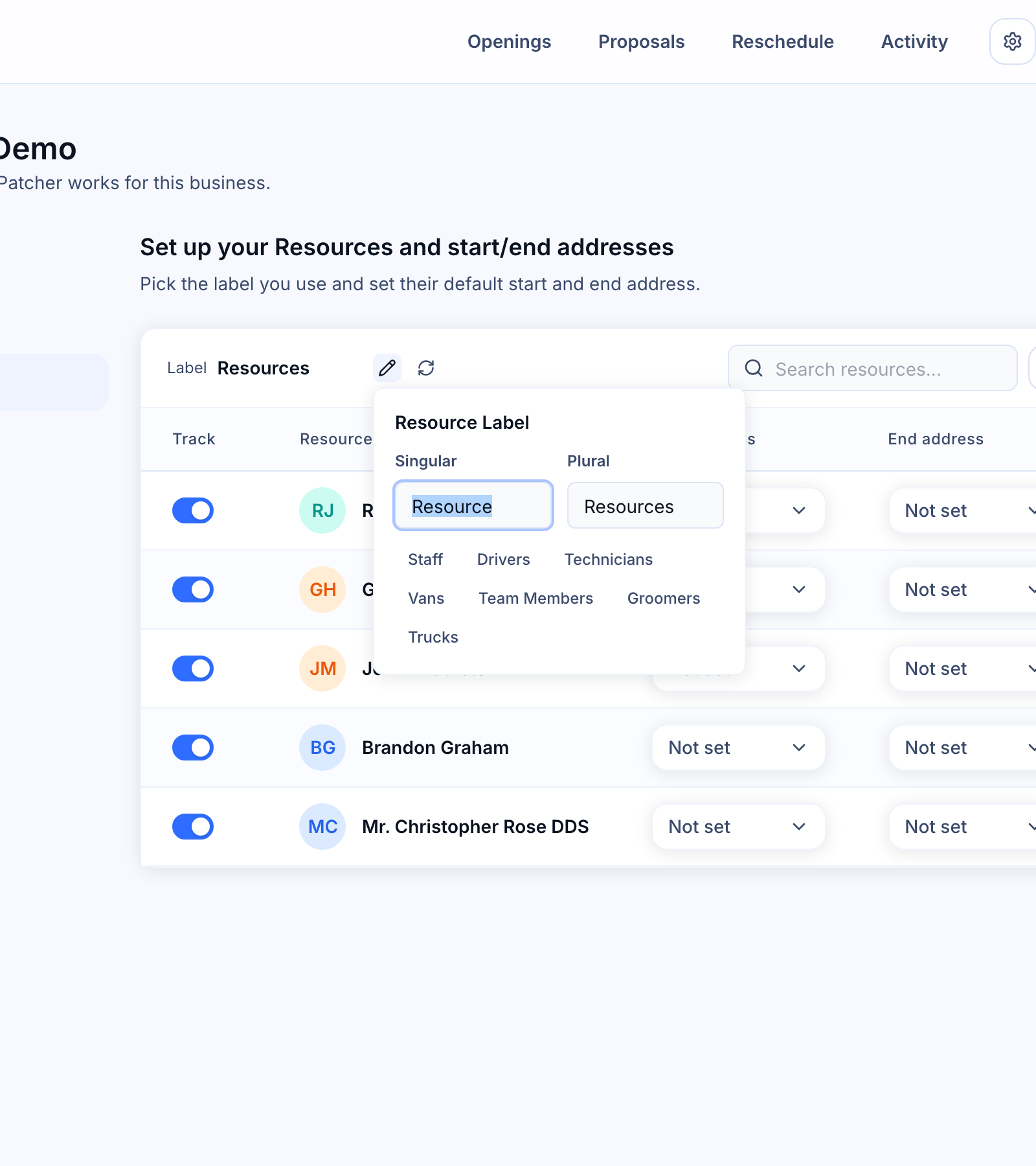
Patcher ships with Resource and Resources as the default singular and plural labels, but you should change them to match your business. Once you set the label, Patcher uses it everywhere — in your settings, on the Openings page, and in the proposals your customers receive.
- On the Resources page, click the pencil icon next to the current label in the toolbar.
- Type your preferred Singular and Plural words — for example, Technician and Technicians, or Stylist and Stylists.
- Or click one of the quick-pick chips: Staff, Driver, Technician, Van, Team Member, Groomer, or Truck.
- Click outside the field to save.
Both fields accept up to 50 characters. Leaving a field blank resets it to the default. Patcher saves the singular and plural separately so irregular plurals (like Staff / Staff) display correctly.
Adding and syncing resources
Patcher pulls your resources from your connected scheduling tool. You do not add team members inside Patcher one at a time — add them in your scheduling tool, then sync.
- Add the new team member in your scheduling tool as you normally would.
- Return to the Resources page in Patcher.
- Click the refresh icon in the toolbar to sync.
Patcher matches existing resources by their provider ID and adds any new ones to the table. If you have not connected a scheduling tool yet, connect one from the Connection settings page first.
Turning resources on and off
Each resource has a checkbox in the table that controls whether Patcher includes that resource in openings and proposals. Turn a resource on when you want Patcher to fill that person’s schedule. Turn a resource off for a team member who is on leave, only works occasional shifts, or does not use the scheduling flows.
When you turn a resource off, Patcher clears any pending openings and proposals for that person. When you turn a resource on, Patcher looks at their schedule the next time it checks for openings.
If your plan bills per active resource, the summary at the top of the page shows your current count and how your selection changes the total before you confirm.
Setting start and end addresses
Patcher uses each resource’s start and end address to estimate travel time when ranking openings and sending proposals. You can set a single default for the whole team, or set one for each resource individually.
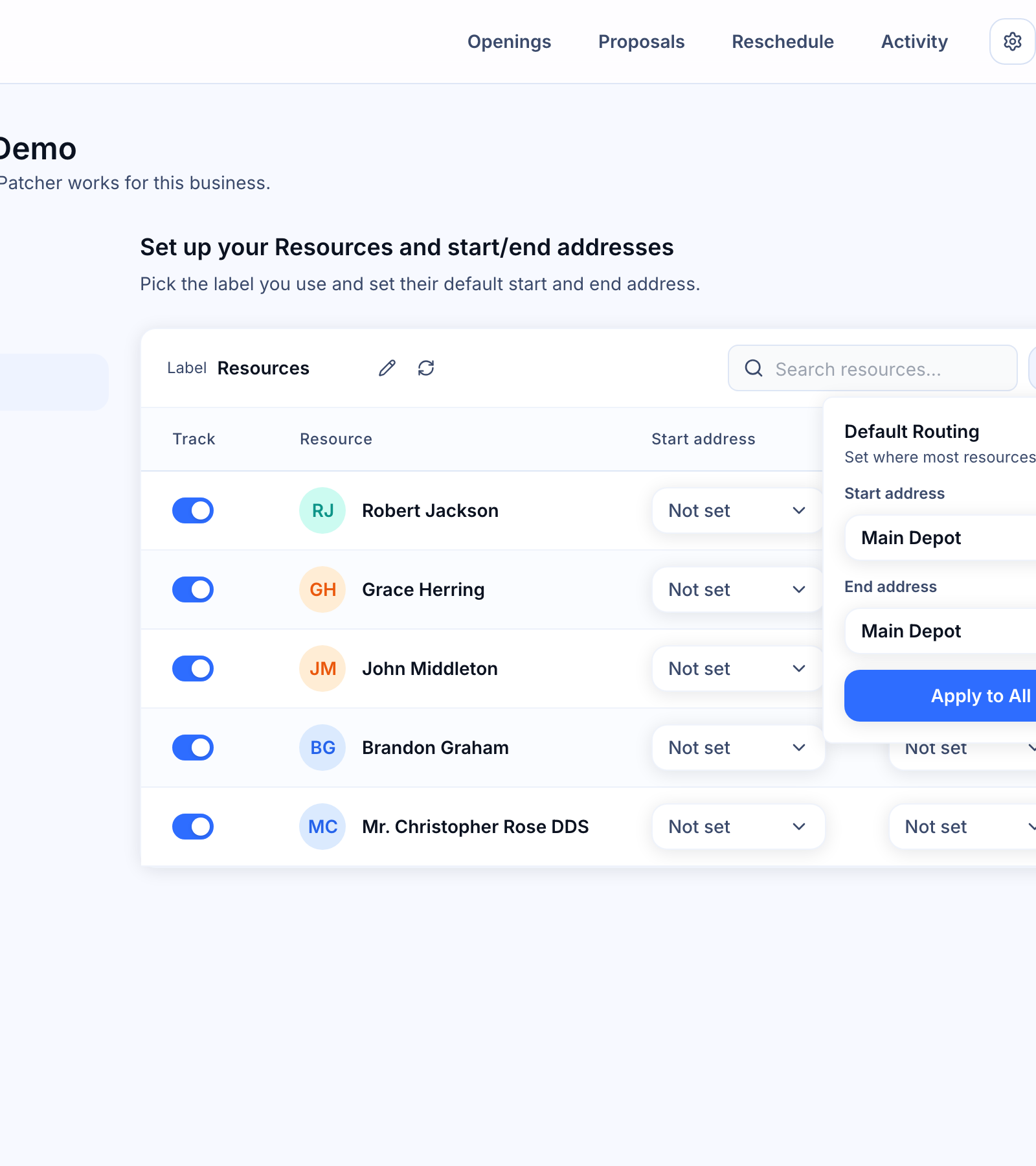
Set a default for everyone
- Click Default Routes in the toolbar.
- Pick a Start address and an End address from the dropdowns.
- Click Apply to All.
Patcher copies the two addresses to every resource in the table.
Set an address for one resource
In the table, click the start or end address dropdown on the resource’s row and pick an address. The change saves as soon as you choose. To add a new address, pick Add new location from the dropdown and fill in the form.
Removing a resource
You cannot delete a resource directly from the Resources page. To stop using a team member in Patcher, turn them off in the table — Patcher keeps the history but stops including them in new openings and proposals.
If someone has left the business for good, remove them in your scheduling tool and then sync. Patcher keeps past records for reporting even if the person is no longer on your team.
Searching and filtering
When your team is large, use the search field in the toolbar to find a specific resource by name. The table filters as you type.
What your customers see
Your resource label appears in the proposals your customers receive. If you chose Stylist, for example, a proposal might read “Your Stylist has an earlier time available.” Choose a label that matches how your customers already describe the people on your team.
Related articles
- Connecting your scheduling tool
- Operating hours and blackout dates
- How openings work