
Scoring settings — what each dial does
Scoring settings tell Patcher what a good move looks like when it considers filling an opening. This article walks through each dial so you can tune them to match the way your business actually runs.
Where to find Scoring settings
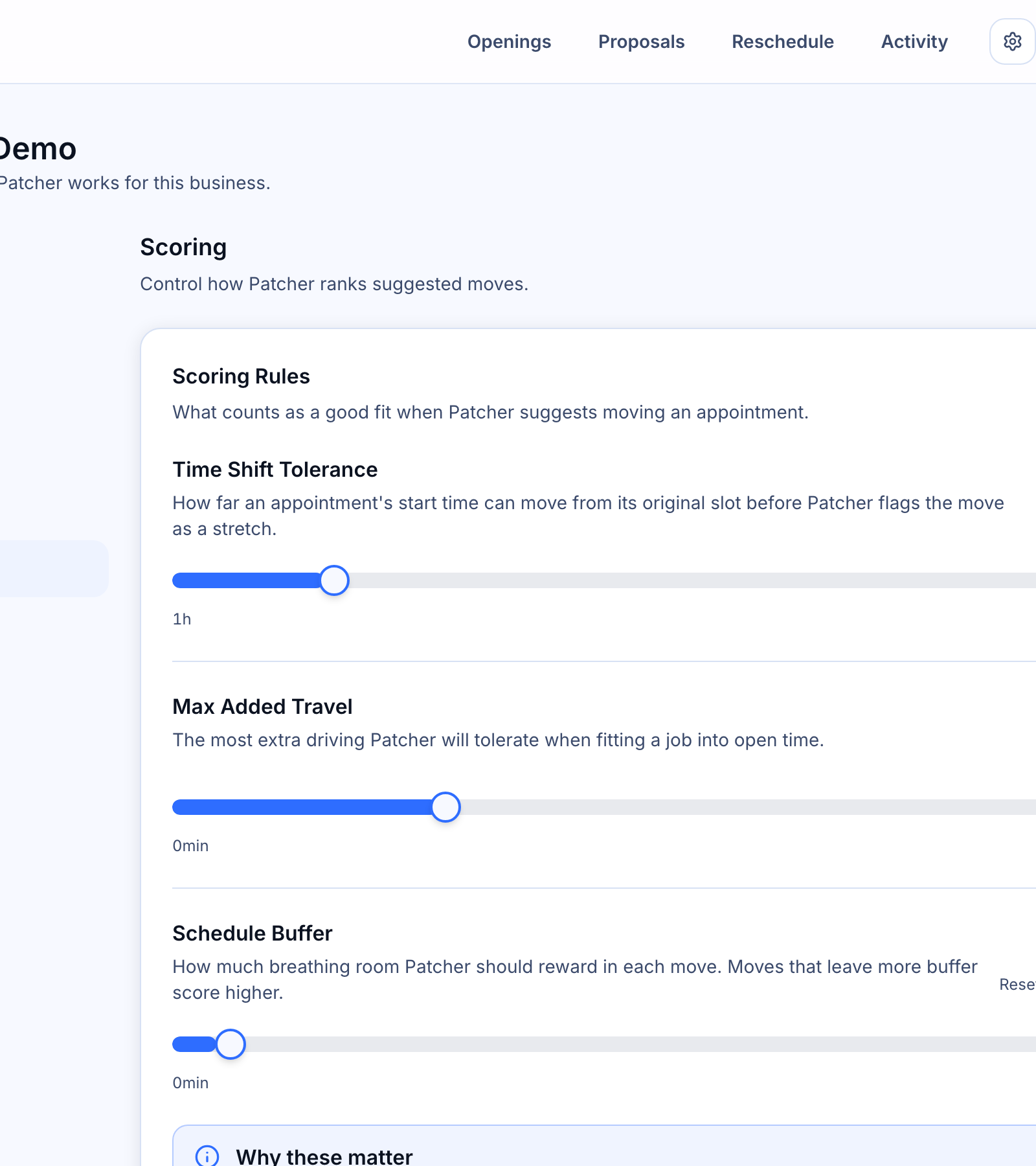
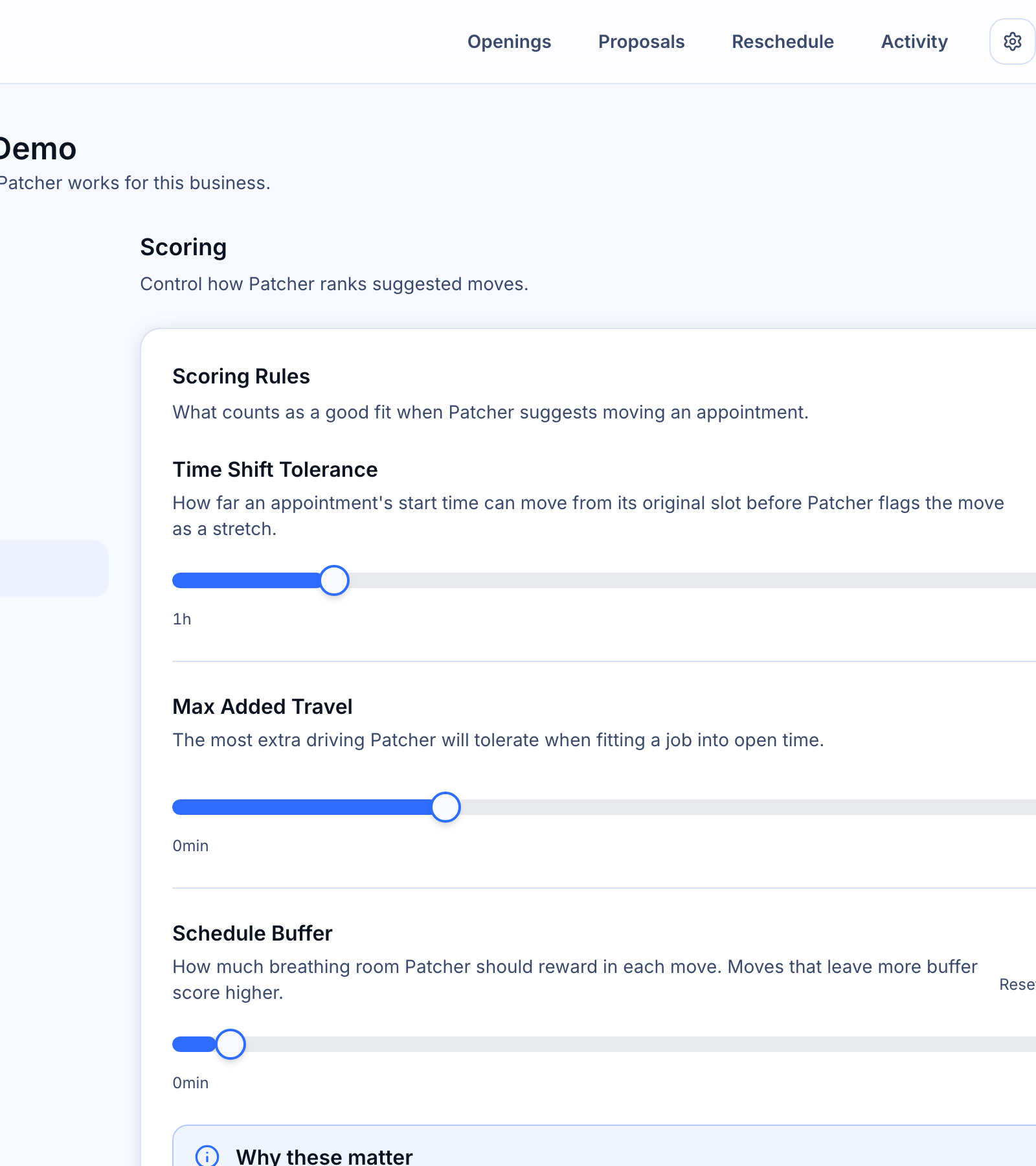
Open your business, then go to Settings → Scoring. You will see three cards: Scoring Rules, Penalties, and Boosts. Every dial saves on the spot — there is no separate save button.
How the dials fit together
Each opening Patcher considers gets a score. The dials change how that score is calculated:
- Scoring Rules set the boundaries for what counts as an acceptable move.
- Penalties push the score down when a move involves trade-offs you want to avoid.
- Boosts raise the score for customer types you want to prioritize.
Tight settings produce fewer, more predictable proposals. Looser settings give Patcher more flexibility to fill open time.
Scoring Rules
Time Shift Tolerance
How far an appointment’s start time can move from its original slot before Patcher treats the move as a stretch. The slider ranges from 1 hour to 8 hours. The recommended value is 2 hours.
Turn it down if your customers expect near-identical times when you reach out. Turn it up if you want Patcher to surface moves that open up more of your day.
Max Added Travel
The most extra driving time Patcher will tolerate when fitting a job into open time. The slider ranges from 0 to 120 minutes, in 5-minute steps. The recommended value is 30 minutes.
Keep this low when routing matters more than filling the day. Raise it when you would rather accept some extra drive time than leave an opening empty.
Schedule Buffer
How much breathing room Patcher should reward in each move. Moves that leave more buffer score higher. The slider ranges from 0 to 120 minutes, in 5-minute steps. The recommended value is 30 minutes.
Raise it if your team needs time between jobs for setup, notes, or travel that is not captured in the appointment length. Lower it if you are comfortable with back-to-back bookings.
Penalties
Team member change penalty
Lowers the score when a move would switch the appointment to a different team member. Three settings:
- Off — Patcher does not factor team continuity into the score.
- Mild — Patcher prefers keeping the same team member, but will switch when the other factors clearly win.
- Strong — Patcher strongly prefers keeping the same team member and will rarely propose a switch.
Use Mild or Strong when your customers have an ongoing relationship with a specific team member. Leave it Off if any qualified team member is interchangeable.
The label on this dial uses the name you chose for your team members during setup (for example, Groomer, Technician, or Stylist).
Unused Time Penalty
Lowers the score when a move would leave a large block of unused time — for example, booking a 30-minute job into a 4-hour opening. Three settings:
- Off — Patcher treats short jobs and long jobs equally when filling an opening.
- Mild — Patcher nudges toward matching job length to opening length.
- Strong — Patcher heavily favors jobs that fill most of an opening and avoids burning long openings on short jobs.
Raise this when you would rather hold a long opening for a longer appointment. Keep it Off if filling any opening is better than leaving it empty.
Boosts
Waitlist Priority
Raises the score for waitlist customers who have asked for an earlier slot. Four settings:
- Off — Waitlist status does not affect the score.
- Slight — Patcher gives waitlisted customers a small edge when several customers could fill an opening.
- Prefer — Patcher clearly favors waitlisted customers over equivalent non-waitlisted ones.
- Strong — Patcher sends waitlisted customers to the top of the list whenever one is eligible.
New Client Priority
Raises the score for new clients who have no prior appointments at your business. Same four settings as above.
Use this if you want to help first-time customers find an earlier appointment when openings show up.
Tuning tips
- Start with the recommended values. They work for most businesses.
- Change one dial at a time, watch the next day’s proposals, and adjust from there.
- If you are getting too few proposals, loosen the Scoring Rules (higher tolerances) and soften the Penalties.
- If the proposals you are getting feel like stretches, tighten the Scoring Rules and raise the Penalties.
- Boosts are about who gets moved up the list. Use them when multiple customers could fill the same opening and you want Patcher to break the tie a particular way.
What saves and when
Each dial saves as soon as you let go of the slider. A status indicator at the top of the page shows whether the latest change saved successfully. There is no undo — if you want the previous value back, drag the slider back.
Related articles
- How openings work
- How proposals are sent
- Setting your business hours