
Organizations vs Businesses: how Patcher is structured
Patcher gives you two layers — an Organization and one or more Businesses inside it. This article explains what each one is and when to create a new Business instead of a new Organization.
The quick version
Think of your Organization as the company, and Businesses as the brands or locations you run under that company.
- Organization — your company workspace. It owns the team, billing, and the people who can sign in.
- Business — a single brand or location that has its own schedule, customers, proposals, and connection to your scheduling provider.
An Organization can contain as many Businesses as you need. Most single-location operators only ever have one.
When to use multiple Businesses
Create a second Business (inside the same Organization) when you have distinct operations that share a team but need separate schedules and customer lists. Common examples:
- Multi-location operators — one physical brand with locations in different cities. Each location runs its own schedule.
- Agencies managing several brands — one team supporting several client brands, each with its own proposals and customer messages.
- Multiple service lines — the same company running two distinct offerings that don’t share a calendar.
If your work is all one schedule and one customer list, you only need one Business.
What lives at each layer
Settings and data are split between the two layers on purpose.
At the Organization level
- Organization name, description, contact details
- Members and their roles
- Billing and subscription
- SMS compliance registration (shared across your Businesses)
At the Business level
- Connection to your scheduling provider
- Hours, scheduling rules, and scoring
- Resources (technicians and staff)
- Openings, proposals, and rescheduling activity
- Message templates and notification settings
Members and permissions
People you invite join at the Organization level with one of three roles:
- Owner — full control, including billing and deleting the Organization.
- Admin — can invite members, manage Businesses, and change settings.
- Member — day-to-day access without admin controls.
Every Organization member can see the Businesses inside it. If you need tighter control, each Business also has its own member list so you can narrow down who works in which Business.
Only Owners and Admins can invite new members, create Businesses, or change Organization settings.
How to create a new Business
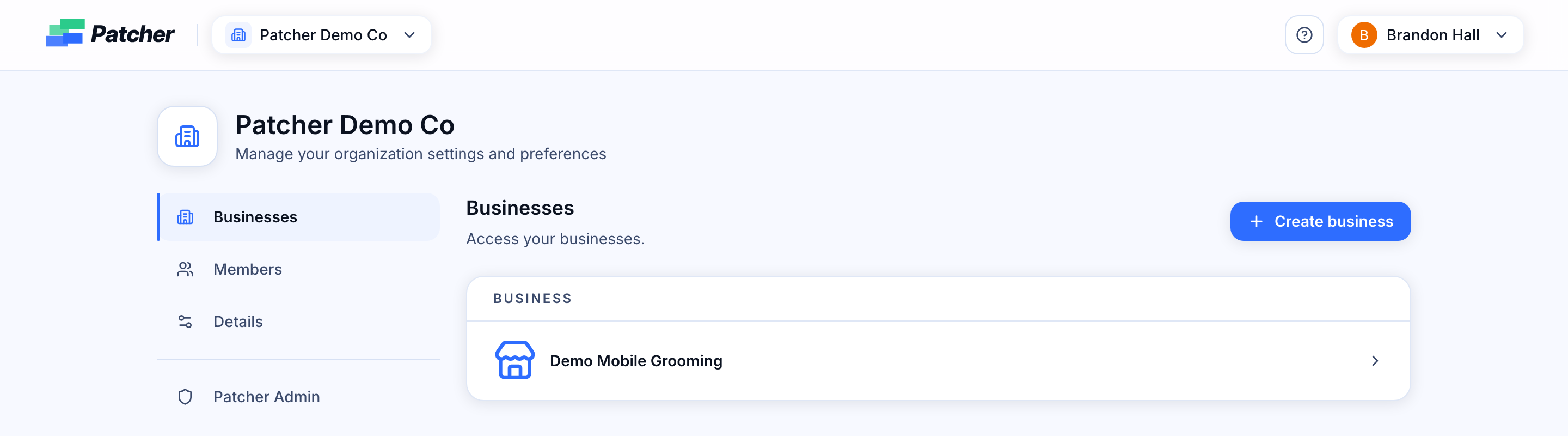
- Open your Organization from the home page.
- Go to the Businesses tab.
- Click Create business.
- Enter the Business name, contact phone, and contact email.
- Click Create. You’ll land in the new Business, ready to connect your scheduling provider and finish onboarding.
When to create a new Organization instead
Create a separate Organization (not a Business) when the work has a different team, different billing, or belongs to a different legal entity. If the new work shares your team and bill, add it as a Business under your existing Organization.
Related articles
- Creating your first business
- Organization settings (Details)
- Members, roles, and invitations
- Multi-business management