
Onboarding: Identify your workspace and resources
After you connect Patcher to your scheduling provider, the next onboarding step helps Patcher understand your workspace. You tell Patcher what to call your team, confirm which schedules to watch, and set the addresses Patcher should use when estimating travel time.
Overview
Patcher needs two pieces of information before it can start looking for openings in your schedule: what you call the people or vehicles you dispatch, and where they tend to start and end their day. The label you pick here appears in customer messages and proposals, and the addresses are used to estimate drive time between appointments. Any schedules you pull in from your scheduling provider show up here so you can pick the ones Patcher should watch.
Pick the label Patcher should use
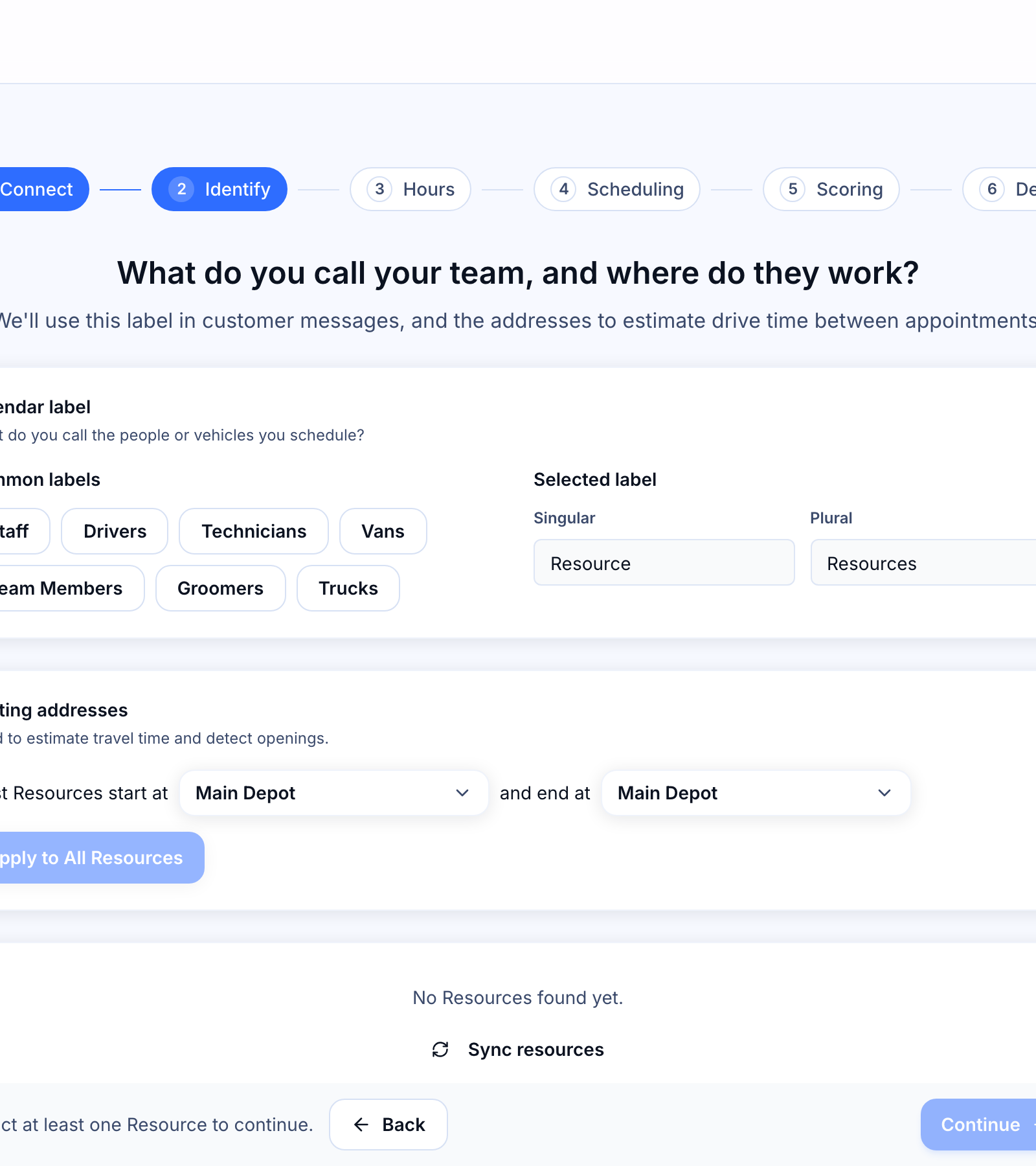
The label is the word that shows up in customer-facing messages when Patcher refers to your team. Choose whatever matches how you talk about your business — staff, drivers, technicians, groomers, vans, trucks, or team members all work.
- Pick a common label from the quick options, or type your own in the Singular and Plural boxes.
- The label saves automatically when you click a quick option or move out of the text field.
- You can change the label later from your business settings.
Set the routing addresses
Patcher uses addresses to estimate how long it takes to get between appointments. Most teams start and end their day at the same place, so you can set one address that applies to everyone, then override it for anyone who works differently.
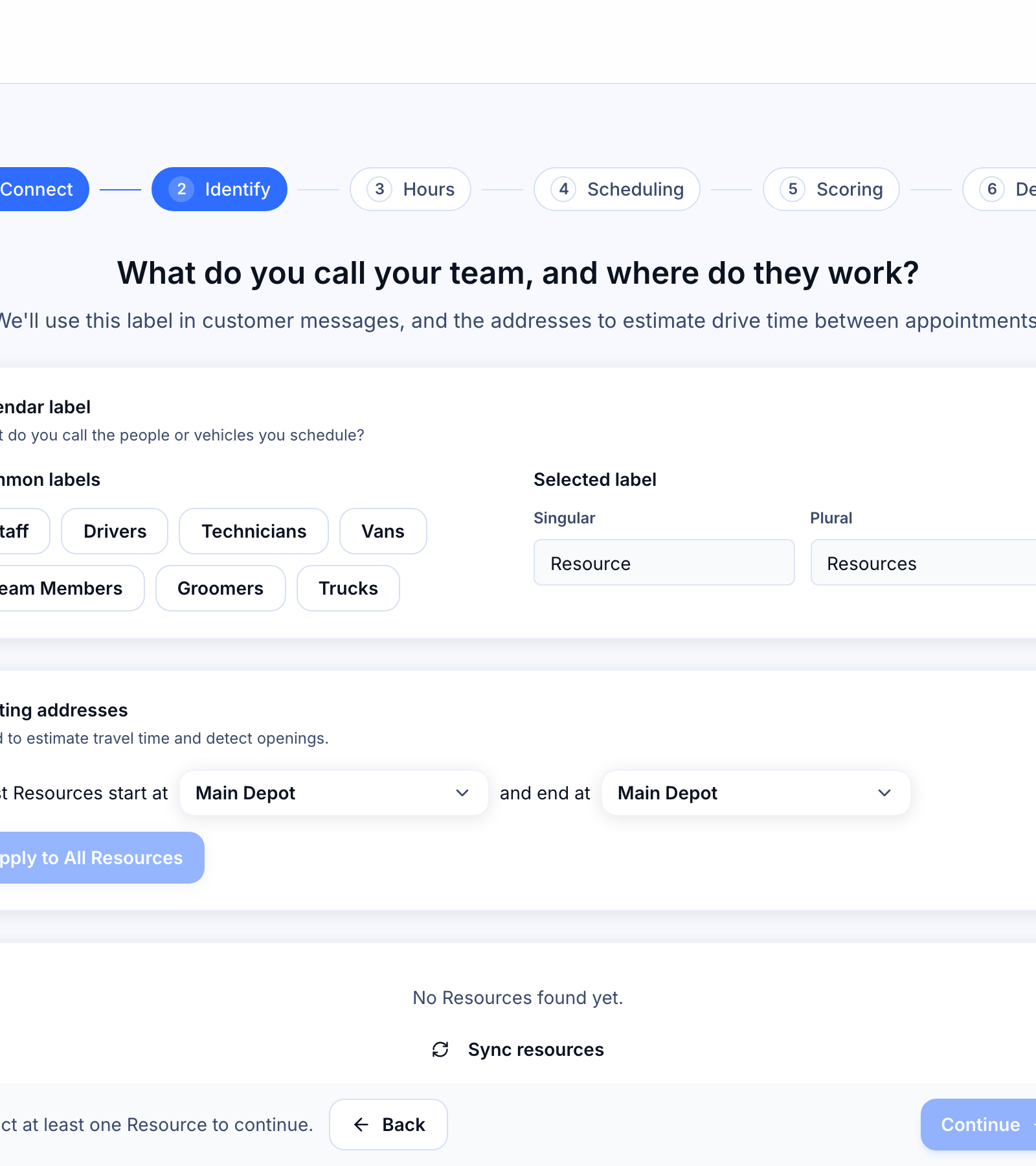
- Under Routing addresses, pick the address most of your team starts at and the one they end at. If no addresses exist yet, add one from the dropdown.
- Click Apply to All to copy those start and end addresses onto every schedule you have.
- In the schedules list below, override the start or end address for any individual who works out of a different location.
Choose which schedules Patcher watches
Patcher pulls in the schedules from your scheduling provider automatically. You decide which ones it should watch for openings — leave off anyone who shouldn't receive proposals, like office staff or anyone on leave.
- Scroll to the Included Schedules list. Every schedule imported from your scheduling provider appears here.
- Toggle a schedule on to have Patcher watch it, or off to skip it. Changes save automatically.
- Use the search box to find a specific person or vehicle if the list is long.
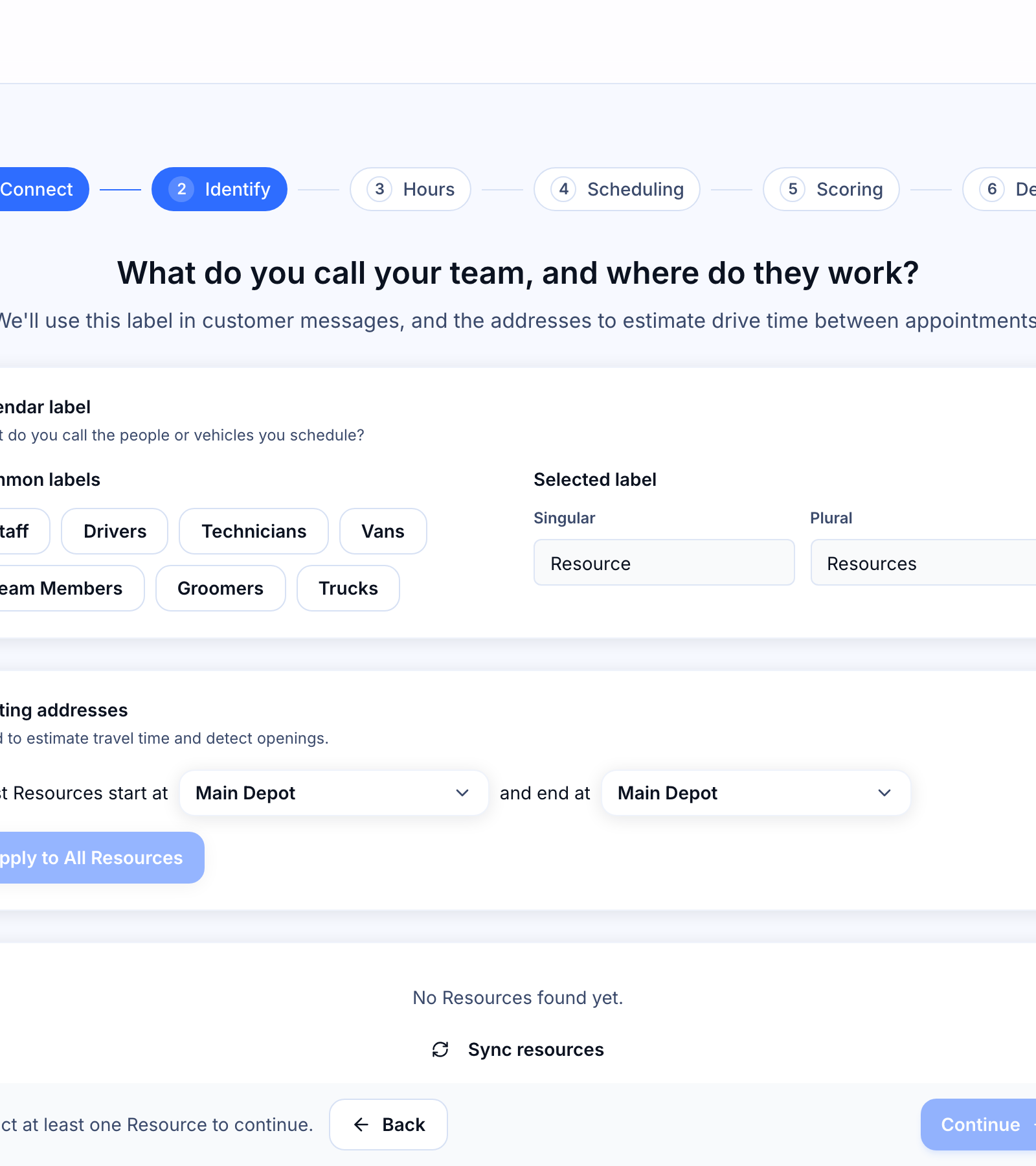
- If the list is empty, click Sync resources to pull the latest schedules from your scheduling provider.
Continue when you're ready
Once you've chosen a label and included at least one schedule, the Continue button at the bottom of the page becomes active. Click it to move on to the next onboarding step. You can come back and adjust any of these settings later from your business settings.
Common questions
Do I have to include every schedule? No. Only include the schedules you want Patcher to send proposals for. You can add or remove schedules later.
What if my team doesn't have fixed addresses? Pick the address most of your team starts at. You can leave individual start or end addresses blank for anyone who doesn't have one.
What if no schedules show up? Use Sync resources to pull the latest list from your scheduling provider. If the list is still empty, check your connection from your business settings.