
Creating your first business
This article walks you through creating your first business in Patcher so you can connect your scheduling tool and start finding openings.
Organizations and businesses
Patcher is built around two layers. Your organization is your company workspace — it holds your team and billing. Inside it, you create one or more businesses, which represent the brands or locations you actually operate.
For example, an organization named Acme Home Services Inc. might contain two businesses: Acme HVAC (NYC) and Acme HVAC (Miami). Each business has its own scheduling connection, hours, resources, and activity.
Before you start
You need an organization before you can add a business. If you just signed up, create one first from the organizations screen. You also need admin access in that organization.
Create your first business
- Open your organization and go to the Businesses tab.
- On the empty state, click Create business.
- Fill in the business details:
- Business name — the name your customers see. Most operators use brand plus city, like Acme HVAC (NYC).
- Business phone — the contact number for this location.
- Business email — the email customers can reply to.
- Click Create. Patcher adds the business to your organization and opens it so you can continue setup.
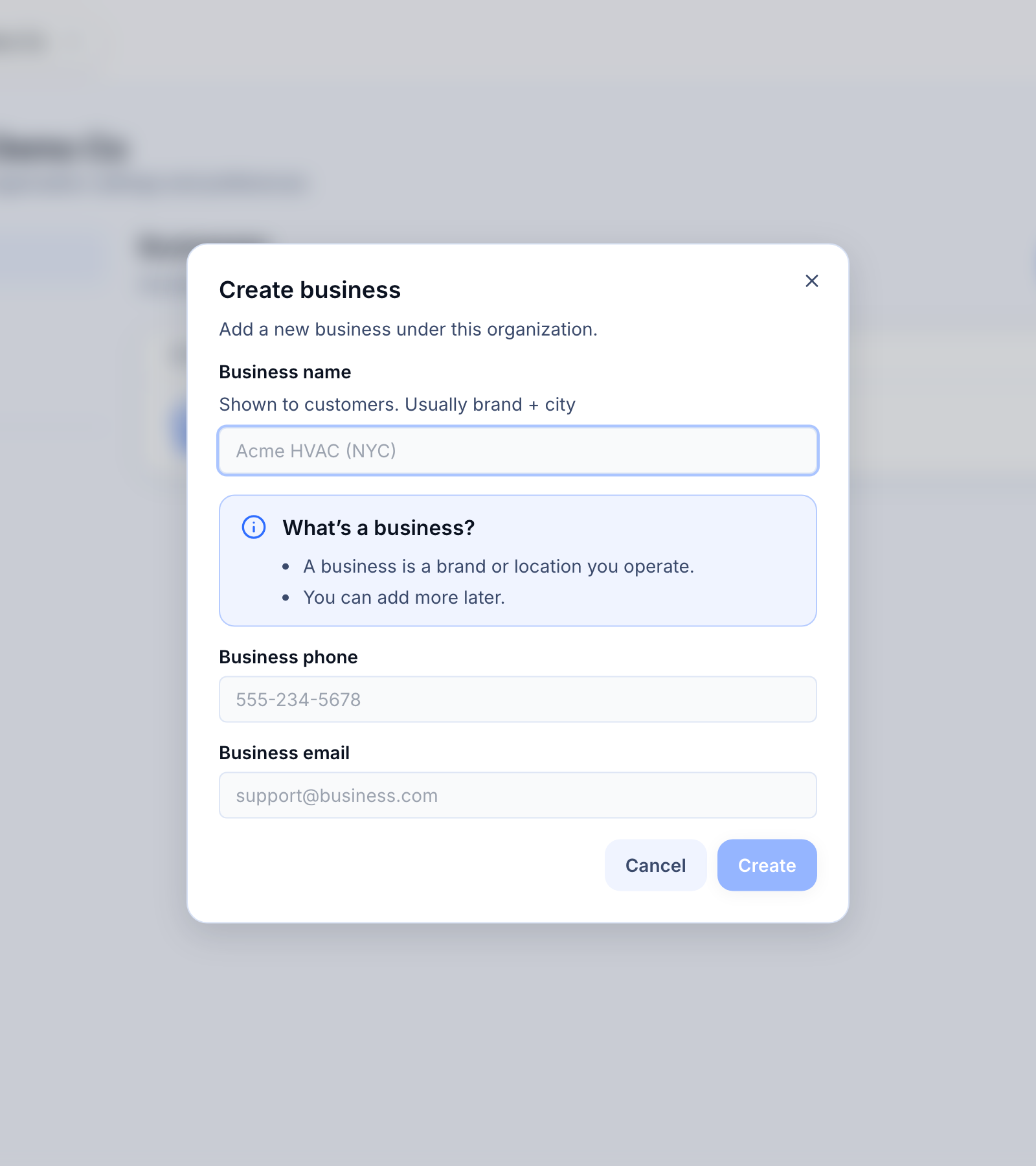
Picking a good business name
The name appears in customer messages, so keep it something they will recognize. A few tips:
- Match what is on your truck, storefront, or website.
- Add a city or region when you operate in more than one place.
- You can rename the business later from its settings — this does not break anything.
What happens next
After you create the business, Patcher walks you through a short setup:
- Connect your scheduling tool so Patcher can read your calendar.
- Identify which resources (technicians, rooms, or groomers) belong to this business.
- Set your hours, scheduling rules, and scoring preferences.
- Turn on detect so Patcher starts watching for openings.
You can step away at any point and come back — Patcher saves your progress and keeps your spot in the flow.
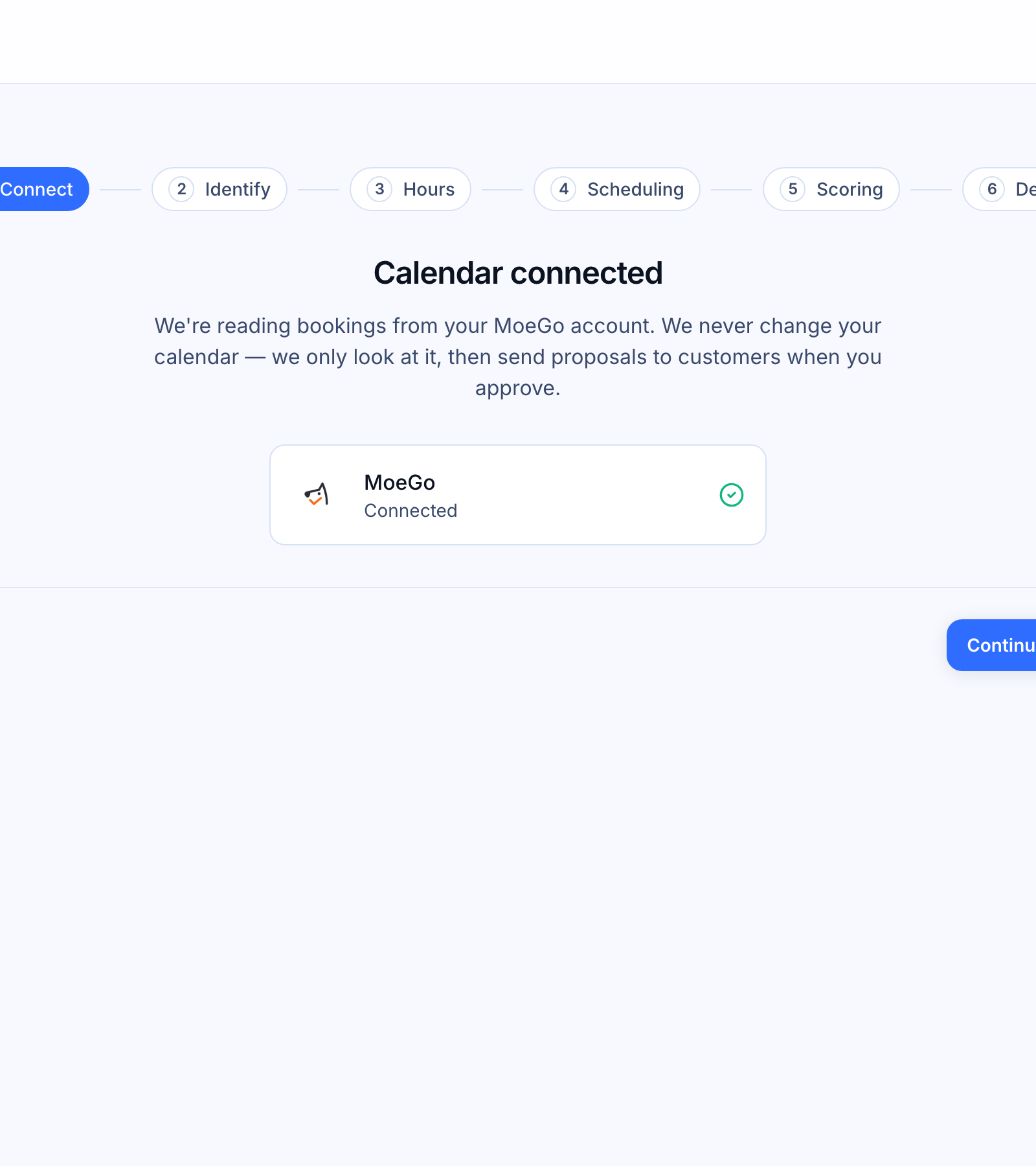
Adding more businesses later
You can add more businesses to the same organization at any time from the Businesses tab. Each business has its own setup and its own connection to your scheduling tool, so brands and locations stay cleanly separated.