
Creating your account
This article walks you through creating a Patcher account so you can start filling schedule gaps and protecting revenue per mile.
Overview
Patcher uses passwordless sign-in. You can create your account with Google or with a magic link sent to your work email. There is no password to set, and there is no separate “signup” page — signing in for the first time creates your account automatically.
Once you sign in, Patcher walks you through a short onboarding flow to set up your first business: connecting your scheduling provider, identifying your resources, and setting your hours, scheduling rules, and scoring.
What you’ll need
- A work email address you check regularly. This becomes the primary contact for your account.
- Admin access to your scheduling tool. You’ll connect it during onboarding.
- A few minutes to walk through the onboarding steps.
Creating your account with Google
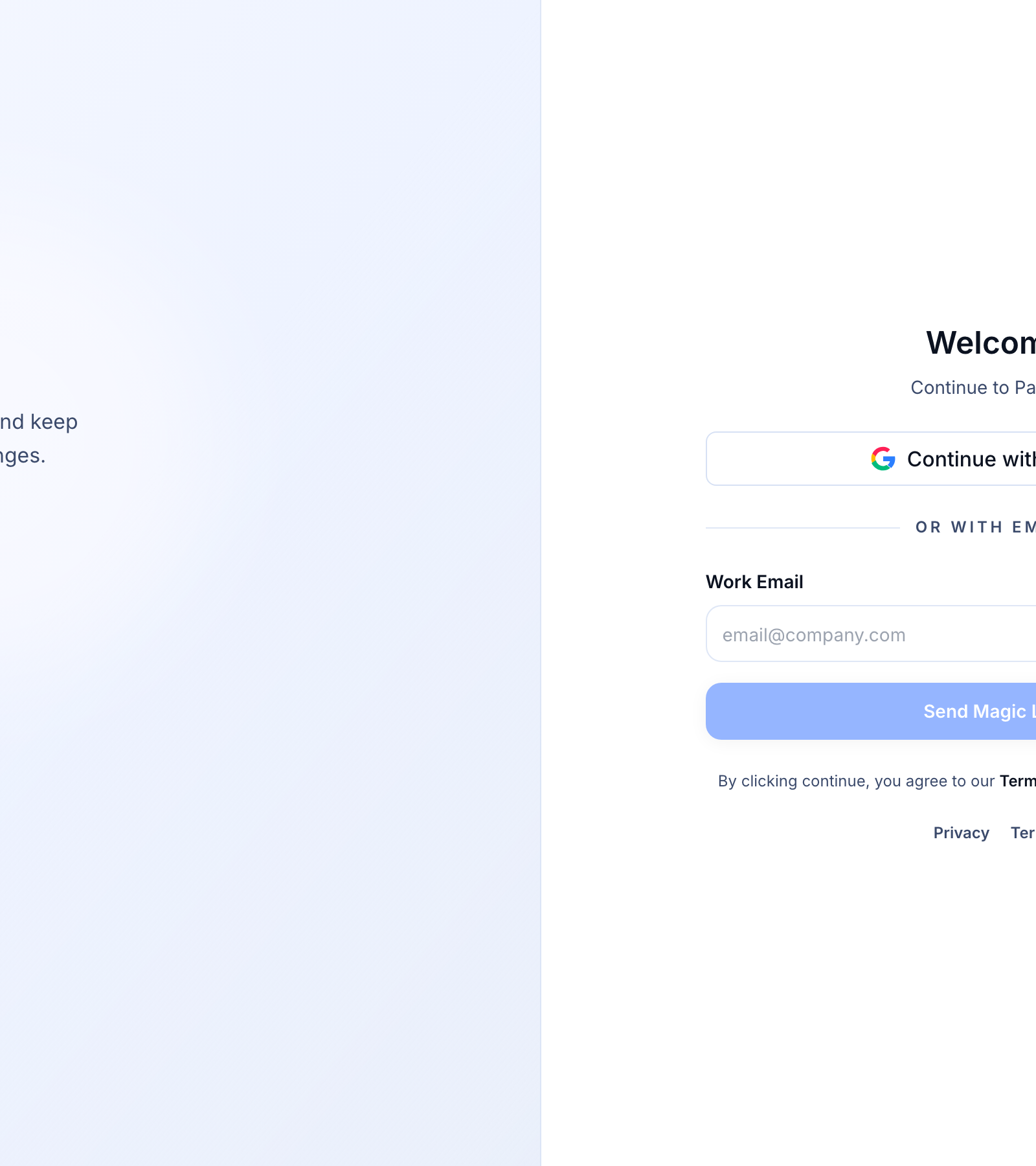
- Go to app.patcherhq.com/login.
- Click Continue with Google.
- Choose the Google account you want to use and approve the sign-in prompt.
- Patcher signs you in and takes you to onboarding.
Creating your account with a magic link
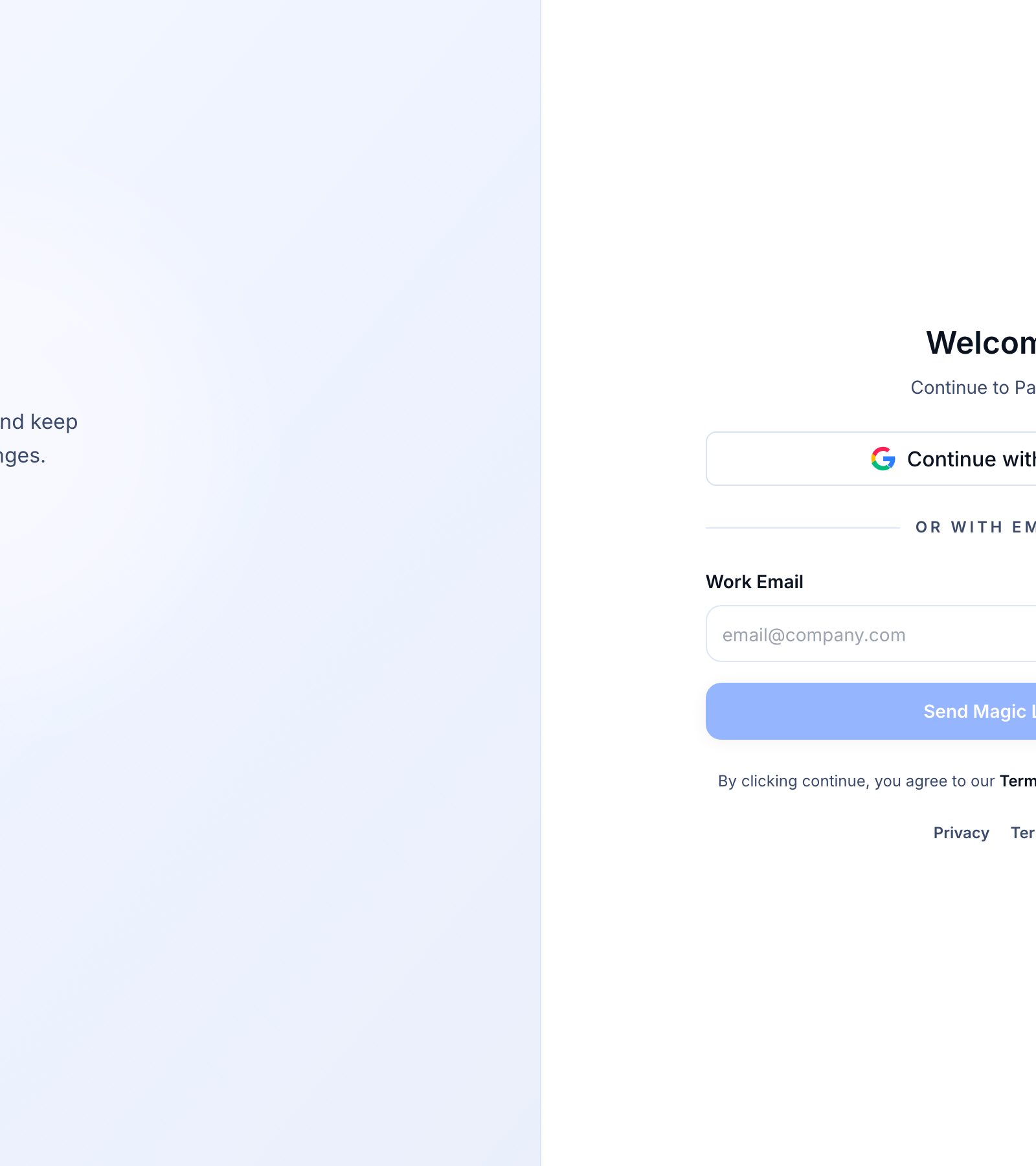
- Go to app.patcherhq.com/login.
- Enter your work email in the Work Email field.
- Click Send Magic Link. You’ll see a confirmation message: “Check your email for the magic link!”
- Open the email from Patcher and click the sign-in link. The link opens Patcher in your browser and signs you in.
- Patcher takes you to onboarding so you can set up your first business.
What happens next
After you sign in for the first time, Patcher starts the onboarding walkthrough. You’ll:
- Connect your scheduling provider so Patcher can read your appointments.
- Identify your workspace and the resources (technicians or staff) Patcher should schedule around.
- Set your business hours, scheduling rules, and scoring preferences.
You can leave onboarding and come back to it at any time — your progress is saved.
Signing back in
Next time you visit Patcher, sign in the same way you created your account. If you created your account with Google, use Continue with Google. If you created it with a magic link, enter the same work email and click Send Magic Link.
You don’t need a password — Patcher doesn’t use them.
Troubleshooting
I didn’t get the magic-link email
- Check your spam or junk folder. The email comes from Patcher.
- Make sure you entered the correct work email on the login page.
- Wait a minute and try again. Magic links are time-sensitive, so older links expire.
The magic link says it’s expired or invalid
Magic links expire for security. Return to the login page and click Send Magic Link again to get a fresh one. Always use the most recent link in your inbox.
Google sign-in shows an error
If Google returns an error, try signing in again from a private or incognito window. If the problem continues, switch to the magic-link option or contact support.
I accepted an invitation but landed on the login page
Invitation links sign you in and add you to an existing organization in one step. If the link sent you back to login, the invitation may have expired. Ask the person who invited you to send a new invitation.
Related articles
- Organizations vs Businesses: how Patcher is structured
- Creating your first business
- Onboarding walkthrough — overview