
Using the Openings page
The Openings page is where you turn idle time in your schedule into booked appointments. Patcher finds the gaps, suggests customers who could move into them, and lets you send proposals in a few clicks.
Overview
An opening is a stretch of idle time on a staff member’s schedule that you could fill by moving a later appointment earlier. Patcher watches your schedule, detects these gaps automatically, and lists them on the Openings page in priority order.
For each opening, Patcher suggests customers who are good fits based on their location, service type, and your preferences. You pick who to reach out to, send them a proposal by text, and your customer accepts or declines from their phone. When someone accepts, Patcher moves their appointment into the opening and syncs the change back to your scheduling tool.
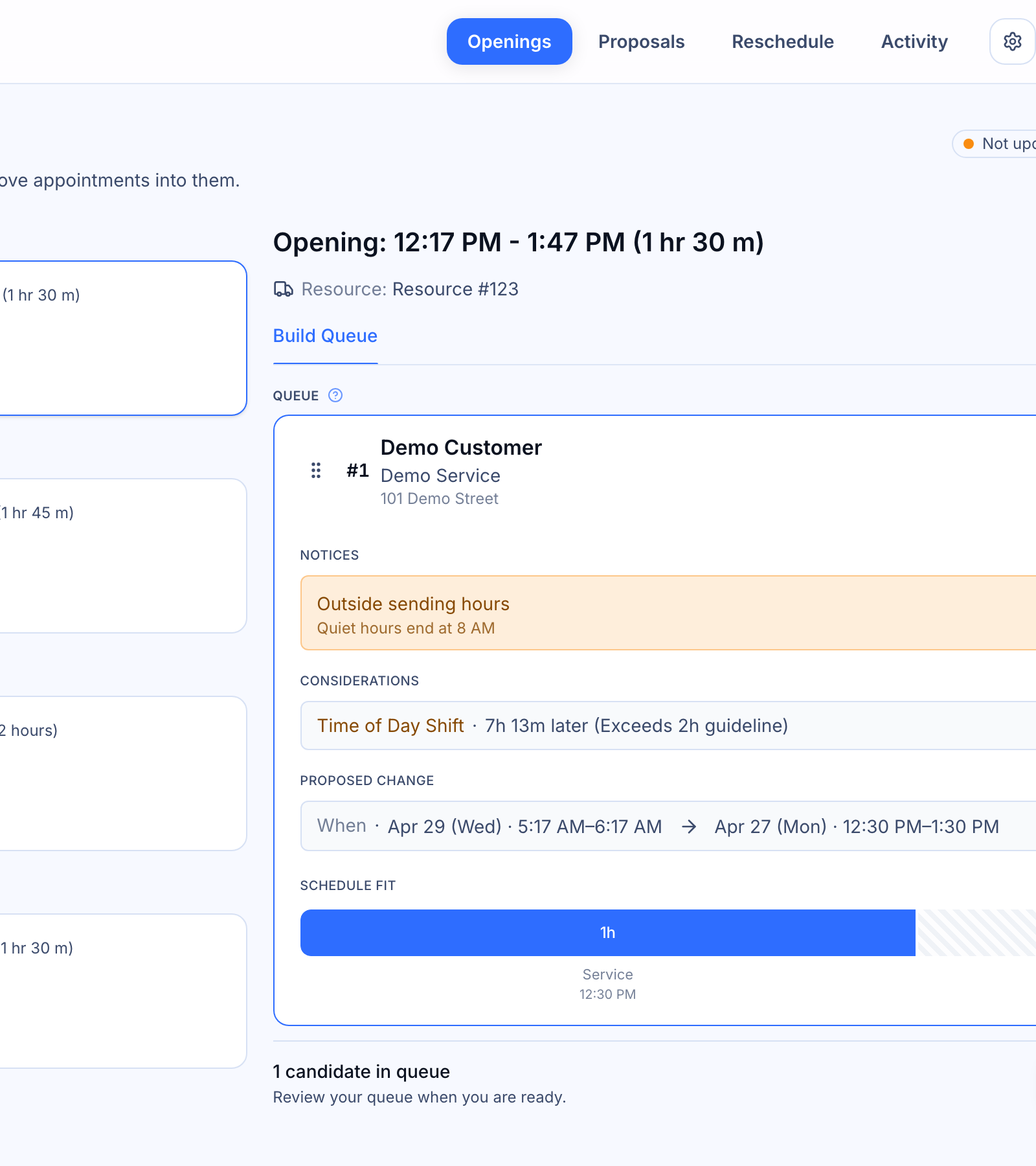
Reading the openings list
The list on the left shows every open slot Patcher has found. Each card tells you:
- Time and duration — when the slot is and how long it runs.
- Staff member — who is free during that slot.
- From and Next — the appointment before the opening and the one after it, so you can see where your team will be coming from and going to.
- Badge — a small count on the right showing how many proposals are active for that opening, or how many candidates are in a running queue.
Click any card to open its detail panel on the right.
Filling an opening
Select an opening from the list. The detail panel shows you the slot at the top and a list of suggested customers underneath.
- Review the suggested candidates. Each one is ranked based on fit — location, service, and the rules you’ve set for your business.
- Narrow the list using the filters at the top: All Eligible, New Clients, Waitlist, or Same staff member. Type a name into the search box if you have a specific customer in mind.
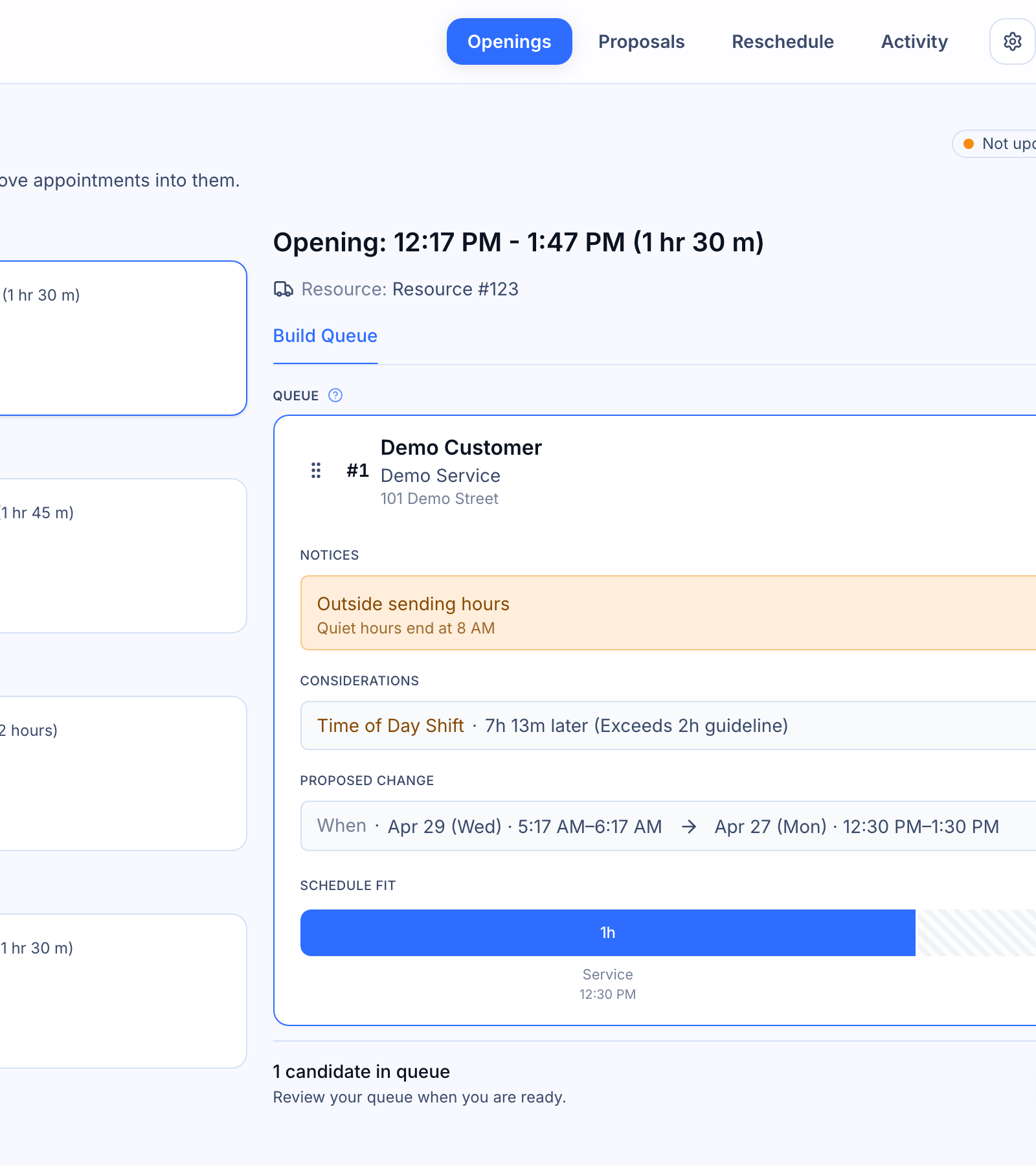
- Add the customers you want to contact to your queue by clicking them or dragging them in. The queue shows the order Patcher will reach out in.
- When the queue looks right, click Review Queue at the bottom of the panel.
- In the review drawer, choose a contact strategy (see below), edit the message if you’d like, and click Start Queue or Send Now.
Queue versus Send Now
When you review a queue, you choose how Patcher contacts the customers on it.
- Queue — Patcher texts one customer at a time. If they decline or the proposal expires, Patcher moves to the next person. It stops as soon as someone accepts. Use this when you want a predictable, one-at-a-time outreach.
- Send Now — Patcher texts everyone on the queue at once. The first person to accept gets the slot, and Patcher cancels the other proposals. Use this when speed matters and the opening is close.
What your customer sees
Your customer gets a text message with a link. The link opens a page showing their current appointment, the new time you’re proposing, and an accept or decline button. When they accept, Patcher moves the appointment and your schedule updates automatically.
Tracking proposals
Each opening’s detail panel has a Proposals tab when there’s outreach to review. It lists every proposal you’ve sent for that opening, who it went to, and the current status — sent, viewed, accepted, declined, or expired.
If a queue is running, the Active Queue tab shows where Patcher is in the sequence right now. You can skip the current customer or stop the queue from there.
Keeping openings up to date
The top of the Openings page has a small status chip that tells you how fresh your data is:
- Up to date — Patcher is in sync with your scheduling tool.
- Out of date — it’s been a while since the last sync. Click Update now to refresh immediately.
- Updating… — a sync is in progress.
- Disconnected — your scheduling connection needs attention. Reconnect from Settings → Connection.
Patcher syncs on its own in the background, so the chip usually stays green without you doing anything.
When the list is empty
If you see “You’re all caught up” on the Openings page, Patcher didn’t find any gaps worth filling right now. That happens when your schedule is packed, or when the only empty slots are too short or too far from other appointments to be useful. New openings appear automatically as your schedule changes.
Sharing an opening with a teammate
Every opening has its own link. Click the link icon in the top right of the detail panel to copy it. Paste it into a message to a teammate and they’ll land on the exact same opening.
Related articles
- How Openings work
- Proposals: what your customer sees
- Ranking and priority: how Patcher picks candidates