
Connecting your scheduling provider
Patcher works by reading your existing schedule. Connecting your scheduling provider is the first step of onboarding — it tells Patcher where your bookings live so it can find openings to fill and appointments worth rescheduling.
What Patcher does with your calendar
Once connected, Patcher reads your bookings to understand when you’re busy, when you’re free, and which customers are due for outreach. A few things to know upfront:
- Patcher never changes your calendar. Your schedule of record stays in your provider. Patcher only reads from it.
- Nothing goes to a customer without your approval. Patcher drafts proposals, but every message waits for you to send it.
- One connected provider per business. If you run multiple businesses inside Patcher, each one connects to its own scheduling source. You can disconnect and switch any time.
How to connect
The Connect step is the first screen you see when you create a new business in Patcher. It takes about two minutes.
- Pick your provider from the grid. Each tile shows the provider’s name and its connection type — either OAuth or API Key.
- Click Continue. What happens next depends on the connection type.
If your provider uses OAuth
You’ll be redirected to your provider’s sign-in page. Sign in, approve the permissions Patcher requests, and you’ll be sent back to Patcher automatically. You don’t need to copy or paste anything.
If your provider uses an API key
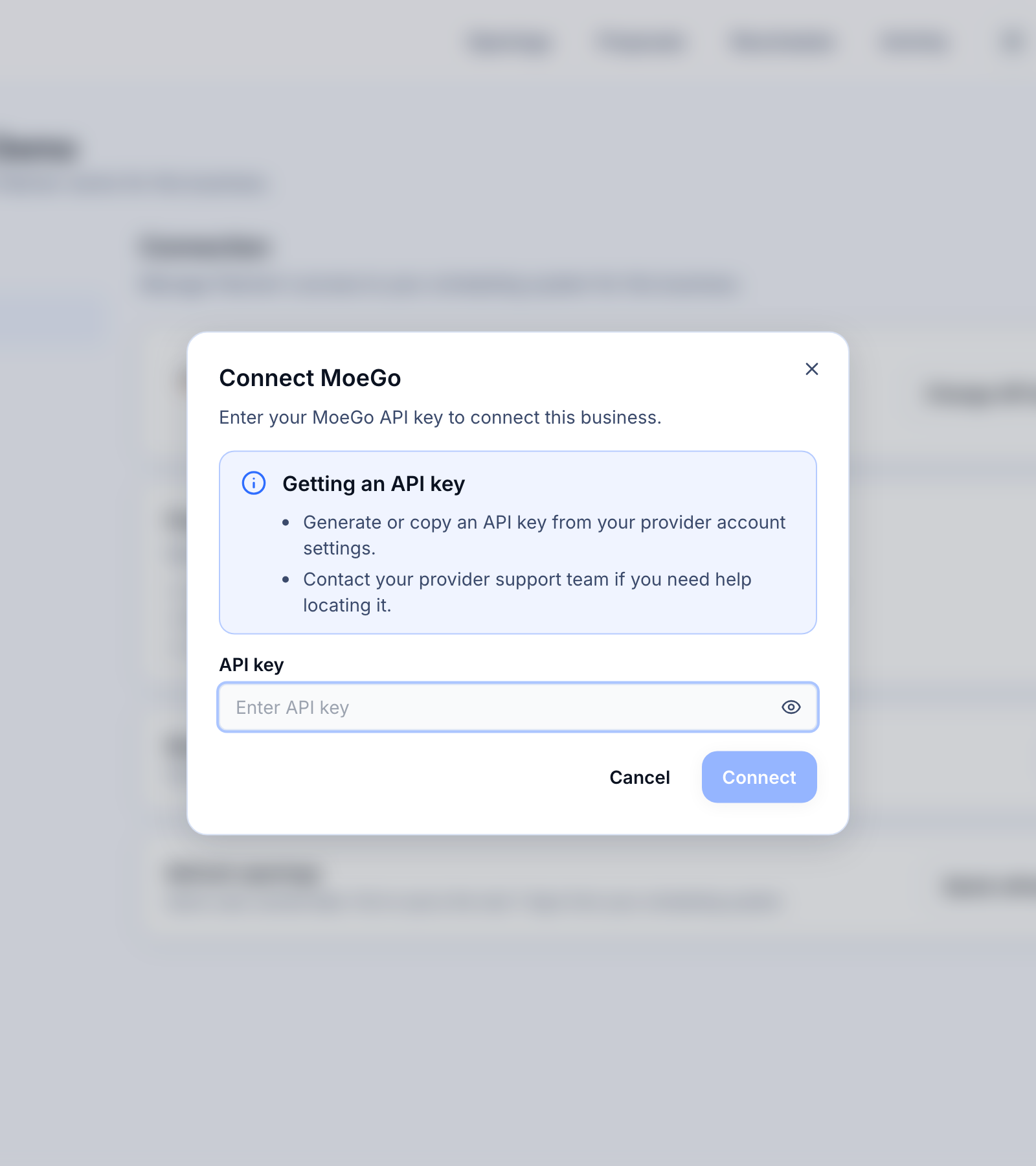
A dialog opens asking for an API key. You’ll find this key inside your provider’s account settings — usually under a section like “Developers,” “API,” or “Integrations.” Paste it into Patcher and click Connect. If you can’t locate the key, your provider’s support team can point you to it.
You’re connected — what happens next
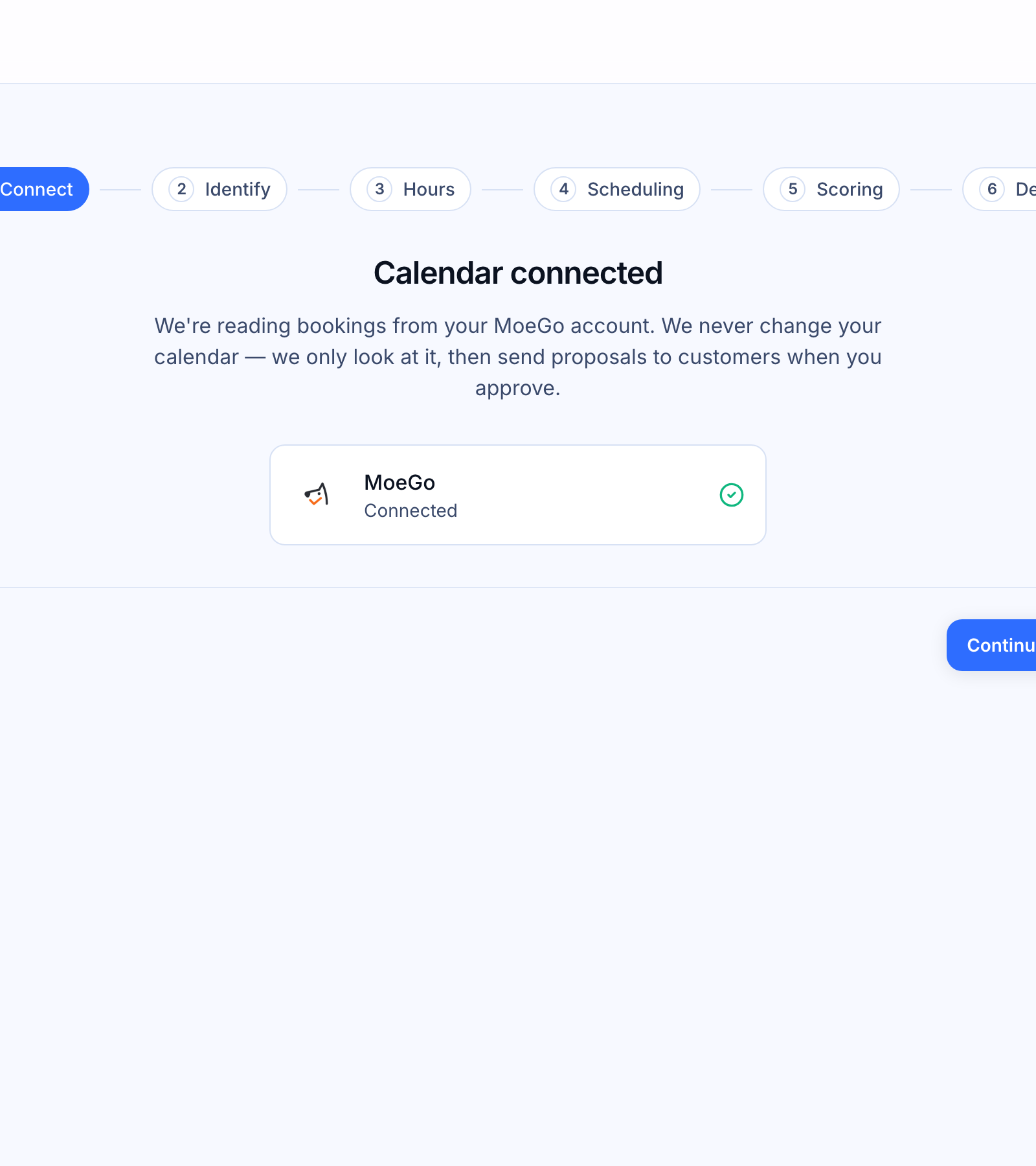
When the connection succeeds, the Connect step shows a green check next to your provider’s name. Click Continue to move on. Behind the scenes, Patcher pulls your team list from the provider so it’s ready for the next step — you don’t need to do anything.
The rest of onboarding is short:
- Identify — tell Patcher what you call your team and where they work from.
- Hours — set the days and times you’re available.
- Scheduling — choose the rules Patcher uses to decide when an opening is worth filling.
- Scoring — decide which openings to surface first.
- Detect — run your first opening detection so you can see real results.
Switching or disconnecting later
You can disconnect or switch providers at any time from Settings → Connection. Disconnecting stops Patcher from reading your schedule. Reconnecting — or connecting a different provider — picks things back up.
Don’t see your provider?
If your provider isn’t in the grid, click Looking for another provider? at the bottom of the Connect step to send us a request. We’re adding new providers regularly.
Provider-specific guides
Looking for setup steps for a specific provider? See the Integrations section for guides on each supported provider, including where to find your API key and how to reconnect if your provider asks you to sign in again.