
Setting up SMS compliance for your business
SMS compliance is optional. By default, every business in your organization sends proposals, reschedule invitations, and other customer texts from a Patcher-managed shared number that’s already registered with mobile carriers. You can stay on the shared number indefinitely with no setup on your end.
Complete the steps in this article only if you want to send from your own dedicated phone number — for example, a local area code unique to your business that customers see on every text.
Before you start
Compliance setup is gated until Patcher enables it in your account. Reach out to Patcher support to turn it on. Once it’s enabled, the Compliance sections described below will appear in your organization and business settings.
Overview
Once enabled, compliance happens in two places:
- Your organization completes a one-time compliance profile covering the legal entity, an authorized representative, and your legal business address.
- Each business in your organization then goes through its own setup — most of it automatic — before it can send text messages under its own identity.
The work you do is in a couple of short forms. Patcher handles the rest of the registration behind the scenes.
Step 1: Complete your organization’s compliance profile
Open your organization settings and go to Compliance. You’ll see three steps:
- Legal Entity — your company name, business type, industry, EIN (or equivalent registration number), and website. Enter these exactly as they appear on your official tax records. Mismatches are the single most common reason a submission is rejected.
- Legal Representative — someone at your company who can confirm the business identity, typically an owner, officer, or director. Include their name, work email, phone number, and title.
- Legal Business Address — your registered business address. It must be a physical street address; P.O. boxes are not accepted.
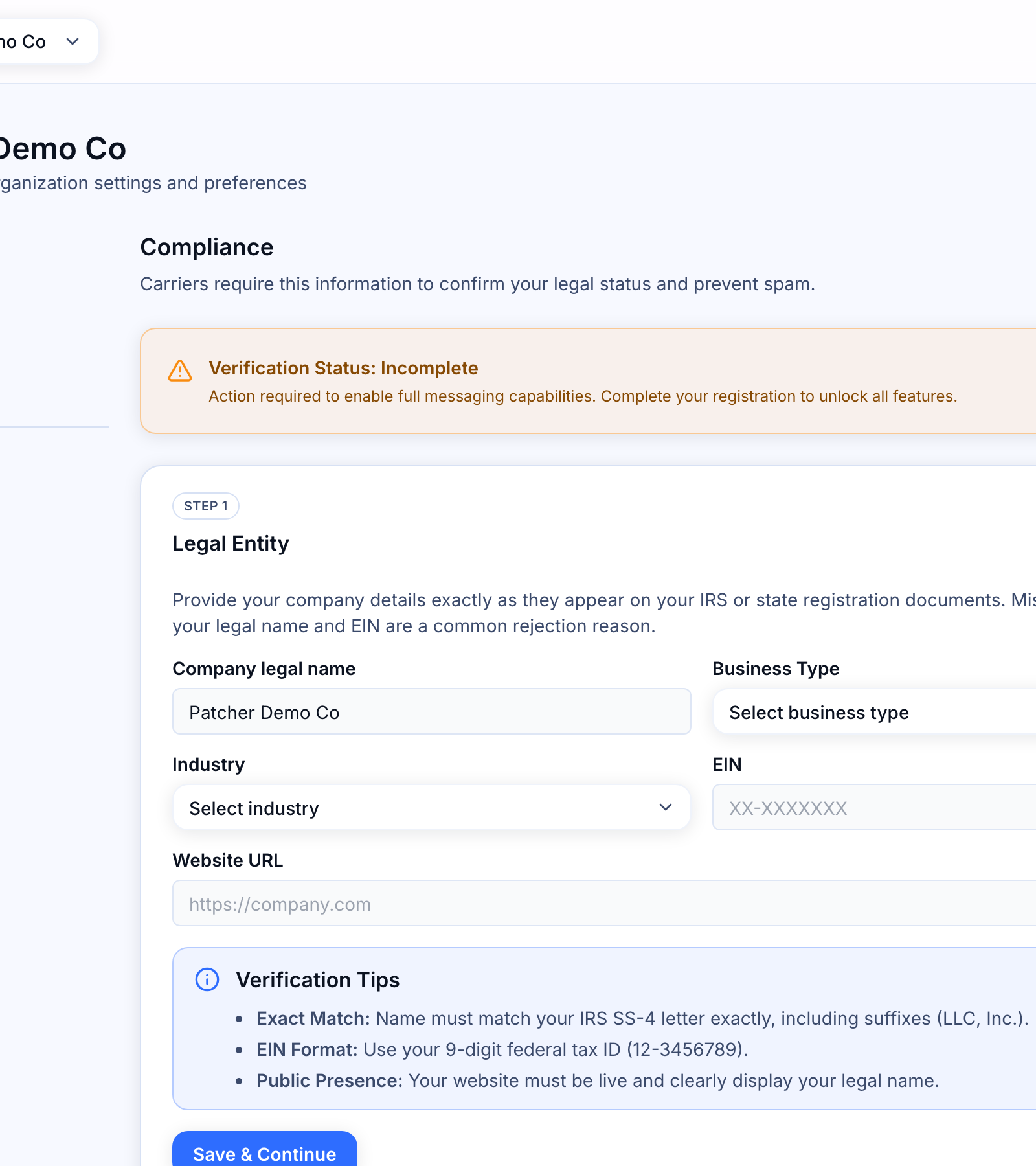
When all three steps are complete, check the certification box at the bottom and click Submit for Review. Review typically takes 1–3 business days, and the banner at the top of the page updates as your status changes.
Step 2: Set up each business
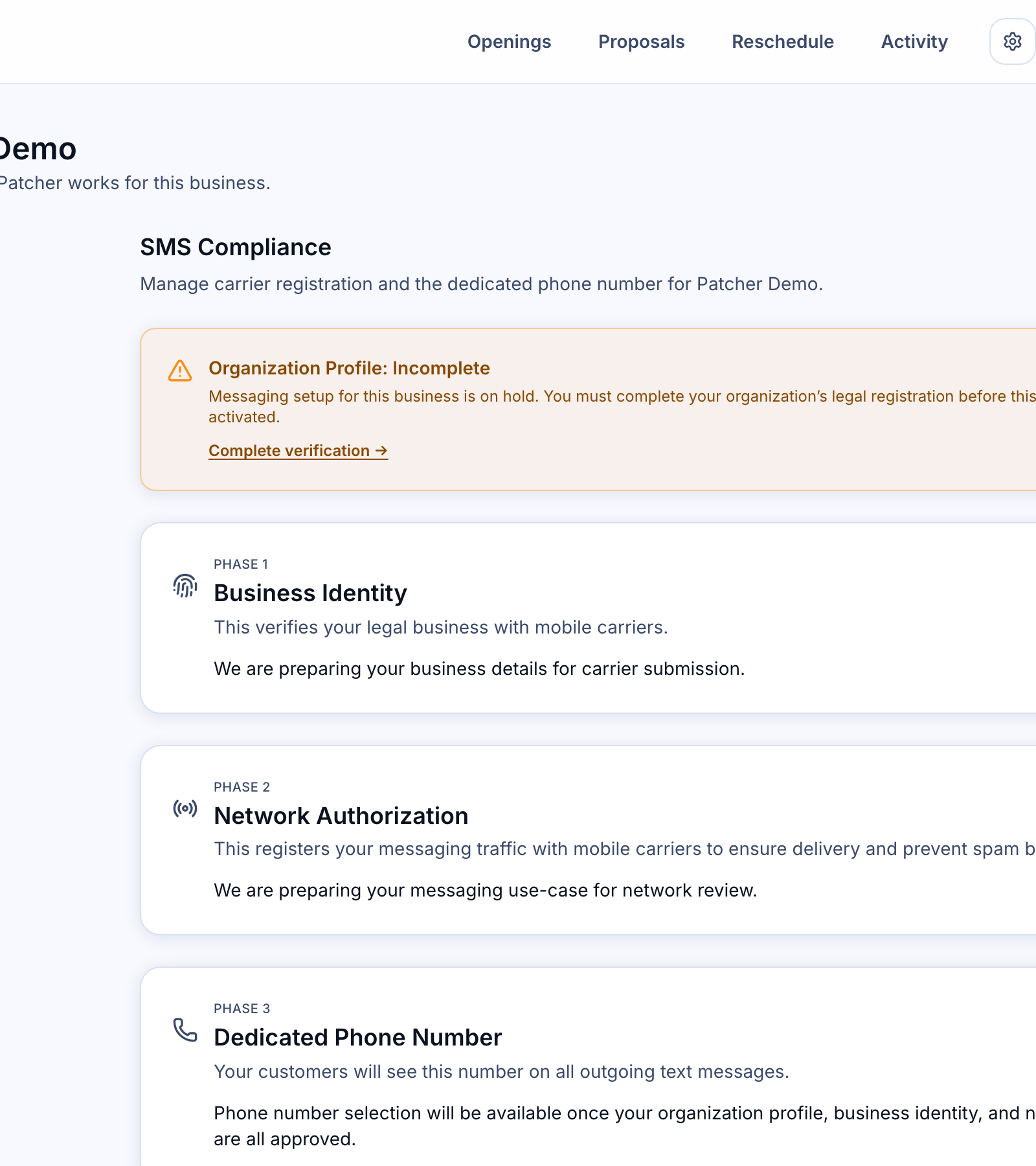
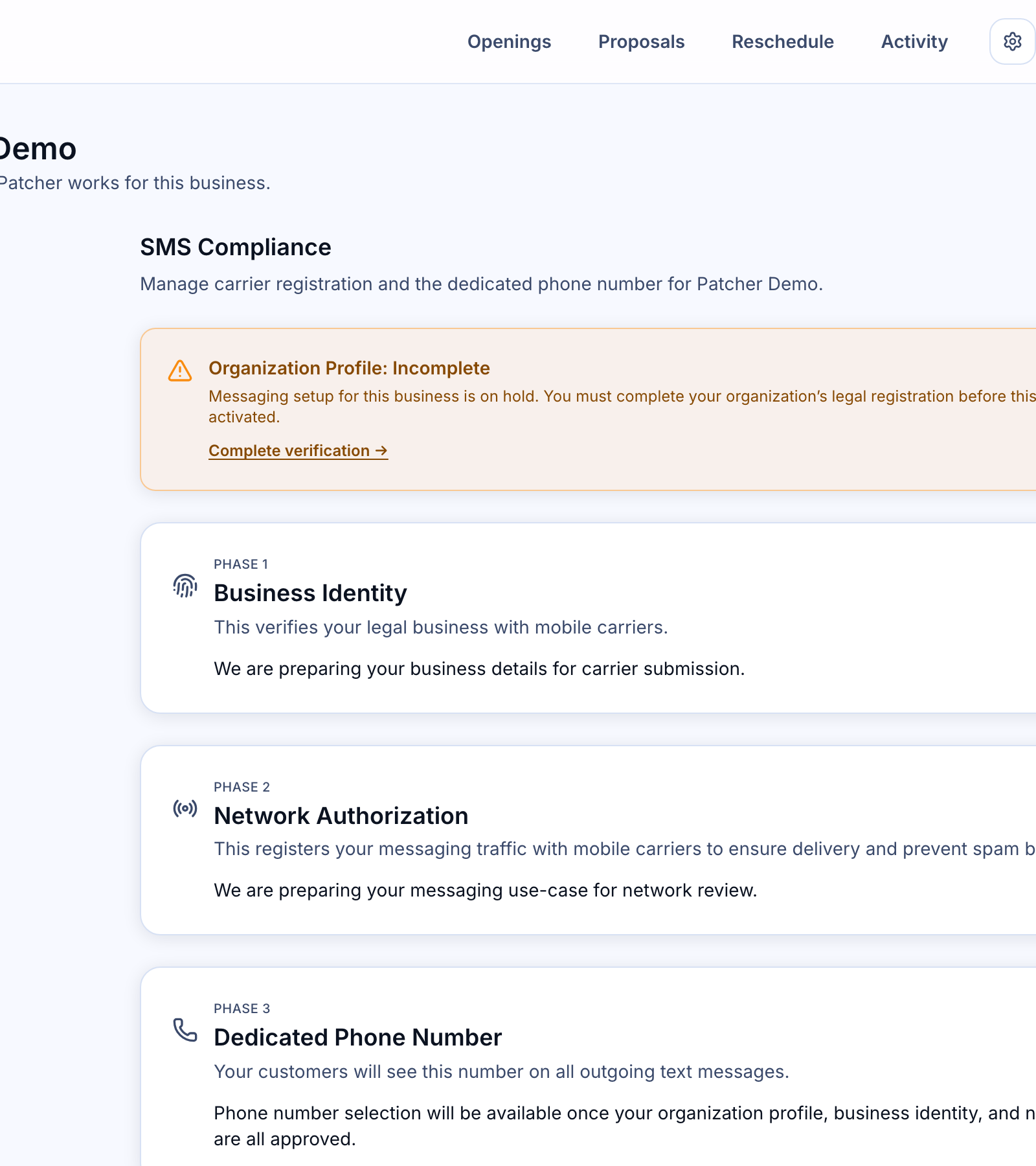
Once your organization profile is approved, open each business’s settings and go to Compliance. You’ll see a phased panel.
Phases 1 and 2: Business Identity and Network Authorization
These two phases are automatic. Patcher submits your business for carrier identity verification (Phase 1) and then registers your messaging traffic on the carrier network (Phase 2) once the first phase is approved. You don’t need to click anything.
Typical timing:
- Business Identity — 1 to 3 business days.
- Network Authorization — 3 to 5 business days after Business Identity is verified.
Each card shows a status badge — Not Started, In Review, Verified, or Action Required — so you can see where you are at a glance.
Phase 3: Dedicated phone number
Once Phases 1 and 2 are verified, you can claim a dedicated phone number for the business so your customers see a local number that’s unique to your business on every text.
- Open the Dedicated Phone Number card.
- Enter an area code. Patcher pre-fills the area code of your business phone number if one is set.
- Click Search to see available numbers in that area code.
- Click Select next to the number you want, then Confirm Selection.
The number is reserved for your business immediately.
Phase 4: Turn on local sending
After a dedicated number is assigned, flip the Local sending switch in the Go Local card to start sending texts from it. Until you flip this switch, messages for this business continue to go out from the shared Patcher number.
You can switch back to the shared number at any time.
What happens if a submission is rejected
If your organization profile or a business phase is rejected, the page shows an Action Required badge along with the specific reason. The most common causes are:
- The legal business name doesn’t match the EIN on file.
- The address is a P.O. box or otherwise not a physical street address.
- The authorized representative’s contact details are incomplete.
Correct the information on the page, check the certification box again, and click Resubmit for Review.
What Patcher handles behind the scenes
Carrier compliance has a lot of moving parts — messaging use-case declarations, sample messages, compliance disclosures, opt-in and opt-out behavior, and consent records. Patcher prepares and maintains all of that on your behalf based on the information you provide in the forms above. You focus on the business details.
Related articles
- Why SMS compliance matters