
Onboarding walkthrough — overview
Patcher's onboarding is a guided, six-step flow that sets up everything you need to start finding openings and sending proposals. It takes about ten minutes, and every setting is adjustable later.
What onboarding sets up
By the time you finish, Patcher is reading your calendar, knows which team members and locations it covers, understands when you're open, and has scanned your schedule for its first set of openings.
The six steps, in order:
- Connect — link your scheduling provider
- Identify — name your team and choose which resources and locations Patcher watches
- Hours — tell Patcher when your business is open
- Scheduling — set the size of opening worth filling and how far ahead to look
- Scoring — choose how Patcher ranks its suggestions when several openings could work
- Detect — run your first scan and see the openings Patcher finds
What Patcher does with your calendar
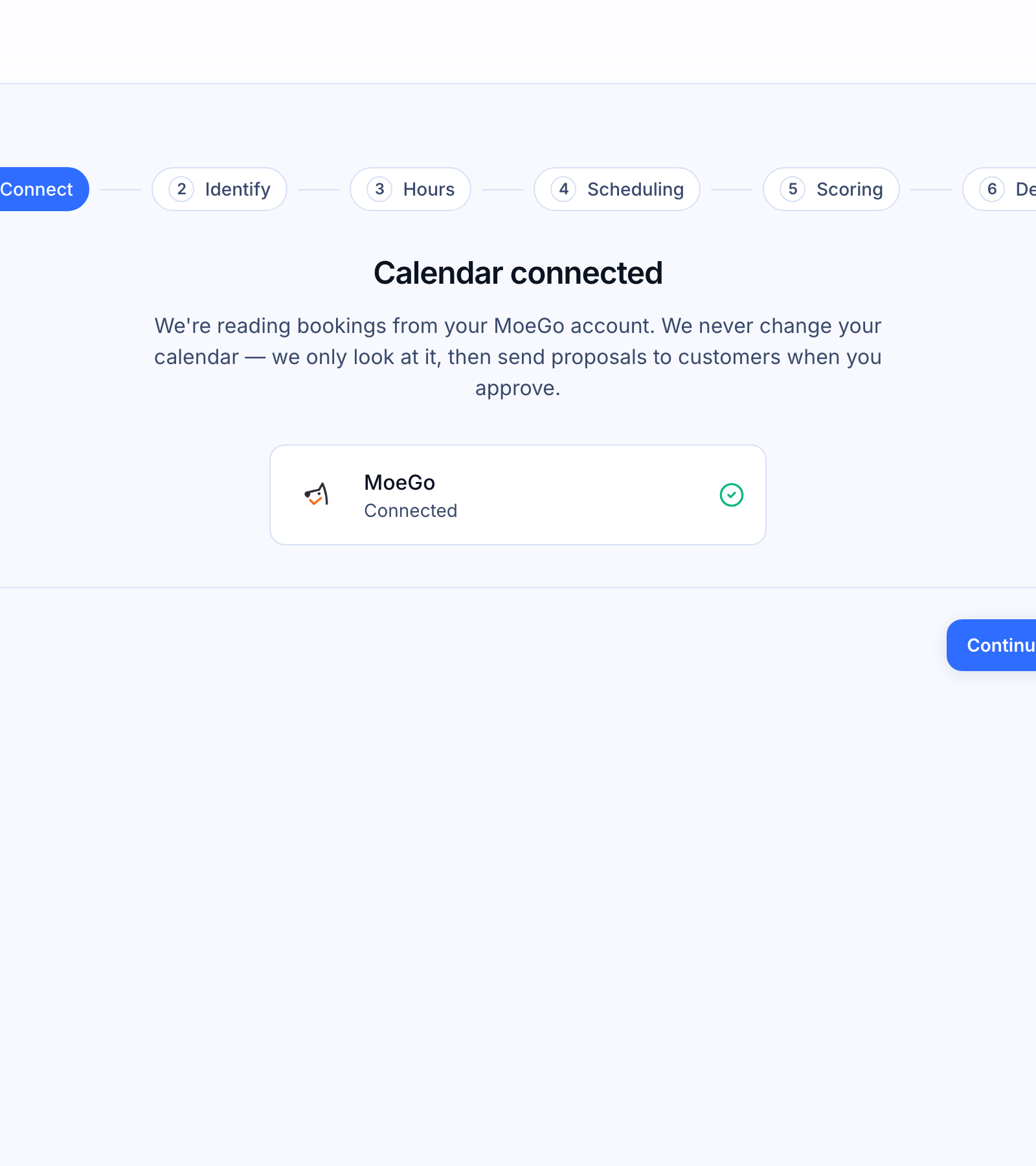
Patcher reads your bookings so it can find gaps worth filling and appointments worth rescheduling. It does not change your calendar on its own, and any message to a customer always waits for your approval before going out.
Walking through the steps
1. Connect
Choose your scheduling provider and sign in. This step usually takes about two minutes. You can only connect one scheduling source per business — if you need to switch later, you can disconnect and reconnect at any time.
2. Identify
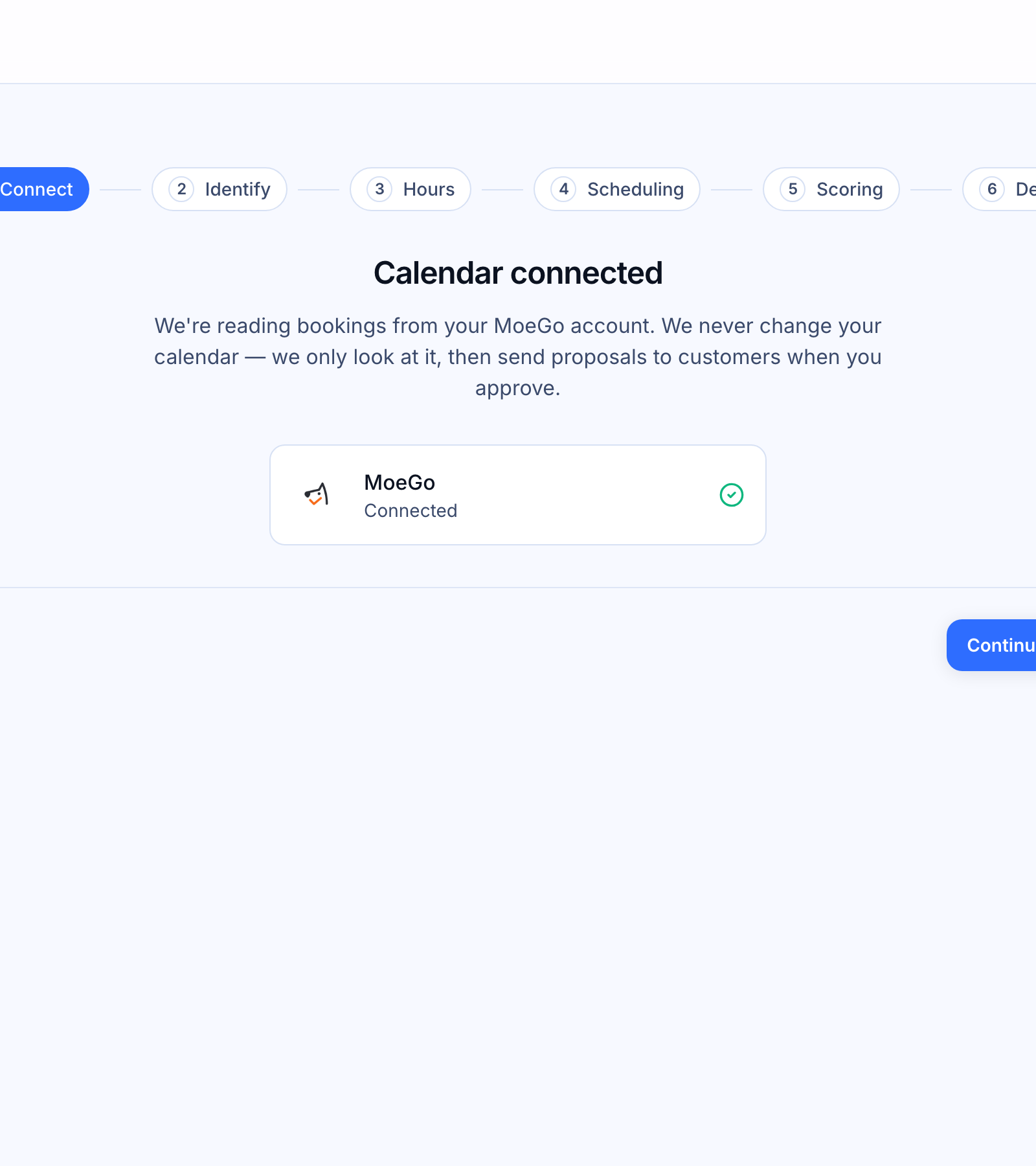
Tell Patcher what you call your team (for example, “technician” or “groomer”) and pick which team members and locations it should watch. Patcher uses your singular team label in customer messages, and the locations to estimate drive time between appointments.
3. Hours
Set your weekly schedule, timezone, and any days you're closed. Patcher only scans for openings during the hours your business actually operates, so this keeps its suggestions grounded in reality. You can change any of this later under Settings → Hours.
4. Scheduling
Two dials shape what Patcher treats as a fillable opening: the smallest gap worth filling, and how far ahead to look. Patcher comes with recommended defaults — tune them now or leave them as-is and revisit under Settings → Scheduling.
5. Scoring
When several openings could work for the same customer, scoring decides which one Patcher offers first. Recommended defaults are already applied. Changes here only affect how moves are ranked — your booked schedule is never touched. You can revisit scoring anytime under Settings → Scoring.
6. Detect
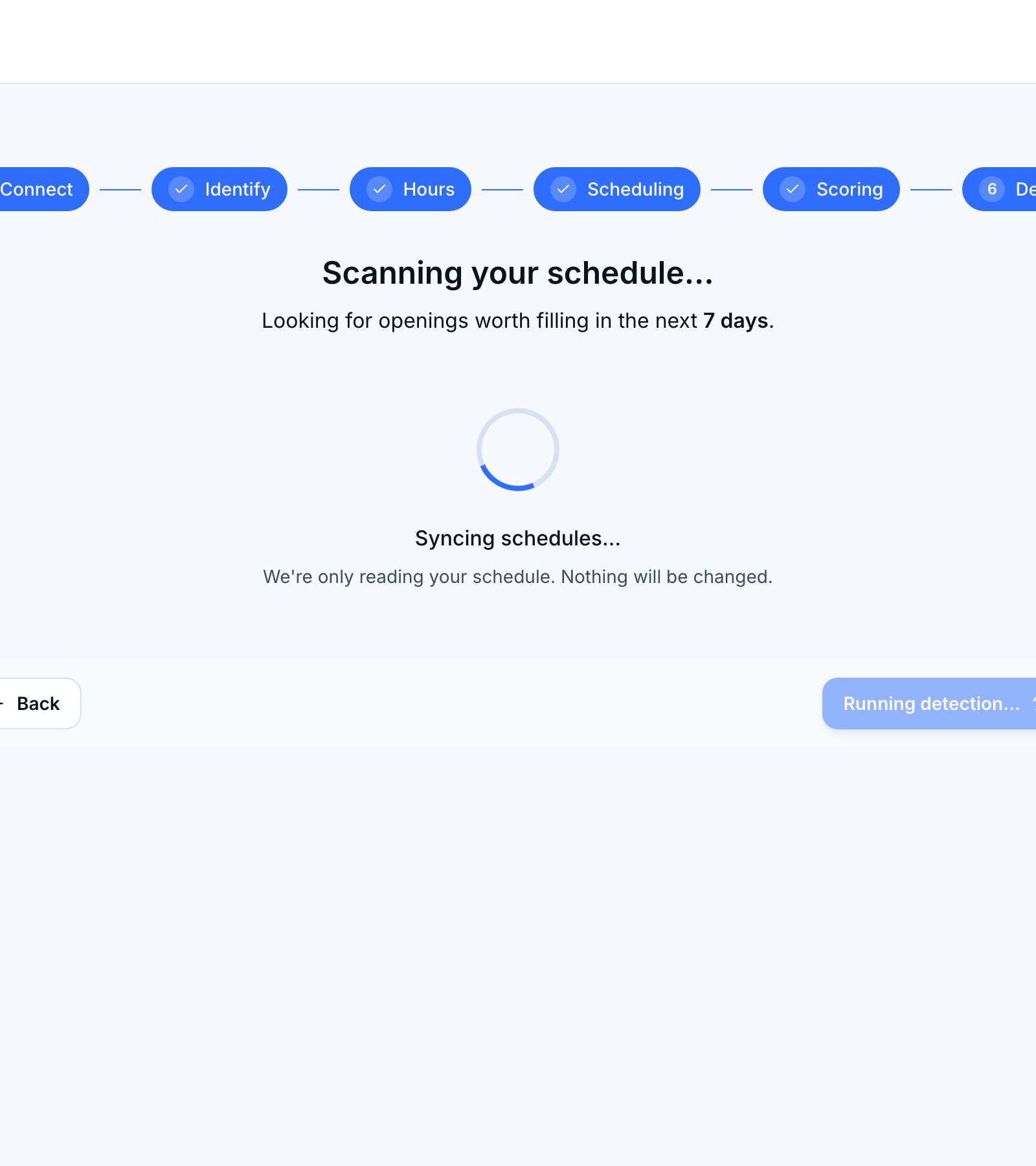
Patcher scans your schedule for openings worth filling. The scan usually takes under a minute. When it finishes, you'll see how many openings were found and a button to view them. If Patcher doesn't find anything right now, that's fine — it keeps watching, and new openings appear on the Openings page as they come up.
After onboarding
You land on the Openings page, which is where you'll spend most of your time in Patcher. From there you can review openings and send proposals to customers. Every setting you touched during onboarding is also available under Settings, so you can refine things as you learn what works for your business.
Re-running detection
You don't need to redo onboarding to pick up new openings. Patcher re-scans automatically as your calendar changes, and you can trigger a fresh scan anytime from the Openings page.
Related articles
- Onboarding: Connect your provider
- Onboarding: Identify your workspace & resources
- Onboarding: Hours, Scheduling Rules, Scoring
- Using the Openings page